Home Blog Page 34

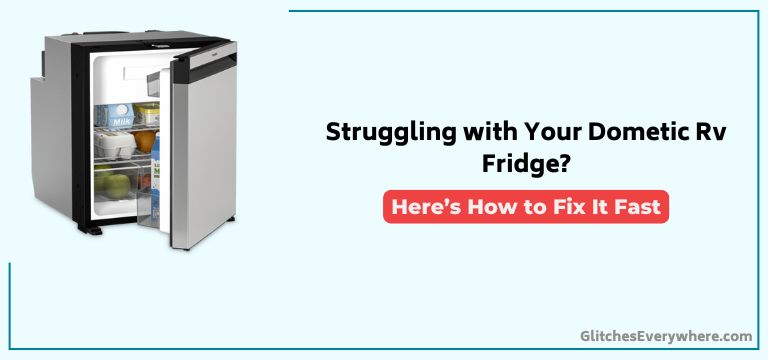
Dometic RV Fridge Not Working: Troubleshooting Guide

The Dometic RV Fridge is a great device, but like all electronics, it sometimes has its issues. If your Dometic RV fridge is not working, take a look at this troubleshooting guide.

We’ve collected answers to the most frequent reasons you’ll see Dometic RV Fridge not working and explained them in plain language for easy troubleshooting.
Dometic Rv Fridge Troubleshooting


Quick Fix

To troubleshoot a Dometic RV fridge, check the power source and thermostat settings, verify proper ventilation, ensure the fridge is level, clean burner and vents, and inspect the cooling unit for damage or leaks.

Dometic Fridge Issues and Symptoms

Diagnosing Dometic fridge issues begins with identifying the symptoms.

You’ve likely noticed the check light has come on after a power outage, indicating a problem with your Dometic RV fridge. Cycling the fridge off and on doesn’t resolve the issue, suggesting a more complex problem.

The fridge won’t stay on when set to auto, tripping after a 30-count, which may be related to a faulty circuit board or relay.

When you check the freezer, the floor feels cold to the touch but not freezing, and the fridge isn’t cold, pointing to a potential issue with the cooling unit.

Since RVs combine automotive power systems with advanced cooling technology, issues like these can often be traced to electrical or gas supply problems.

Additionally, the fridge may not be firing off on gas mode, causing the check light to come on, which could be due to a blockage in the burner tube or faulty electrode. Regular maintenance and reviewing manufacturer’s featured troubleshooting guidelines can help prevent these common failures.

Troubleshooting Steps and Diagnostic Tests

You’ll start by ruling out fridge power source issues by plugging the unit into an outside power source to confirm good AC voltage and 12V DC battery voltage.

Next, inspect the burner tube for blockages and clean it out to guarantee proper propane flow and ignition.

From there, you’ll perform electrical system checks, including inspecting the outlet and breakers inside the RV, to isolate the issue and determine the root cause of the problem.

Fridge Power Source Issues

When your Dometic RV fridge fails to operate, the power source is a good place to start troubleshooting, as it’s often the culprit behind the issue.

First, verify the fridge is receiving power from the 12V DC or 120V AC source. Check the circuit breaker or fuse box to confirm the circuit hasn’t tripped or blown. If you’re using gas, verify the propane tank is turned on and there are no leaks in the system.

Next, inspect the circuit board for signs of damage or corrosion. Check the power cord and connections for frays or loose connections. If you’ve checked all these potential issues and the fridge still won’t turn on, it’s likely a more complex problem requiring professional attention.

Propane Ignition Problems

Inspect your Dometic RV fridge’s propane ignition system if it fails to ignite or stays lit only briefly.

Check the pilot light for a weak or yellow flame, indicating improper air-to-gas mixture. Guarantee the gas valve is fully open, and no blockages exist in the propane line. Verify the propane tank has sufficient fuel and is turned on.

If your Dometic fridge has an electric ignition, certify it’s receiving power. Consult your owner’s manual for specific troubleshooting steps.

Perform a leak test on the gas valve and propane line to rule out any leaks. If issues persist, consider replacing the gas valve or having a professional inspect the system.

Electrical System Checks

Verify that your Dometic RV fridge’s electrical system is receiving power by checking the circuit breaker or fuse box.

Certify that it’s not tripped or blown. If you’re connected to shore power, check the power source and AC voltage at the RV’s electrical hookup.

  • Check the fridge’s electrical connections to confirm they’re secure and not corroded.
  • Use a multimeter to measure the voltage at the fridge’s electrical terminals.
  • Verify that the fridge’s circuit breaker or fuse hasn’t tripped or blown due to a power surge.
  • If you’ve recently experienced a power outage, try resetting the fridge’s electrical system by turning it off and on again.

Circuit Board and Electrical Issues

When your Dometic RV fridge fails to light off on propane, the circuit board is a likely culprit, and you’ll need to replace the entire board, which can cost between $150-$250.

If the relay that senses AC power on the board has failed, you can’t replace it individually, and a new board is your only option. You’ll need to diagnose whether the relay failure is the issue, and then consider your replacement options, including sourcing parts from reputable suppliers like The Dometic Guy online.

Relay Failure Diagnosis

Your Dometic RV fridge‘s circuit board is the brain of the operation, and a faulty relay can bring the whole system to a grinding halt.

If the relay that senses AC power on the board fails, you won’t be able to switch to AC power, and replacement of the entire board may be necessary.

  • A faulty relay can prevent the fridge from lighting off on propane; to diagnose, unplug the unit and check if LP comes online.
  • If the LP gas comes on when city power is removed, the power board is working.
  • Issues with the power board can be diagnosed by unplugging the P-2 connector and seeing if the fridge cools.

The Dometic Guy online is a good source for replacement circuit boards and expert advice on diagnosing relay failure.

Board Replacement Options

One faulty circuit board can bring your Dometic RV fridge to a standstill, and replacing it’s often the most effective solution.

If your fridge fails to cool, you may need to replace the entire circuit board, which can cost between $150-$250. You can’t replace the relay that senses AC power on its own, so the whole board needs to go.

Consider the Dinosaur Electronics circuit board as a replacement option.

During troubleshooting, try unplugging the P-2 connector and letting the fridge sit for a few hours to see if it cools.

If the propane comes on when city power is removed, the power board is working, and the issue lies elsewhere in the electrical system.

Consult your service manual or a professional RV technician for further guidance on replacing electrical components, including the circuit board.

Model-Specific Information and Expert Credentials

Model-specific information is crucial in troubleshooting Dometic RV fridge issues.

You need to know the details of your fridge model to identify and fix problems efficiently. For instance, the Dometic fridge model DM2652RBX2010 has a 1500 BTU/HR (440 w) capacity and requires good DC power to turn on and work.

You should also check the DC supply wires connected to a plastic terminal block on the back of the fridge.

  • Dometic fridge model DM2652RBX2010 has a 1500 BTU/HR (440 w) capacity
  • DC supply wires are connected to a plastic terminal block on the back of the fridge
  • RVDA/RVIA Master Certified Technician with 23 years of RV experience can provide expert guidance on Dometic fridge issues
  • Vendor-certified experts with thousands of satisfied customers can offer valuable insights and solutions for Dometic fridge problems

Additional Resources and Customer Testimonials

Additional resources are available to help you troubleshoot and resolve Dometic RV fridge issues.

You can visit Dometic’s official website, which provides detailed product manuals, installation guides, and troubleshooting tips.

Make sure to check out their FAQs section, where you’ll find answers to common questions about cooling performance, light indicators, and more.

You can also search for online forums and RV communities, where owners share their experiences and offer valuable insights.

In addition, read customer testimonials to see how others have overcome similar issues and got their fridge working fine again.

These resources will give you a better understanding of your Dometic RV fridge and help you diagnose problems more efficiently.

Common Problems and Causes

Your Dometic RV fridge’s cooling performance can suddenly drop, leaving you with a warm interior and spoiled food, which is why identifying common problems and their causes is crucial for prompt troubleshooting and resolution.

You’ll want to tackle issues quickly to avoid food spoilage and inconvenience.

Some common problems and their causes include:

  • Fridge isn’t cooling: Check if power is going to the fridge, guaranteeing all connections are secure and not damaged.
  • Cooling poorly: Certify proper air circulation around the fridge, as blocked vents can hinder cooling performance.
  • Temperature fluctuations: Verify that the fridge is level and properly installed to prevent uneven cooling.
  • Failure to cool: Check the fridge’s thermostat and temperature settings to guarantee they’re set correctly.

Leveling and Setup Considerations

Proper leveling and setup of your Dometic RV fridge are vital to its peak performance.

You’ll want to guarantee the fridge is installed level and plumb to prevent uneven cooling, decreased efficiency, and potential damage.

When setting up your fridge, you’re looking around for a spot with adequate ventilation, as poor airflow can hinder performance.

Check the back side of the fridge for any obstructions that might impede air circulation.

Make sure the side of the fridge is clear of any blockages, allowing for proper heat dissipation.

Take the time to double-check your setup, as improper installation can lead to a host of issues down the line.

Safety Precautions and Best Practices

Caution is paramount when operating your Dometic RV fridge, as improper use can lead to accidents, injuries, and even fatalities.

To guarantee safe and trouble-free operation, you must follow essential safety precautions and best practices.

  • Always check the fuses before attempting to troubleshoot or repair your fridge to avoid electrical shocks or fires.
  • Be aware of any unusual smells, such as ammonia, which can indicate a refrigerant leak, and take immediate action to ventilate the area and contact a professional.
  • Certify the fridge is properly installed, leveled, and secured to prevent tipping or shifting during travel.
  • In case of a power outage, wait for the fridge to stabilize before opening the door, as the light would come back on when the power is restored, indicating the fridge is working properly.

Replacement Costs and Considerations

When your Dometic RV fridge malfunctions, getting it back up and running quickly is vital to maintaining a comfortable and safe living space.

If repairs aren’t feasible, you’ll need to weigh replacement costs, which can range from $1,000 to $3,000 depending on size, style, and configuration. Larger units cost more than compact ones, so size is a significant factor.

You may opt for a refurbished or second-hand fridge, but their cost-effectiveness is hard to predict. New units usually come with a warranty, which may be covered by your RV insurance policy or the RV’s warranty. Be sure to check your policy, as appliance coverage may require an additional premium.

Frequently Asked Questions

Where Is the Reset Button on a Dometic RV Refrigerator?

You’ll find the reset button on your Dometic RV refrigerator’s control panel, behind a small door or panel, or near the thermostat; consult the manual for specific guidance, then press and hold it for 3-5 seconds to resolve electrical issues.

What Is the Most Common Problem With RV Refrigerators?

“When in doubt, turn it off and on again” doesn’t always apply to RV refrigerators. You’ll likely face issues like faulty thermostats, improper installation, poor maintenance, or incorrect settings, which can lead to temperature fluctuations, spoiling food, and even safety hazards.

Why Does My Dometic RV Fridge Keep Shutting Off?

You’re frustrated because your RV fridge keeps shutting off, and you’re wondering why. It could be a faulty thermostat, low voltage, or a bad compressor causing the issue. Alternatively, a defrost issue might be the culprit, so start by checking these potential causes to diagnose the problem.

How to Fix RV Fridge Not Cooling?

Like a detective on the case, you’re hot on the trail of a solution. To fix your RV fridge not cooling, you’ll need to investigate low coolant levels, blocked air vents, a faulty thermostat, or a malfunctioning compressor – all potential culprits behind the temperature troubles.

Conclusion

As you wrap up your troubleshooting journey, bear in mind that a well-maintained Dometic RV fridge is like a finely-tuned orchestra – every component must harmonize to keep your food fresh and your adventures uninterrupted. Don’t let electrical gremlins or faulty thermostats throw your trip off-beat; stay vigilant, follow these steps, and you’ll be back to cooking up a storm in no time. Now, get back out there and savor the freedom of the open road!
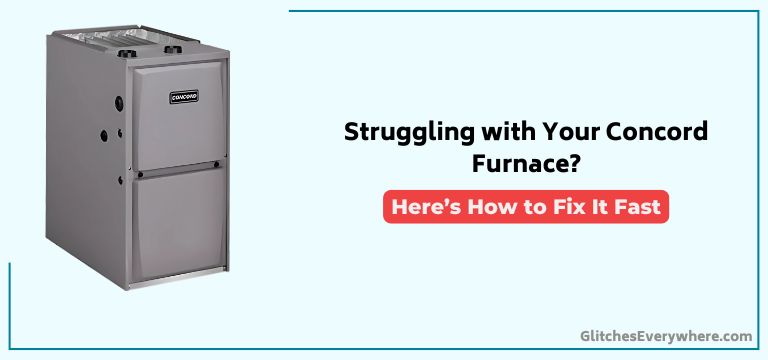
Concord Furnace Not Working: Troubleshooting Guide

The Concord Furnace is a great device, but like all electronics, it sometimes has its issues. If your Concord Furnace is not working, take a look at this troubleshooting guide.

We’ve collected answers to the most frequent reasons you’ll see Concord Furnace not working and explained them in plain language for easy troubleshooting.

Concord Furnace Troubleshooting


Quick Fix

To troubleshoot a Concord Furnace, check the power supply and thermostat settings, clean the filters and vents, inspect the pilot light or igniter, and examine the blower motor and connections for damage or loose wires.

Furnace Won’t Turn On

Frequently, homeowners are left in the cold when their Concord furnace refuses to turn on.

You’re not getting any power to the furnace, and you’re wondering why. First, check the circuit breaker or fuse box to confirm the breaker hasn’t tripped or a fuse hasn’t blown.

If that’s not the issue, verify that the furnace’s power switch is turned on. Sometimes, it’s an easy oversight.

Next, inspect the furnace’s electrical connections to guarantee they’re secure and not corroded.

If you’ve checked all these potential causes and the furnace still won’t turn on, it’s likely a more complex issue requiring professional attention.

Because the furnace is a critical part of your HVAC system, modern technology and control boards often play a role in diagnosing failures.

At this stage, it may be best to rely on a technician who can access featured diagnostic tools to pinpoint the problem efficiently.

Blinking Green Light Diagnosis

Several blinking green light patterns on your Concord furnace can indicate various issues. To diagnose the problem, you need to identify the specific pattern and its corresponding meaning.

Blinking PatternPossible Cause
1 blink, pause, 1 blinkFlame sensor malfunction or dirty sensor
2 blinks, pause, 2 blinksDoor safety switch issue or misaligned door
3 blinks, pause, 3 blinksFaulty furnace control board or wiring issue
Continuous blinkingSystem lockout due to repeated failures or thermal overload

Check your furnace manual or the manufacturer’s website for specific guidance on interpreting the blinking patterns. Once you’ve identified the issue, you can take the necessary steps to troubleshoot and repair or replace the faulty component.

Electrical Issues and Fixing

When electrical issues arise in your Concord furnace, a continuously blinking green light on the control board usually indicates a problem that needs attention.

To troubleshoot, measure the voltage between R and C on the board, which should be around 27V. Check the 24-volt fuse on the control board, typically a 3-5 amp fuse, to verify a proper power source to components.

Unplug the inducer motor and check the voltage at the harness to the board to isolate the problem. If the issue lies with the board, a bad inducer relay might be the culprit, preventing the motor from running.

As part of your home improvement efforts, try tapping the little black relays on the control board if they’re stuck. By following these steps, you’ll be well on your way to identifying and fixing electrical issues in your Concord furnace.

Thermostat and Wiring Checks

You’ll need to inspect the thermostat‘s battery to guarantee it’s not the culprit behind your furnace issues.

Next, examine the wiring for any signs of wear, damage, or corrosion that could be disrupting communication between the thermostat and furnace.

Finally, test the R-W jumper to verify it’s properly configured to enable heating operation.

Thermostat Battery Check

Your Concord furnace‘s thermostat relies on batteries to function properly, so a dead or weak battery can prevent the furnace from turning on.

If your furnace isn’t working, it’s essential to check the thermostat’s batteries first. Make sure you have a fresh set of batteries at home before proceeding. Remove the thermostat’s battery cover and take out the old batteries.

Install the new ones, ensuring correct polarity. Replace the battery cover and wait for a few minutes to allow the thermostat to reset. Then, try turning on your furnace again.

If it still doesn’t work, you may need to investigate other issues. A simple battery check can save you time and frustration in troubleshooting your Concord furnace.

Thermostat Wiring Inspection

Most Concord furnace owners overlook a vital aspect of thermostat operation: the wiring.

As a homeowner, it’s essential to inspect the thermostat wiring as part of your home improvement routine. Make sure all wires are securely connected to the correct terminals on the thermostat and furnace.

Check for signs of wear, corrosion, or damage, and replace any faulty wires. Verify that the wiring diagram matches the thermostat’s configuration. If you’re unsure about the wiring, consult the user manual or contact a professional.

A faulty thermostat wiring connection can prevent your furnace from functioning correctly, so it’s vital to get it right. By inspecting the wiring, you’ll guarantee your thermostat operates efficiently and accurately.

R-W Jumper Testing

Now that you’ve inspected the thermostat wiring, it’s time to simulate a thermostat call for heat to diagnose issues with the thermostat and wiring.

To do this, run a jumper from the R terminal to the W terminal on the furnace control board. This R-W jumper test should cause the furnace to attempt to start, indicating whether there are electrical issues or component failures.

Check the voltage between R and W on the board to verify the correct 24-volt signal is present. If the furnace doesn’t respond, it may indicate a faulty control board, inducer motor, or Honeywell valve.

The R-W jumper test can also help isolate issues with the smart valve, which can prevent the inducer motor from running even with the correct voltage signal present.

Common Component Failures

When troubleshooting your Concord furnace, you’ll likely encounter common component failures that can cause issues.

You’ll need to inspect the Honeywell valve, inducer motor, and control board, as these parts are prone to malfunction.

Honeywell Valve Issues

Frequently, Concord furnace troubleshooting leads you to the Honeywell valve, a crucial component that can cause startup issues if it fails.

This valve controls the inducer fan, which is necessary for the furnace to move to the next step in startup. A faulty valve can prevent the inducer motor from running.

Inside the valve, a component tells the inducer motor to turn on, and its failure can cause the issue. The valve receives power from the control board through a 4-pin plug.

A bad Honeywell valve can cause the continuously blinking green light on the furnace control board, and replacing the valve might resolve the issue.

As the Honeywell valve is a common point of failure, troubleshooting it’s necessary to diagnose and fix the problem.

Inducer Motor Problems

You’ve checked the Honeywell valve and it’s functioning correctly, but the inducer motor still won’t run.

Now it’s time to investigate the inducer motor itself. Check the motor’s electrical connections, ensuring they’re secure and not damaged.

Verify the motor’s voltage supply, as incorrect voltage can prevent it from going. Use a multimeter to measure the voltage at the motor terminals, comparing it to the furnace’s specifications.

If the voltage is correct, the motor might be faulty. Inspect the motor for signs of physical damage, such as burn marks or broken components. If you find any damage, replace the inducer motor.

If not, continue troubleshooting to identify the underlying issue preventing the motor from going.

Control Board Failures

The control board, the brain of your Concord furnace, can malfunction, causing the inducer motor to fail. This can happen due to power surges, electrical issues, or worn-out components.

When the control board fails, your furnace won’t function, leaving you without heat. You may notice error codes on the board or a complete shutdown.

As a homeowner, it’s essential to address control board failures promptly to avoid further damage and guarantee a safe home improvement experience. Check for blown fuses, tripped circuit breakers, or signs of physical damage.

If you’re not comfortable troubleshooting the control board yourself, consider consulting a professional to diagnose and replace the faulty component, certifying your Concord furnace operates efficiently and safely.

Troubleshooting Specific Components

When diagnosing issues with your Concord furnace, it’s essential to pinpoint the problematic component to expedite repairs.

As a home improvement enthusiast, you’ll need a discussion about tools to help you identify the faulty part.

Start by checking the Honeywell valve, which controls the inducer fan. Verify the 4-pin plug and wiring harness are secure, as a faulty connection can prevent the fan from running.

Next, inspect the control board, looking for physical damage or loose connections. Check the inducer relay and limit switch, as these can also prevent the motor from functioning.

Use a multimeter to test voltage on the board, specifically between the R and C terminals, and R and W terminals, to identify electrical issues and determine if the board is sending power to other components.

Advanced Diagnostic Techniques

Advanced diagnostic techniques involve utilizing specialized tools and procedures to pinpoint the root cause of your Concord furnace’s malfunction.

These techniques are going to take your troubleshooting to the next level, helping you identify issues that might’ve been overlooked otherwise. To get started, you’ll need to:

  • Use multimeters to measure electrical currents and voltages
  • Employ pressure gauges to test gas pressures and flows
  • Apply thermal imaging cameras to detect temperature anomalies
  • Run combustion analyzers to examine burner performance
  • Perform advanced system testing, such as leak detection and airflow measurements

Anything else you do will be a waste of time and resources if you don’t first identify the root cause of the problem.

General Furnace Maintenance Tips

Proper upkeep is key to releasing your Concord furnace’s full potential, and it starts with you.

As a homeowner and DIY enthusiast, you’re part of a forum community dedicated to home improvement. By taking a proactive approach, you can guarantee your furnace operates efficiently and safely.

Regularly cleaning or replacing air filters, certifying proper ventilation, and checking thermostat settings can make a significant difference. Additionally, scheduling annual professional maintenance can identify potential issues before they become major problems.

Keep the furnace area clean and clutter-free to improve airflow and reduce the risk of fires. By following these general maintenance tips, you’ll be well on your way to maximizing your Concord furnace’s performance and extending its lifespan.

DIY Cleaning and Repair

As you investigate DIY cleaning and repair, keep in consideration that a thorough understanding of your Concord furnace’s internal components is crucial for effective maintenance.

Before you start, make sure you’ve got the necessary tools and a clear understanding of the tasks at hand.

  • Check and clean the air filter to guarantee proper airflow
  • Inspect and vacuum the blower motor and surrounding area
  • Verify the igniter is clean and functioning correctly
  • Check the combustion chamber for any signs of soot or corrosion
  • Inspect the furnace’s electrical connections and tighten any loose ones

Frequently Asked Questions

Where Is the Furnace Reset Button?

You’ll typically find the furnace reset button, a vital safety feature, located near the motor housing or blower compartment. Check your owner’s manual or look for a small, red or yellow button, often labeled “Reset” for easy identification.

How Do You Check the Pilot Light on a Concord Furnace?

Ha! You think you’re looking for a traditional pilot light, don’t you? Surprise! It’s an electronic ignition system. To check it, you’ll measure voltage across the igniter electrodes with a multimeter, ensuring 100-120V AC for proper function – that’s your pilot light inspection and flame stability analysis.

Why Is My Furnace Not Kicking on for Heat?

You’re wondering why your furnace isn’t kicking on for heat. First, check if your thermostat is faulty, as it might be sending incorrect temperature readings. Also, guarantee the voltage supply is stable, as low voltage can prevent the furnace from operating.

What Is the Most Common Furnace Failure?

You’ll often find that faulty ignition systems, clogged filters, and inducer motor issues are the most common furnace failures, causing malfunction or complete shutdown, and can be diagnosed by checking for humming noises, dirty sensors, and electrical problems.

Conclusion

You’ve made it through the troubleshooting gauntlet, and your Concord furnace is still on the fritz. Irony alert: you’ve probably learned more about your furnace in the past hour than you ever wanted to know. Yet, with this newfound expertise, you’re now equipped to tackle the next malfunction like a pro. Remember, a little routine maintenance can go a long way in preventing future headaches. Stay vigilant, and your furnace will reward you with warm, cozy air.

Mce Elevator Not Working: Troubleshooting Guide

The Mce Elevator is a great device, but like all electronics, it sometimes has its issues. If your Mce Elevator is not working, take a look at this troubleshooting guide.

We’ve collected answers to the most frequent reasons you’ll see Mce Elevator not working and explained them in plain language for easy troubleshooting.

Mce Elevator Troubleshooting


Quick Fix

To troubleshoot an MCE elevator, check the power supply and control panel, verify door alignment and safety sensors, inspect the motor and drive system for faults, and ensure all wiring connections are secure and free of damage.

Understanding Elevator System Issues

When diagnosing elevator system issues, you must start by identifying the symptoms, which can manifest as unusual noises, vibrations, or irregular movements.

These symptoms can indicate problems with the motor, gearbox, or brake system. Understanding the elevator’s control system is also vital, including the type of controller, safety circuits, and sensor inputs.

This knowledge helps in troubleshooting issues related to floor selection, door operation, and car movement. Regular maintenance checks, such as inspecting and cleaning the elevator pit, can prevent common issues.

Modern elevator technology integrates advanced diagnostics and automation, making it easier to identify problems quickly. Analyzing log data and error codes provides valuable insights into the root cause of system issues, allowing targeted repairs and minimizing downtime.

Familiarity with industry standards and codes, like the A17.1 code, guarantees safety, performance, and compliance while taking advantage of featured safety mechanisms built into the system.

Identifying Common Elevator Problems

As you troubleshoot elevator system issues, identifying common problems is key to efficient and effective repairs.

You’ll want to inspect the guide rails and shoes for signs of wear or misalignment, which can cause uneven movement and noise.

Faulty door operators can also be a culprit, so check their electrical connections, motor, and gearbox for signs of wear or failure.

Additionally, review the control system’s error logs and check for faulty or outdated components to identify malfunctions.

Don’t forget to check the counterweight’s position and weight distribution to verify it’s properly adjusted.

Finally, inspect the elevator belts for signs of wear, cracks, or damage, which can cause slippage and uneven movement.

Troubleshooting Methods and Tools

To efficiently diagnose and resolve elevator malfunctions, you’ll need to employ a systematic approach to troubleshooting, one that involves identifying symptoms, isolating the problem, and verifying repairs.

This approach requires the right tools and resources.

You’ll need a range of troubleshooting tools, including:

  • A multimeter to measure voltage, current, and resistance in the elevator’s electrical circuit
  • An oscilloscope to analyze waveform patterns and identify faulty components
  • A circuit analyzer to diagnose issues in the elevator’s control circuit
  • The MCE troubleshooting guide, which provides detailed instructions and technical information to help you resolve common and uncommon issues

Elevator Safety Code Compliance

You’ll need to guarantee your elevator system meets the necessary safety codes and standards to avoid costly repairs, fines, and even legal action.

To do this, you must understand the essential code compliance requirements, including the relevant elevator safety standards and guidelines set by regulatory bodies.

Code Compliance Essentials

Ensuring code compliance is paramount in elevator safety, and it starts with understanding the regulatory landscape.

You need to be aware of the codes and standards that govern elevator safety, including the ASME A17.1 code, International Building Code (IBC), and International Fire Code (IFC).

  • The ASME A17.1 code requires periodic inspections and tests to guarantee compliance with safety standards.
  • Elevator code compliance involves verifying that the system meets necessary safety requirements, including proper installation, maintenance, and repair of components.
  • The code specifies that elevator systems must be designed and installed to prevent hazards such as electrical shock, fire, and falling.

Elevator Safety Standards

Nearly every elevator system in the United States adheres to the ASME A17.1 elevator safety code, a comprehensive standard that outlines guidelines for the design, construction, installation, inspection, testing, and maintenance of elevators and escalators.

As a building owner or manager, you must verify your elevator system meets specific safety standards, including safety features like safety brakes, governor devices, and safety edges.

Additionally, you must comply with the Americans with Disabilities Act (ADA) accessibility requirements, such as wheelchair-accessible cars and audible signals.

Regular inspections and testing are vital for guaranteeing elevator safety code compliance, with requirements varying by jurisdiction.

Failure to comply can result in serious safety risks, accidents, and legal consequences.

Stay vigilant with regular inspections to avoid these issues and guarantee your elevator system is safe and reliable.

Regulatory Body Guidelines

Complying with elevator safety codes and regulations is a multifaceted task that involves adhering to guidelines set by various regulatory bodies.

As an elevator professional, you must navigate a complex web of standards and regulations to guarantee elevator safety.

  • The American Society of Mechanical Engineers (ASME) A17.1-2016 Safety Code for Elevators and Escalators provides guidelines for design, construction, installation, and inspection of elevators and escalators.
  • The Occupational Safety and Health Administration (OSHA) regulates workplace safety, including elevators, and requires employers to comply with applicable safety standards.
  • The International Building Code (IBC) and the International Existing Building Code (IEBC) incorporate ASME A17.1 standards for elevator safety.
  • The National Elevator Industry, Inc. (NEII) provides guidance on elevator safety codes and regulations, advocating for uniformity and consistency in elevator safety standards across the United States.

Systematic Analysis of Causes

When you’re troubleshooting an elevator issue, you need to identify the root causes and analyze system components to pinpoint the problem.

This involves a systematic approach, where you’ll gather data, observe the problem, and review maintenance records to identify potential causes.

Identify Root Causes

During the systematic analysis of causes, you’ll need to drill down to the underlying reasons behind the elevator malfunction.

To identify root causes, you must adopt a technical and systematic approach.

This involves examining the elevator’s circuit diagrams, technical specifications, and equipment manuals to understand how the system is supposed to function.

  • Check for faulty or worn-out equipment that may be causing the malfunction
  • Analyze the elevator’s circuit diagrams to identify potential electrical issues
  • Review the technical specifications to certify the equipment is properly sized and configured
  • Verify that the equipment has been properly installed and maintained

Analyze System Components

To pinpoint the root cause of an elevator malfunction, you must dissect the system’s components, examining each part to identify potential faults or malfunctions.

Identify the specific elevator system type, such as traction, hydraulic, or machine room-less (MRL), to focus on relevant components.

Inspect the electrical components, including the control panel, relays, and sensors, to identify potential faults or malfunctions.

Examine the mechanical components, like the brake, gearbox, and motor, to determine if they’re functioning correctly.

Analyze data from the elevator’s control system, such as error codes or alarm messages, to guide the troubleshooting process.

Don’t forget to ponder the elevator’s safety features, like safety brakes and sensors, to verify they’re functioning correctly and not contributing to the issue.

Effective Repair and Maintenance

You’ve invested in a high-quality MCE elevator, and now it’s essential to guarantee effective repair and maintenance to prolong its lifespan and prevent unexpected downtime.

This requires a technical understanding of the equipment’s circuit and components.

To certify peak operation, you should:

  • Regularly inspect and clean the elevator’s electrical components to prevent overheating and damage
  • Perform routine checks on the elevator’s safety features, such as the safety brakes and emergency stop systems
  • Keep a record of all maintenance and repair activities to track the elevator’s technical history
  • Develop a preventive maintenance schedule to address potential issues before they become major problems

Minimizing Downtime and Costs

When you’re working to minimize downtime and costs, every minute counts.

You need to quickly identify issues, develop efficient repair strategies, and implement preventive maintenance tips to get your elevator system up and running smoothly.

Rapid Issue Identification

Rapid issue identification is crucial in elevator maintenance, as every minute counts in minimizing downtime and costs.

When you’re troubleshooting an elevator, you need to work efficiently to identify the root cause of the problem. This requires a systematic approach to narrow down the possibilities and pinpoint the specific issue.

Use the following steps to rapidly identify the problem:

  • Check the elevator’s circuit diagram to understand the electrical flow and identify potential fault points.
  • Inspect the equipment and look for signs of wear, damage, or malfunction.
  • Ask specific questions about the elevator’s work history, such as when the issue started and if any recent repairs were made.
  • Review the troubleshooting logs to see if similar issues have occurred in the past.

Efficient Repair Strategies

By implementing efficient repair strategies, elevator maintenance teams can significantly minimize downtime and costs. Identifying and addressing common elevator faults, utilizing remote monitoring and diagnostic tools, and developing a comprehensive spare parts inventory are key to reducing repair time and costs. Additionally, providing regular training and support for maintenance personnel can improve their efficiency.

StrategyTime SavingsCost Savings
Proactive Maintenance50% downtime reduction$10,000 per year
Identifying Common Faults30% repair time reduction$2,500 per repair
Remote Monitoring2-hour response time reduction$5,000 per year

Preventive Maintenance Tips

You can significantly extend the lifespan of your elevator system and minimize downtime by adhering to a well-planned preventive maintenance schedule.

Regular maintenance checks help identify potential issues before they become major problems, reducing the need for troubleshooting and repair.

By staying on top of maintenance, you can guarantee the safety of your passengers and equipment, while also avoiding costly repairs and minimizing downtime.

Some essential maintenance tasks to prioritize include:

  • Lubricating moving parts to reduce wear and tear
  • Inspecting and replacing worn-out components to prevent failure
  • Verifying safety systems and emergency procedures are functioning correctly
  • Updating your knowledge of the elevator system and its tools to stay ahead of potential issues

Technician Knowledge and Experience

Experienced elevator technicians possess a unique combination of skills and knowledge that enable them to effectively troubleshoot complex issues with MCE controllers and door operators.

You should have a thorough understanding of the ASME A17.1 code, which governs the safety standards for elevators and escalators. With at least 2-3 years of hands-on experience in the elevator industry, you’ll develop the necessary knowledge and skills to troubleshoot common issues.

Familiarity with MCE’s technical publications and product bulletins is essential, as is the ability to read and interpret electrical and mechanical prints. Participation in MCE’s factory training programs and field services can significantly upgrade your knowledge and experience in troubleshooting MCE elevator systems, leading to improved first-time fix rates and reduced maintenance time.

Real-World Troubleshooting Scenarios

When tackling real-world troubleshooting scenarios on MCE elevators, a methodical approach is key.

You’ll need to gather information about the issue, identify the type of elevator, its age, and the specific problem being experienced.

From there, you can use tools like circuit diagrams, wiring schematics, and troubleshooting guides provided by MCE to isolate the root cause of the problem.

Some common issues you may encounter include:

  • Faulty door operators
  • Malfunctioning safety sensors
  • Incorrect door alignment
  • Complex circuit issues requiring technical support

Frequently Asked Questions

How Do You Reset the Elevator?

You’ll need to reset the elevator by pressing the “Reset” button, usually found on the main control panel, to reboot the system after an elevator shutdown caused by a button malfunction, electrical surge, software glitch, mechanical failure, or faulty wiring.

What Is the Phone Number for MCE Technical Support?

When you need technical help, you can contact MCE’s technical team directly by calling their support hotline at the dedicated service number, ensuring prompt phone assistance and exceptional customer care from their expert technical support team.

Why Is My Elevator Not Responding?

Faulty connections foil your flow, forcing frustrating waits. You’re stuck, wondering why your elevator’s not responding. Check for stuck buttons, corrupted software, power outages, faulty sensors, misaligned tracks, or incorrect settings – any of these culprits could be crippling your elevator’s performance.

How Does the Elevator Overload Sensor Work?

You rely on the elevator’s overload sensor to safeguard elevator safety, which utilizes advanced sensor technology to detect weight limits. Proper sensor calibration is vital for accurate overload detection, guaranteeing a smooth ride and preventing unnecessary elevator maintenance.

Conclusion

As you master the art of MCE elevator troubleshooting, you’ll be able to pinpoint issues with lightning speed and precision, slicing through complex problems like a hot knife through butter. Your expertise will be the difference between a building’s lifeblood flowing smoothly and a tangled mess of frustrated passengers and lost productivity. With every troubleshooting triumph, you’ll save companies from the abyss of downtime and financial ruin, emerging as a hero in the world of vertical transportation.

Bartesian Not Working: Troubleshooting Guide

The Bartesianis a great device, but like all electronics, it sometimes has its issues. If your Bartesian is not working, take a look at this troubleshooting guide.

We’ve collected answers to the most frequent reasons you’ll see Bartesian not working and explained them in plain language for easy troubleshooting.

Bartesian Troubleshooting


Quick Fix

To troubleshoot a Bartesian, check the power connection and ensure the water reservoir is filled, clean the pod holder and nozzle, inspect for clogs or residue, and reset the machine if issues persist.

Common Bartesian Issues

Troubleshooting your Bartesian cocktail maker starts with identifying common issues that can disrupt your cocktail-making experience.

One of the most common problems is fog on the barcode reader, which can be easily resolved by gently wiping the lens with a soft cloth.

If your Bartesian isn’t dispensing, clogged lines might be the culprit. Try cleaning the system with vinegar to get things flowing again.

Clicking sounds without dispensing often indicate problems with the machine’s valves or lines.

To prevent these issues, regular maintenance is essential. Make sure to descale your Bartesian every 3-6 months to prevent mineral buildup that can cause operational issues.

Because the Bartesian combines modern technology with the convenience of kitchen appliances, pressing the clean button post-cleaning can also help reset the system and resolve lingering issues.

Staying consistent with these featured maintenance steps ensures your cocktail maker continues delivering smooth, hassle-free performance.

Troubleshooting Steps

To troubleshoot your Bartesian machine, start by checking all lines for clogs or blockages that could be hindering its operation.

Next, confirm the barcode reader is clear by gently wiping its lens with a soft cloth to remove any fog or dirt.

Common Bartesian Issues

Facing issues with your Bartesian machine can be frustrating, but many problems have straightforward solutions.

If your premium cocktail maker isn’t dispensing properly, start by checking the barcode reader for fog. A quick wipe with a soft cloth can often resolve this issue.

Clogged lines are another common problem. To address this, remove the glass containers, fill the insert spots with vinegar, and let it stand for an hour. Then, empty the vinegar and replace the containers with water. Press the clean button to reset the system.

Regular maintenance, such as descaling every 3-6 months and cleaning after every 10 uses, is essential for preventing issues and extending the lifespan of your Bartesian cocktail maker.

Cleaning the Machine

Cleaning your Bartesian machine is an essential step in maintaining its ideal functionality and preventing common issues such as clogs and dispensing problems. To keep your machine in top shape, clean it every 1-2 weeks or after 10 uses.

Start by removing the glass containers and filling the insert spots with vinegar, letting it stand for an hour before emptying. Then, refill the containers with water and press the clean button to reset the system.

Regularly clean the barcode reader lens with a soft cloth to prevent fogging. Additionally, descale the device every 3-6 months to prevent mineral buildup.

Resolving Dispensing Problems

Dispensing problems with your Bartesian machine can be frustrating, but they’re often easy to resolve. To start, check all lines for clogs or blockages, as these can prevent the machine from dispensing drinks properly.

Next, open the barcode reader and gently wipe the lens with a soft cloth to eliminate fog or debris that can interfere with operation.

To tackle more stubborn issues, remove the glass containers and fill the insert spots with vinegar to clean the system and help remove any buildup causing dispensing errors. Let the vinegar stand for an hour before emptying, then refill the glass containers with water and press the clean button to reset the system.

Regular cleaning and maintenance are key to preventing dispensing problems and ensuring your Bartesian machine runs smoothly.

Cleaning and Maintenance

To keep your Bartesian machine running smoothly and prevent clogs, regular cleaning is crucial. You should clean your machine every 1-2 weeks or after 10 uses to maintain peak performance. This includes cleaning the brew head and capsule compartment daily to guarantee proper operation and flavor quality.

For thorough cleaning, use a soft cloth and mild soap solution for exterior surfaces. Refer to the user manual for specific cleaning instructions.

Additionally, descale your device every 3-6 months to prevent mineral buildup that can affect functionality. Neglecting regular maintenance and cleaning can lead to malfunctions and a reduced lifespan for your Bartesian machine.

Resolving Dispensing Problems

When your Bartesian machine fails to dispense, the first step is to inspect the lines for any clogs or blockages. This simple check can often resolve the issue and get your machine working again.

To guarantee dispensing accuracy and prevent future problems, follow these steps:

  1. Inspect and clear line clogs: Check the lines for any blockages and clear them if necessary.
  2. Clean the barcode reader lens: Use a soft cloth to wipe away any fog or dirt that may be interfering with the sensor.
  3. Run a vinegar cleaning cycle: Fill the glass containers with vinegar, let it sit for an hour, and then empty them to help remove any buildup.
  4. Press the clean button: Regularly pressing the clean button after maintenance helps reset the system and can resolve lingering dispensing issues.

System Error Solutions

System errors can be just as frustrating as dispensing problems, but they often have straightforward solutions. If your Bartesian cocktail maker displays a system error, start by ensuring the power cord is securely connected and the outlet is functioning properly. This eliminates power-related issues.

Next, check your Wi-Fi connection; a stable and strong network is essential for smooth operation. If you encounter connectivity errors, review your network settings.

To resolve software-related errors, try restarting the device. Unplug the machine, wait a few moments, and then plug it back in.

Regular cleaning also helps prevent system errors caused by clogs. Clean the brew head and capsule compartment every 1-2 weeks or after 10 uses.

For persistent issues, contact the dedicated customer support team for expert assistance.

Advanced Troubleshooting

You’re facing issues with your Bartesian cocktail maker, and it’s time to tackle more complex problems.

To start, verify you’ve checked for clogs in the lines and that the capsules are properly seated, as these are common causes of malfunction.

Common Bartesian Issues

  1. Foggy Barcode Reader: A simple wipe with a soft cloth can clear fog from the barcode reader, ensuring accurate scanning.
  2. Clogged Lines: Vinegar can be your best friend; fill the glass containers with it, let it stand, and then clean the system to restore functionality.
  3. Clicking Without Dispensing: Check for line clogs and clean the barcode reader to resolve this issue.
  4. Mineral Buildup: Regular descaling every 3-6 months prevents operational issues, ensuring your machine stays in top shape.

Troubleshooting Solutions

Faced with a malfunctioning Bartesian machine, tackling the issue head-on is vital.

If you encounter fog on the barcode reader, gently clean the lens with a soft cloth to verify proper scanning functionality.

For clogging issues, check all lines for blockages and use vinegar to clean the system, allowing it to stand for an hour before rinsing.

If the machine makes clicking sounds without dispensing, confirm that the capsules are seated correctly and inspect for clogs in the dispensing lines.

After cleaning with vinegar, refill the glass containers with water and press the clean button to reset the system.

Regular cleaning and descaling are important to prevent malfunctions and extend the machine’s lifespan, guaranteeing you can continue to enjoy your favorite cocktail recipes and reap cost savings without interruptions.

Frequently Asked Questions

Why Isn’t My Bartesian Dispensing Water?

Check if the water container is fully seated and aligned. Test the water reservoir by clicking “First Use” and then “W” on your Bartesian. If no water comes out, it might indicate a pump malfunction or clog.

How to Get Bartesian to Work?

To get your Bartesian working, verify proper machine maintenance by cleaning the barcode reader and lines, restart the device, and check your Wi-Fi connection. Then, investigate cocktail recipes and enjoy drink customization with your fully functional machine.

How Often Should I Clean Bartesian?

You should clean your Bartesian every 1-2 weeks or after approximately 10 uses to maintain ideal performance. Regular cleaning and descaling every 3-6 months are essential maintenance tips, using mild soap solutions and avoiding harsh chemicals.

How to Stop Bartesian From Leaking?

Imagine you’re preparing for a party and notice your Bartesian leaking. To stop it, make sure proper placement of the water reservoir, check for worn-out seals, and clean the dispensing lines. Regular seal maintenance is key to leak prevention.

Conclusion

Ironically, the secret to a perfectly crafted cocktail isn’t just the mix, but the machine’s maintenance. Regular cleaning, descaling, and troubleshooting are the unsung heroes of your Bartesian’s performance. So, don’t let clogs and errors ruin your happy hour. Stay on top of maintenance, and your Bartesian will reward you with flawless drinks every time. Clean the barcode reader, check for clogs, and descale regularly – your taste buds will thank you.

Swamp Cooler Not Working: Troubleshooting Guide

The Swamp Cooler is a great device, but like all electronics, it sometimes has its issues. If your Swamp Cooler is not working, take a look at this troubleshooting guide.

We’ve collected answers to the most frequent reasons you’ll see Swamp Cooler not working and explained them in plain language for easy troubleshooting.

Swamp Cooler Troubleshooting


Quick Fix

To troubleshoot a swamp cooler, check the power supply and water level, clean the pads and filters, inspect the pump and fan for damage, and ensure proper airflow by clearing any obstructions.

Causes of Swamp Cooler Problems

Faulty swamp coolers can be a real nemesis on a sweltering summer day, leaving you feeling like you’re stuck in a steam room.

When your evaporative cooling system fails, it’s essential to identify the cause to get it up and running again. You’ll want to check the cooling pads, as clogged pads can hinder airflow and reduce cooling efficiency.

Insufficient water supply can also impede the cooling process. Additionally, faulty wiring, a blown fuse, or lack of exhaust can prevent the motor from starting. These common problems can lead to a malfunctioning motor, which can be a significant issue.

Electrical and Motor Issues

As you dig deeper into the troubleshooting process, you’ll likely encounter electrical and motor issues that can bring your swamp cooler to a grinding halt.

If your motor hums but doesn’t turn, it might indicate a power supply issue. Check your circuit breaker to see if it’s tripped. If so, reset it and try again. If the problem persists, you might need to replace the swamp cooler.

A faulty motor can prevent your swamp cooler from functioning properly, hindering effective swamp cooling. Since swamp coolers are a key part of many HVAC setups, it’s important to ensure they’re maintained regularly.

To avoid breakdowns, make sure to perform consistent maintenance to prevent an evaporative cooler from malfunctioning.

Pay attention to any unusual electrical or motor sounds, as they can be indicative of a more serious issue. Modern cooling technology helps improve efficiency, but neglecting warning signs can lead to costly repairs or even full replacement.

Addressing problems promptly with featured maintenance steps can extend your cooler’s lifespan and keep it running at peak performance.

Respiratory and Airflow Issues

Get ready to tackle respiratory and airflow issues that can stifle your swamp cooler’s performance.

You’ll want to guarantee proper ventilation and airflow to deliver clean, cool air to your space.

Check for clogs in the tubes and evaporative pads, which can restrict airflow and reduce efficiency.

Mineral buildup on the pads can also hinder airflow, so make sure to clean them regularly.

Certify the water flow is adequate, as low water levels can lead to reduced airflow.

Finally, inspect the cooler’s ducts and vents for blockages or kinks that could be restricting airflow.

Troubleshooting and Maintenance

You’re now ready to tackle the root causes of your swamp cooler’s problems by identifying common issues.

Checking electrical and motor components, and ensuring proper airflow maintenance are proactive steps that will help you diagnose and fix problems before they become major headaches.

Identify Common Issues

Most swamp cooler owners will encounter issues with their unit at some point.

As an evaporative cooler owner, you’ll likely experience common swamp cooler problems that affect the efficiency of your unit. One common issue is restricted airflow, which can reduce the efficiency of a swamp cooler.

Check if your cooler isn’t blowing air properly, and clean or replace the filters if necessary. Airflow can also affect the efficiency of your swamp cooler, so verify that your windows and doors are properly sealed.

If you’re experiencing persistent issues, it may be time to weigh the option of replacing your swamp cooler. Often, you should replace your unit every 10-15 years or when repairs become too frequent.

Electrical and Motor Checks

Having verified your swamp cooler’s airflow is unrestricted, it’s time to shift your attention to the electrical and motor components.

Check the motor and pump for unusual noises or vibrations, which can indicate worn or dirty components. Certify the electrical connections are secure and not damaged, as loose connections can prevent the cooler from working efficiently or even cause it to stop altogether.

Regular maintenance is key to preventing damage to the water pump and distribution system. Inspect the system for dirty or clogged components, and drain the water to clean out any debris.

Proper Airflow Maintenance

With proper airflow maintenance, your swamp cooler’s performance and efficiency rely heavily on a few critical components.

You need to guarantee that your evaporative cooler is receiving the right amount of airflow to cool your space efficiently.

To maintain proper airflow, you should:

  • Check and clean the cooler pads regularly to certify unobstructed air flow
  • Verify that the water supply is sufficient to keep the pads moist, but not over-saturated
  • Certify that the air intake and outlet vents are clear of debris and obstacles
  • Check the fan motor and blades for proper function and cleanliness to maintain a smooth air flow

Performance, Efficiency, and Solutions

You’ve optimized your swamp cooler’s maintenance and troubleshooting, but now it’s time to focus on performance and efficiency.

To get the most out of your unit, you’ll want to guarantee ideal airflow solutions, such as proper fan installation and filter maintenance.

Optimal Airflow Solutions

Most swamp cooler systems operate at peak performance when they can draw in and expel air efficiently.

You can guarantee ideal airflow by maintaining a clean and well-functioning cooling unit.

  • Certify the water supply is clean and free of mineral deposits to prevent clogging pad frames.
  • Check the water pan for debris and sediment buildup, and clean it regularly.
  • Verify that ducts installed are properly sealed and insulated to prevent air leaks.
  • Make sure the swamp cooler’s pad frames are clean and free of debris to allow air to flow properly.

Efficient Cooling Tips

To maximize your swamp cooler’s performance and efficiency, focus on optimizing its cooling capacity while minimizing energy consumption.

Guarantee efficient operation by maintaining the ideal water level, which allows the evaporative cooler to cool the air effectively. Check the Swamp Cooler Temp regularly to certify it’s blowing cold air.

The Ideal Temperature for your swamp cooler depends on your location and climate, but a general range is between 68°F to 72°F (20°C to 22°C).

Make sure the water supply is adequate and clean to prevent mineral buildup. Regularly inspect and clean the system to prevent clogs and maintain airflow.

Initial Troubleshooting Steps

Several issues can cause your swamp cooler to malfunction, but before calling a professional, take a few minutes to perform some initial troubleshooting steps.

You want to guarantee your evaporative cooler is functioning properly, as it’s an efficient and cost-effective alternative to traditional air conditioning.

Common issues can arise from a lack of maintenance, poor water supply, or even bacteria growth.

Check the following:

  • Certify the water supply is adequate and not restricted.
  • Verify the cooler’s electrical power is on and the thermostat is set correctly.
  • Inspect the air intake and outlet for blockages or debris.
  • Look for signs of overheating, such as excessive heat or strange noises.

Understanding Relief Air

You’ve checked the basics, now it’s time to examine a critical component of your swamp cooler’s functionality: relief air.

Relief air is essential for your evaporative cooler to work efficiently, as it allows warm air to escape, preventing overheating.

In residential or commercial settings, coolers work by circulating air through a water system, which cools it down. However, without proper relief air, the system can become pressurized, reducing airflow and overall performance.

Unlike air conditioners, which recirculate cooled air, swamp coolers rely on a constant air supply and relief air to function correctly.

If you’re experiencing issues, it’s vital to verify your relief air system is functioning as intended to prevent overheating and maintain peak performance.

Preventing Odors and Failure

The effectiveness of your swamp cooler relies heavily on maintaining a clean and odor-free environment.

You must prioritize maintenance to prevent odors and failure. Failing to do so can lead to unpleasant smells, reduced performance, and even costly repairs.

To keep your swamp cooler in top shape:

  • Replace evaporative pads regularly and clean them to prevent musty odors from stagnant water or mildew.
  • Drain and clean the sump regularly to maintain cleanliness and prevent odors.
  • Add vinegar to the water supply to prevent the growth of bacteria and algae.
  • Install a bleed-off kit to remove stale water and replace it with fresh water, preventing odors and maintaining cleanliness.

Frequently Asked Questions

How Do I Reset a Swamp Cooler?

Did you know that 75% of households in dry climates rely on evaporative cooling systems like swamp coolers? To reset yours, find the reset button, usually on the thermostat or control panel, and press it; then, verify the power cord is secure and check for electrical issues before restarting in cooling mode.

Why Isn’t My Swamp Cooler Blowing Cold Air?

You’re not feeling the chill because your system’s airflow is compromised, likely due to clogged air vents, dirty cooling pads, or low water levels. Check these first, then inspect for faulty thermostats, broken fan blades, worn belts, misaligned ducts, corroded connections, or uneven roof installation.

Why Is My Swamp Cooler Not Pumping Water?

You’re wondering why your pump isn’t circulating water? Check for water supply issues, pump failure symptoms, or float valve problems. Also, inspect for faulty water sensors, inadequate water pressure, clogged lines, incorrect installation, pump motor issues, or misconfigured water level settings and faulty pump relays.

Why Does My Swamp Cooler Motor Hum but Wont Start?

Did you know that 70% of motor failures are due to electrical issues? You’re experiencing a hum but no start, likely due to a faulty capacitor, worn bearings, overheated motor, corroded wires, or bad relay, so check these potential causes to get your motor running again.

Conclusion

As you’ve navigated the troubleshooting guide, you’ve likely identified the culprit behind your swamp cooler’s poor performance. But, beware – a single oversight can lead to catastrophic failure. Don’t let complacency creep in; stay vigilant with regular maintenance and upkeep. Remember, a well-maintained swamp cooler is a happy one, and a happy one is just a shot of rejuvenation away from disaster.

Omnipod 5 Not Working: Troubleshooting Guide

The Omnipod 5 is a great device, but like all electronics, it sometimes has its issues. If your Omnipod 5 is not working, take a look at this troubleshooting guide.

We’ve collected answers to the most frequent reasons you’ll see Omnipod 5 not working and explained them in plain language for easy troubleshooting.

Omnipod Troubleshooting


Quick Fix

To troubleshoot an Omnipod 5, check the battery and pod placement, confirm Bluetooth connectivity, ensure the PDM is updated, inspect for blockages or leaks in the infusion set, and contact support if issues persist.

Device and App Troubleshooting

When your Omnipod 5 device or app isn’t working as expected, it can be frustrating and disrupt your diabetes management routine.

First, verify your Omnipod 5 Controller and Dexcom G6 transmitter are properly paired and within range. Check the Omnipod 5 App for compatibility issues with your compatible smartphone.

If you’re experiencing insulin delivery problems, review your charging cable connection and confirm the device is fully charged. If glucose levels are inconsistent, check your adaptive basal rate and correction boluses settings.

Restart the app or device if necessary. If issues persist, try resetting the Omnipod 5 Controller or Dexcom G6 transmitter.

Because this device plays a vital role in health & fitness, ensuring that both hardware and software run smoothly is critical. Leveraging advanced technology, the Omnipod 5 system offers featured tools like adaptive insulin delivery, but it still requires proper setup and maintenance.

Remember to always prioritize your diabetes management and seek support if you’re struggling to resolve the issue.

Omnipod Support and Resources

You can rely on Insulet’s comprehensive support system to help you navigate any challenges with your Omnipod 5 System.

If you’re experiencing issues with your Pod or Controller, you can report them online or by phone and even request a replacement if needed.

For quick answers, check out the Frequently Asked Questions section or live agent Chat for online support.

If you need to reset your password or find your Omnipod ID, visit the Omnipod website for step-by-step instructions.

The Contact Us form and 1-800-591-3455 phone number offer 24/7 customer support for any troubleshooting needs.

Additionally, the Omnipod StayConnected text message provides helpful resources and tips to keep you connected to your System.

Device Compatibility and Setup

Getting started with your Omnipod 5 System requires a compatible smartphone, and Insulet’s got you covered.

To verify compatibility, check the Omnipod website for a list of supported devices before making a purchase.

Once you have a compatible smartphone, download and install the Omnipod 5 App and follow the in-app instructions for setup.

You can use your smartphone and the Omnipod 5 Controller interchangeably to control the system, but only one device can control it at a time.

Before switching devices, upload your data to Glooko and write down your settings for a seamless transition.

Remember to check the compatibility guide on the Omnipod website if you’re unsure about your device’s compatibility.

Glucose Level Management

Your Omnipod 5 System is designed to help you manage glucose levels, but it’s essential to understand that high glucose levels can still occur despite its automated insulin delivery.

To prevent high glucose levels, it’s pivotal to bolus for all meals and snacks. Giving meal and correction boluses helps the system understand your total daily insulin needs.

Managing glucose levels with Omnipod 5 requires understanding insulin-to-carb ratios, and adjusting these ratios may be necessary to receive more insulin before meals.

The SmartBolus Calculator suggests correction boluses when needed, and delivering insulin 15-20 minutes before eating can help if glucose levels are high after meals or snacks.

Adjusting settings with your healthcare provider’s guidance may be necessary to achieve ideal glucose control.

Troubleshooting Glucose Levels

Occasionally, despite your best efforts, high glucose levels can still occur.

This may require adjusting your insulin-to-carb ratios or correction boluses. Luckily, the SmartBolus Calculator on your Omnipod 5 suggests correction boluses when needed.

To troubleshoot high glucose levels, verify you’re bolusing for all meals and snacks, as this helps the system understand your total daily insulin needs.

If you’re still experiencing issues, you may need to adjust your settings with guidance from your healthcare provider. This is vital to prevent hypoglycemia or hyperglycemia.

Frequently Asked Questions

What Are Common Omnipod Errors?

You’re not alone if you’re experiencing issues with your insulin pump! Common errors include pod alarm issues, insulin blockages, battery drain, pod errors, sensor faults, cannula problems, tube kinks, prime failures, air bubbles, and misaligned pods.

How Do You Reboot the Omnipod 5?

When your device acts up, you can try a simple reboot! To do so, power cycle your Omnipod 5 by turning it off, waiting 10 seconds, and turning it back on, basically performing a device restart, system refresh, or pod reboot to get it up and running smoothly again.

Why Is My Omnipod 5 Not Communicating With My Pod?

Your Pod connection is like a fragile dance, and when it’s out of sync, communication falters. Check for Bluetooth issues, wireless failure, or device timeout, which might cause pod pairing to drop, leading to data transfer hiccups and system glitches – it’s time to troubleshoot!

How to Know if an Omnipod Isn’t Working?

You’ll know if your omnipod isn’t working if you notice pod failure signs like insulin delivery issues, skin irritation, or sensor malfunctions. Also, be aware of battery drain, cannula clogs, adhesive problems, incorrect insertion, or tube kinking that can cause infusion set issues.

Conclusion

You’ve made it to the end of this troubleshooting adventure! Like a trusty compass, these steps have guided you through the wilderness of Omnipod 5 issues. If you’re still stuck, don’t worry – Omnipod support is just a call away, ready to be your lighthouse of hope. Remember, managing glucose levels is a journey, not a destination. Stay calm, stay patient, and with these troubleshooting tips, you’ll be back on track in no time.

Raynor Garage Door Opener Not Working: Troubleshooting Guide

The Raynor Garage Door Opener is a great device, but like all electronics, it sometimes has its issues. If your Raynor Garage Door Opener is not working, take a look at this troubleshooting guide.

We’ve collected answers to the most frequent reasons you’ll see Raynor Garage Door Opener not working and explained them in plain language for easy troubleshooting.

Raynor Garage Door Opener Troubleshooting


Quick Fix

To troubleshoot a Raynor garage door opener, check the power supply and remote batteries, ensure the safety sensors are aligned and clean, inspect the tracks and rollers for obstructions, and test the opener’s motor and wiring for faults.

Common Garage Door Issues

Since your garage door opener is a complex system, it’s not uncommon to encounter issues that prevent it from functioning smoothly.

As a homeowner, you’re likely to experience common problems with your garage door openers, including dead batteries in remotes, misaligned antennas, and defective transmitters.

Additionally, debris buildup and problematic track and limit settings can also cause issues.

These problems can be resolved through troubleshooting and maintenance, such as cleaning and realigning sensors, replacing defective transmitters, or resetting limits.

With the help of modern technology, many garage door openers now come with diagnostic features that make troubleshooting easier. By identifying and addressing these common issues, you can guarantee your garage door opener operates efficiently and safely.

Regular maintenance can also help prevent these problems from occurring in the first place, taking advantage of featured safety and performance enhancements built into newer systems.

Troubleshooting Beeping Openers

When your Raynor garage door opener starts beeping, it’s trying to communicate an issue that needs attention.

Beeping can indicate a range of problems, from minor issues to more serious concerns.

To troubleshoot, start by checking the obvious:

  1. Battery backup: Certify your backup battery is functioning correctly, as a dead battery can cause beeping.
  2. Door obstruction: Check for any obstructions blocking the door’s path, as this can trigger the beeping alarm.
  3. Misaligned sensors: Verify that the safety sensors are properly aligned, as misalignment can cause the door opener to beep.

Addressing Defective Transmitters

One faulty component that can cause your Raynor garage door opener to malfunction is a defective transmitter. Fresh batteries don’t guarantee transmitter function, and broken or defective transmitters may need to be replaced to resolve garage door malfunction. Defective transmitters can cause inconsistent or unreliable garage door performance, leading to frustration and inconvenience for users.

SymptomSolution
Door remote doesn’t workTry alternative remote control or keypad
Transmitter doesn’t communicate with receiverReprogram and pair transmitter and receiver
Inconsistent door performanceReplace defective transmitter
Garage door malfunctionCheck transmitter function before replacing opener
Intermittent door operationCheck transmitter batteries and replace if necessary

Debris Buildup and Track Problems

Obstruction is the enemy of smooth garage door operation.

Debris buildup in corners, bent or broken tracks, and misaligned sensors can all prevent your garage door opener from functioning properly.

To get your garage door opener running smoothly again, check for the following common issues:

  1. Debris buildup: Clean corners and tracks to guarantee clear movement.
  2. Track problems: Inspect tracks for bends or breaks and repair or replace as needed.
  3. Sensor misalignment: Adjust sensors to certify proper alignment and clear path detection.

Resetting Opener Settings and Limits

Get back to square one by resetting your Raynor garage door opener’s settings to factory defaults, which can resolve issues stemming from incorrect limit settings or skewed configurations. This process varies depending on the model and brand, so refer to your user manual or manufacturer’s instructions for guidance. Incorrect limit settings can cause the door to malfunction, such as not closing completely or opening and closing by itself.

IssueSymptomSolution
Incorrect limit settingsDoor doesn’t close completelyAdjust limit settings
Skewed configurationsDoor opens and closes by itselfReset opener settings to factory defaults
Malfunctioning doorDoor stops prematurelyAdjust limit settings and test
Incomplete door closureDoor doesn’t open fullyReset opener settings and adjust limits

After resetting the opener settings and limits, test the garage door to confirm it’s functioning properly and make any necessary adjustments to fine-tune the settings.

Preventative Measures and Professional Help

You can guarantee your Raynor garage door opener operates smoothly and safely by establishing regular maintenance schedules to check for worn or damaged parts.

It’s also vital to conduct proper installation checks to prevent potential issues and guarantee the opener is installed correctly.

Additionally, consider scheduling annual system inspections with a professional to identify and address any potential problems before they become major issues.

Regular Maintenance Schedules

Your Raynor garage door opener’s performance and longevity heavily rely on regular maintenance schedules, which include a combination of preventative measures and professional help.

By staying on top of maintenance, you can prevent issues before they become major problems.

  1. Monthly: Check the garage door’s balance by disconnecting the opener and manually operating the door. If it’s unbalanced, adjust the springs or call a professional.
  2. Quarterly: Inspect the opener’s chain or belt for signs of wear and tear. Lubricate the chain or replace the belt if necessary.
  3. Annually: Have a professional inspect and maintain the opener’s safety features, such as the photo eye sensors and emergency release handle.

Proper Installation Checks

Proper installation checks are vital to guarantee your Raynor garage door opener functions correctly and safely from the outset. You must verify that the opener is installed according to the manufacturer’s instructions and local building codes.

ChecksDescription
AlignmentVerify that the garage door and opener are properly aligned for smooth operation.
Force SettingCheck that the force setting is adjusted correctly to prevent accidents.
Wire ConnectionsConfirm that all wire connections are secure and meet safety standards.

If you’re not comfortable with these checks, consider hiring a professional for proper installation and repair. This will prevent potential issues down the line and verify your garage door opener functions as intended. Remember, a proper installation is key to a safe and reliable system, and it can also help prevent the need for costly repairs in the future.

Annual System Inspections

Beyond the initial installation, annual system inspections are crucial to guarantee your Raynor garage door opener continues to operate safely and efficiently.

You can’t afford to wait until problems arise, as it may lead to costly repairs or even accidents.

  1. Worn-out parts: Annual inspections help identify worn-out parts that need replacement, ensuring your garage door opener runs smoothly and quietly.
  2. Safety hazards: Inspections can detect potential safety hazards, such as loose springs or broken cables, which can cause serious injuries or damage.
  3. Efficiency optimization: Regular checks optimize your garage door opener’s performance, reducing energy consumption and saving you money on utility bills.

Frequently Asked Questions

How Do I Reset My Raynor Garage Door Opener?

To reset your garage door opener, unplug it, wait a minute, and plug it back in to restore factory defaults; then, refer to your user manual to reset opener settings, ensuring a fresh start for your system.

What Does Blinking Light on Garage Opener Mean?

A lighthouse in the dark, the blinking light on your garage opener holds secrets. You’re deciphering its Morse code, and here’s the translation: different light patterns indicate specific issues, such as obstruction, misalignment, or faulty sensors – investigate to resolve the problem.

Why Is My Garage Door Opener Malfunctioning?

You’re wondering why your garage door opener is malfunctioning? It’s likely due to a recent power failure, which can reset the opener’s settings or cause the circuit board to malfunction, requiring a simple reboot or reprogramming to resolve the issue.

Why Is My Garage Door Opening and Not Closing?

You’re experiencing issues with your garage door opening but not closing, likely due to sensor issues, such as misaligned or obstructed safety sensors that detect perceived obstructions, preventing the door from closing, and requiring adjustments or replacement.

Conclusion

You’ve made it through the troubleshooting process and hopefully resolved the issue with your Raynor garage door opener. Remember, regular maintenance can go a long way in preventing problems. In fact, according to the International Door Association, 75% of garage door opener issues are caused by poor maintenance. By following these steps and staying on top of upkeep, you’ll be well on your way to a smoothly operating garage door.

Sloan Automatic Faucet Not Working: Troubleshooting Guide

The Sloan Automatic Faucet is a great device, but like all electronics, it sometimes has its issues. If your Sloan Automatic Faucet is not working, take a look at this troubleshooting guide.

We’ve collected answers to the most frequent reasons you’ll see Sloan Automatic Faucet not working and explained them in plain language for easy troubleshooting.

Sloan Automatic Faucet Troubleshooting


Quick Fix

To troubleshoot a Sloan Automatic Faucet, check the power supply or battery, ensure the sensor is clean and unobstructed, adjust the sensitivity settings, and inspect the solenoid valve for clogs or damage.

Red Light Blinking on Sloan Faucet

If your Sloan faucet is displaying a red light that’s blinking, it’s likely indicating an issue that needs your attention.

This alert can signify a problem with the sensor connection, solenoid, or water pressure. Modern faucet technology, much like that found in advanced kitchen appliances, is designed to provide efficiency but can occasionally require maintenance.

To troubleshoot, check the sensor connection to verify it’s secure and free of debris. Next, inspect the solenoid for signs of wear or damage, as it may need replacement.

Additionally, check the faucet temperature settings to confirm they’re within the recommended range. Some manuals even highlight featured troubleshooting tips to guide you through resolving common issues.

If the issue persists, consult your Sloan faucet’s manual or contact a professional for further assistance.

No Water Coming Out of Faucet

When troubleshooting a Sloan automatic faucet that’s not dispensing water, you’ll want to investigate three key areas: the solenoid’s operation, potential water supply issues, and the power supply’s functionality.

Start by checking if the solenoid is producing an audible click sound, which can indicate whether the problem lies with the valve or the water supply.

If the solenoid is silent, you’ll need to examine other possible causes, such as power supply failure or electrical system issues.

Solenoid Clicking Sound

What’s causing the solenoid to click incessantly, yet fail to produce a single drop of water from your Sloan automatic faucet?

When you hear a rapid clicking or buzzing sound without water flow, it usually indicates a faulty solenoid valve. This valve is responsible for controlling water flow, and its malfunction can stop the faucet from dispensing water.

You might need to replace the solenoid valve if it’s damaged. Verify the sensor is clean and free from debris, as dirt or grime can prevent the valve from opening.

If the issue persists, check the valve’s electrical connections and replace any faulty components. A hammering or buzzing sound can also indicate air in the pipes or a faulty valve, so troubleshoot these possibilities before replacing the entire solenoid assembly.

Water Supply Issues

As you troubleshoot your Sloan automatic faucet, a lack of water supply is a critical issue to address, since it renders the entire system useless.

If you’re not getting any water, it’s essential to identify the root cause of the problem.

There are three potential reasons why your Sloan faucet has stopped dispensing water:

  1. Clogged water supply lines: Debris or sediment in the lines can restrict water flow, causing the faucet to stop working. Check the lines for blockages and clean or replace them as needed.
  2. Low water pressure: If the water pressure in your plumbing system is too low, the Sloan sensor faucet may not be able to detect the presence of your hands, preventing water from flowing. Check your home’s water pressure and consider installing a booster pump if necessary.
  3. Faulty Sloan Valve Company components: In some cases, a faulty valve or solenoid can prevent water from traveling through the faucet. Inspect the faucet’s internal components and replace any faulty parts to resolve the issue.

Power Supply Failure

Your Sloan automatic faucet’s failure to dispense water may be attributed to a power supply failure, which is a critical component that enables the faucet’s operation.

For battery-operated models, guarantee the batteries aren’t dead and replace them if necessary, following the manufacturer’s guidelines. In hardwired models, inspect the electrical connections and transformer supply to identify any issues preventing the faucet from receiving power.

If necessary, reset the electrical system following the troubleshooting guide specific to your faucet model. If you’re still unable to resolve the issue, contact the Sloan Valve Company’s customer support or a licensed plumber for further assistance, as a faulty power supply may indicate a more complex problem requiring professional attention.

Troubleshooting Beeping Sloan Faucet

When a Sloan automatic faucet beeps, it’s usually an indication that something is amiss.

You’ll need to troubleshoot the issue to get your faucet back to normal.

Here are three potential causes of the beeping:

1. Low Battery: If your Sloan faucet is battery-powered, try replacing the batteries to see if that resolves the issue.

2. Problem with the Solenoid: The Sloan Solenoid might simply need a cleaning or, in severe cases, replacement.

Inspect the solenoid for any signs of damage or corrosion.

3. Faulty Sensor: In some cases, the beeping can indicate a problem with the sensor.

However, we’ll cover sensor issues in more detail later.

Non-Working Sensor on Sloan Faucet

One faulty sensor on your Sloan faucet can bring the entire system to a grinding halt.

When troubleshooting, you’ll need to identify the specific issue with the sensor. Check the sensor’s alignment and cleanliness, as misalignment or dirt buildup can cause malfunction.

If the problem persists, you may need to replace the sensor altogether. In BASYS and Optima models, the sensor is usually connected to the solenoid, so verify they’re working in tandem.

If you’re still experiencing issues, consult your Sloan faucet’s manual or contact a professional for assistance. Remember, a non-working sensor can lead to inconsistent water flow or complete faucet failure, so prompt troubleshooting is essential to avoid further complications.

Adjusting the Sensor on Sloan Faucet

You’ll need to follow the specific steps outlined in your Sloan faucet’s troubleshooting guide to adjust the sensor, as the procedure varies by model.

You’ll likely need to adjust the sensor range or clean the sensor eye, and may also need to reactivate the sensor by pressing the Permanent Off button.

Sensor Adjustment Steps

Your Sloan faucet’s sensor adjustment is a crucial step in troubleshooting issues with its automatic functionality.

To adjust the sensor, you’ll need to review the Optima Faucet Sensor Troubleshooting Guide specific to your EAF, EBF, or ETF faucet model.

To do so:

  1. Clean the sensor eye: Remove any debris or dirt that may be interfering with the sensor’s functionality.
  2. Adjust the sensor range: Decrease the sensor range to reduce false triggers caused by external factors such as bright lights or reflective surfaces.
  3. Access and adjust the sensor: Follow the troubleshooting guide’s instructions to access and adjust the sensor, as the process may differ between models.

Sensor Malfunction Causes

When adjusting the sensor on your Sloan faucet, it’s essential to identify the root cause of the malfunction to make effective adjustments.

Sensor malfunctions can occur due to various reasons, including misaligned or dirty sensors, faulty solenoid valves, or incorrect BASYS programming.

If your Sloan faucet is experiencing intermittent or inconsistent water flow, it may indicate a sensor malfunction. To troubleshoot, check the sensor’s alignment and cleanliness, ensuring it’s free from debris or mineral buildup.

Also, verify the solenoid valve’s proper operation and inspect the BASYS programming for errors.

Erratic Noise From Sloan Faucet Valve

Anomalies in the Sloan faucet valve’s operation can manifest as erratic noise, specifically a buzzing or hammering sound, indicating a deeper issue that demands attention.

Possible CauseSolution
Pressure differences between inlet and outletCheck and adjust pipe connections
High-pressure water in small pipesInspect and replace pipes as needed
Malfunctioning solenoidReview solenoid replacement guides for Optima or BASYS faucets
Electrical system connection issuesCheck connections and transformer supply
Unknown issueContact the support team for further assistance

You’ll need to identify and address the underlying cause to stop the erratic noise. Failure to do so may lead to further complications, including water waste and increased utility bills.

Common Sloan Solenoid Problems

In conjunction with faulty faucet valve operation, Sloan solenoid problems can lead to a range of issues, from erratic noise and leaks to complete valve failure.

You may experience issues with your Sloan faucet due to solenoid problems.

  1. Erratic valve noises: Differences in pressure between inlet and outlets or high-pressure water flowing through small-diameter pipes can cause these noises.
  2. Leaks: Partially closed valves can cause leaks due to faulty connections, components, or diaphragms in Sloan solenoids.
  3. Solenoid failure: Mineral deposit buildup around the magnet can cause solenoid failure, leading to erratic valve noises and leaks, requiring replacement to restore proper faucet function.

Identifying and addressing these issues can help you troubleshoot and resolve common Sloan solenoid problems, ensuring your faucet operates smoothly and efficiently.

Frequently Asked Questions

Why Is My Sloan Electronic Faucet Not Working?

You’re wondering why your electronic faucet isn’t working; first, check for faulty batteries, as low voltage can cause issues. Next, inspect for electrical issues, low water pressure, or a faulty solenoid, worn-out valve, corrosion or mineral buildup, or faulty circuitry, which can all impede proper function.

Why Is My Touchless Sensor Faucet Not Working?

Recently, a office building’s touchless faucet stopped working due to a misaligned sensor. You’re experiencing similar issues, so check for faulty sensors, dead batteries, loose connections, clogged aerators, faulty solenoids, mineral buildup, or incorrect installation, and consult the user manual for specific troubleshooting guides.

How to Reset Sloan Sensor?

To reset the sensor, you’ll need to troubleshoot potential issues: check sensor calibration, replace batteries, inspect for faulty installation, and guarantee proper water pressure; then, adjust sensitivity, review LED indicators, and use manual override if needed, while ruling out wiring issues.

Why Is the Sloan Faucet Beeping?

Your faucet’s incessant beeping is like a nagging alarm clock, refusing to silence. It’s likely due to a sensor malfunction, battery warning, low voltage alert, incorrect installation, misaligned sensor, faucet tampering, or water leak detection – you’ll need to investigate to pinpoint the culprit.

Conclusion

You’ve successfully troubleshooted your Sloan automatic faucet, resolving issues like the red light blinking, no water flow, beeping sounds, or a non-working sensor. By following these steps, you’ve prevented further complications, water waste, and increased utility bills. Did you know that a single dripping faucet can waste up to 20 gallons of water per day? By addressing these issues promptly, you’re not only saving resources but also extending the lifespan of your faucet.

Medical Guardian Not Working: Troubleshooting Guide

The Medical Guardian is a great device, but like all electronics, it sometimes has its issues. If your Medical Guardian is not working, take a look at this troubleshooting guide.

We’ve collected answers to the most frequent reasons you’ll see Medical Guardian not working and explained them in plain language for easy troubleshooting.

Medical Guardian Troubleshooting


Quick Fix

To troubleshoot a Medical Guardian device, check the power and internet connection, ensure the device is charged, reset the device if unresponsive, and contact customer support if issues persist.

Online Portal and Resources

With your Medical Guardian account, you have access to the MyGuardian portal, a one-stop shop for managing your account details, tracking shipments, and updating your billing information.

You can view your account details, track shipments, and update your billing information with ease. Plus, you can choose from three billing options: monthly, quarterly, and annually, with flexibility to change billing terms at any time.

Certain billing cycles even come with perks like free ground shipping, a free month of service, and a free Lockbox. If you need help, you can contact Medical Guardian’s Customer Care team by phone or email for assistance.

The MyGuardian portal also provides access to resources, FAQs, and information on successful aging in place. By combining modern technology with personalized service, Medical Guardian helps users stay connected, safe, and independent. Its featured tools are especially valuable for those focused on health & fitness, empowering them to manage wellness and security from one central platform.

Device Features and Capabilities

You’re likely familiar with the importance of having a reliable medical alert system, and Medical Guardian’s devices are designed to provide you with that peace of mind.

Their devices are water-resistant and wearable, making them easy to use in any situation. Additionally, many devices come equipped with GPS capabilities and fall detection features, ensuring help can be sent to your exact location in case of an emergency.

Monitoring Center and Emergency Response

In emergency situations, help is just a button press away, thanks to Medical Guardian’s 24/7 monitoring center, which is always ready to respond.

You can rest assured that trained operators will dispatch help quickly in emergency situations.

  • They’ll contact emergency responders and guarantee you receive assistance as soon as possible.
  • They can also reach out to up to four emergency contacts in your Care Circle, keeping them informed of the situation.
  • If you’re unable to speak with the operator, they’ll follow the Service Agreement and dispatch emergency services, so you’re always safe.

Certifications, Standards, and Policies

With the peace of mind that comes from knowing help is always just a button press away, it’s comparably crucial to understand the certifications, standards, and policies that govern Medical Guardian’s monitoring center.

You can rest assured that Medical Guardian’s monitoring center meets the highest standards, holding both UL Certification and The Monitoring Association‘s (TMA) Five-Diamond Central Station certification.

These certifications guarantee the center’s excellence in quality, customer service, and operator certification, as well as its ability to reduce false dispatches and meet industry standards.

As a Medical Alert Systems user, you should also be aware of the Service Agreement, which outlines Medical Guardian’s response in emergencies and must be returned within seven business days.

Account Management and Support

You can easily manage your Medical Guardian account through the MyGuardian portal, where you can view your account details and update your billing information at your convenience.

You’ll have flexibility with your billing terms, choosing from monthly, quarterly, or annual payments, and you can even change your billing cycle at any time.

Additionally, you’ll have access to resources like e-books and user manuals, making it simple to get the most out of your medical alert system.

View Account Details

Managing your Medical Guardian account has never been easier, thanks to the MyGuardian portal.

This online hub gives you access to your account details, allowing you to stay on top of your service.

Through the portal, you can:

  • View your billing cycle and payment history
  • Track your device shipments and stay up-to-date on shipping status
  • Access resources like e-books and user manuals to get the most out of your Medical Guardian device

With the MyGuardian portal, you’re in control of your account.

You can log in anytime to review your details and make changes as needed.

This convenient tool is just one way Medical Guardian makes account management a breeze.

Update Billing Information

Your billing information is a critical component of your Medical Guardian account, and updating it’s a straightforward process through the MyGuardian portal.

You can easily access your billing details and make changes as needed. Medical Guardian offers flexible billing options, including monthly, quarterly, and annual payments, with perks like free ground shipping, a free month of service, and a free Lockbox for certain billing cycles.

If you need help updating your billing information, you can contact Medical Guardian’s customer support team by phone or email. They’ll assist you in updating your billing details, ensuring your account information is up-to-date and accurate.

Device Maintenance and Additional Features

Regular device testing is crucial to guarantee flawless performance in emergency situations.

Medical Guardian recommends testing your device at least once a month to verify it’s functioning properly. This simple task can provide peace of mind and confirm your medical device is ready when you need it most.

You can also take advantage of additional features to augment your medical device experience.

For example:

  • Use a Lockbox to store a spare key, preventing emergency responders from breaking into your home.
  • Install wall-mounted buttons in areas prone to falls, providing additional protection.
  • Set up the Family Guardian device to receive text or email alerts during emergencies, and even automate summaries of exchanges to listed caregivers.

Troubleshooting and Emergency Assistance

If you ever encounter an issue with your Medical Guardian device, rest assured that help is just a button press away.

In an emergency, simply press the button to connect with Medical Guardian’s 24/7 monitoring center. Trained operators will dispatch help and contact your family members or loved ones to keep them informed.

If you accidentally activate the device, don’t worry – just let the dispatcher know and they’ll end the interaction.

Frequently Asked Questions

How to Reset Medical Guardian?

To reset your device, unplug the power cord, wait a minute, and plug it back in to potentially resolve connectivity issues and improve battery life, tackling those pesky device issues head-on!

What Is the Phone Number for Medical Guardian Troubleshooting?

When you’re facing technical issues, you need reliable customer support. For assistance, you can call (800) 668-9200 or (800) 313-1191, depending on your needs, to get help with resolving your concerns quickly and efficiently.

Why Is the Red Light Flashing on My Medical Guardian?

Ah, the red light’s flashing, and you’re wondering why. Well, it’s not trying to send a distress signal to aliens; it’s probably just a battery drain issue or device malfunction. Check your battery level and internet connection, and if that doesn’t work, try restarting the device.

How Do I Test My Medical Guardian Device?

To test your device, you’ll want to check its functionality by pressing the emergency button and waiting for the response. Also, inspect the battery life by reviewing the device’s battery level indicator to guarantee it’s within the recommended range.

Conclusion

You’ve got this! With these troubleshooting tips, you’re well-equipped to tackle any Medical Guardian device hiccup. Remember, a simple restart or software update might be all you need to get back on track. And if all else fails, Medical Guardian’s customer support is just a call away. So, take a deep breath, channel your inner MacGyver, and get your device up and running in no time. With these tips, you’ll be back to enjoying peace of mind in the blink of an eye.

Lux Thermostat Not Working: Troubleshooting Guide

The Lux Thermostat is a great device, but like all electronics, it sometimes has its issues. If your Lux Thermostat is not working, take a look at this troubleshooting guide.

We’ve collected answers to the most frequent reasons you’ll see Lux Thermostat not working and explained them in plain language for easy troubleshooting.

Lux Thermostat Troubleshooting


Quick Fix

To troubleshoot a Lux thermostat, check the power supply and batteries, ensure correct thermostat settings, clean the unit to remove dust, and verify proper wiring connections before contacting support if needed.

Common Thermostat Issues

How often do you find yourself wondering why your Lux thermostat is malfunctioning? You’re not alone.

Many users experience issues with their Lux thermostat, ranging from inaccurate temperature readings to complete system failure.

One common problem is incorrect installation, which can lead to faulty sensor readings and inconsistent heating or cooling across your HVAC system.

Another issue is outdated software, which can cause the thermostat to malfunction or fail to respond to commands. Modern thermostat technology relies heavily on software updates to ensure smooth performance.

If you’ve tried troubleshooting to no avail, you may need to perform a reset to restore your Lux thermostat to its factory settings. This will erase all customized settings, so be sure to note them down before initiating the reset process.

By following these featured troubleshooting steps, you can improve the reliability of your thermostat and keep your heating and cooling system operating efficiently.

Troubleshooting and Resetting

When you’ve exhausted all other troubleshooting options, it’s time to ponder resetting your Lux thermostat to its factory settings.

Certify your HVAC system is in HEAT MODE before proceeding.

Try performing a hardware reset by pushing the button on the right edge of the circuit board to reset the clock and option switches.

Alternatively, you can perform a software reset by pressing the recessed push button above the NEXT button to clear heating and cooling programs, filter settings, and user preferences.

If these steps don’t work, try removing batteries, installing them backwards for 10 seconds, and then reinstalling correctly to potentially reset the thermostat board.

As a last resort, replace the non-functional thermostat if none of the above steps resolve the issue.

Check the Batteries

Your Lux thermostat‘s performance relies heavily on its power source, and drained batteries can lead to a range of issues.

Since many Lux thermostats operate using AA batteries, it’s essential to check and replace them occasionally to guarantee they’re working properly. Using high-quality batteries like Duracell or Energizer can minimize issues.

If your thermostat’s display is blank or fading, or if the temperature regulation is incorrect, it might be a sign of low batteries. Check if your thermostat has a low-battery indicator on the display.

When replacing batteries, use a pencil eraser to clean the contacts and certify correct installation to maintain the thermostat’s functionality. By doing so, you’ll prevent unnecessary issues and keep your Lux thermostat running smoothly.

Inspect Power Sources

After verifying your Lux thermostat’s batteries are fresh, it’s time to inspect the power sources that connect your thermostat to the HVAC system.

If you’re still not getting power, there might be issues with the wiring or connections.

Check the following:

  • Certify the thermostat is properly wired to the HVAC system. Verify that all connections are secure and not loose.
  • Check the circuit breaker or fuse box to confirm the breaker hasn’t tripped or a fuse hasn’t blown.
  • If you’ve recently changed the batteries, try removing them and reinstalling them to guarantee a good connection. If none of these steps resolve the issue, it may be a sign of a more complex problem.

Verify Thermostat Settings

The thermostat’s settings could be the culprit behind its malfunction.

Make sure you’ve configured them correctly to rule out any software-related issues. Check the thermostat’s schedule settings to confirm they’re aligned with your daily routine.

Verify that the temperature setpoints are reasonable and not excessively high or low. Also, review the thermostat’s mode settings – heating, cooling, or auto – to guarantee it’s set to the correct mode for your current climate.

Check the fan settings as well, making sure it’s set to auto or on, depending on your preference.

Finally, review any advanced settings, such as energy-saving features or smart home integrations, to certify they’re not interfering with the thermostat’s operation.

Inspect the Wiring

When inspecting the wiring, you’ll want to start by shutting off the power to the thermostat at the breaker to guarantee your safety.

Next, verify that all wires are connected to the terminals properly by referring to the wiring diagram in the manual for your specific Lux thermostat. This will help you identify any potential issues with the connections.

Check Wiring Connections

Shut off the power to the thermostat at the breaker before you start inspecting the wiring to guarantee your safety.

Now, verify that all wires are connected to the terminals properly. Refer to the wiring diagram in the manual for your specific Lux thermostat to certify accuracy.

  • Check that low-voltage Lux thermostats aren’t connected to line voltage, which can cause damage or malfunction.
  • Confirm all wiring connections are secure and not loose, as loose connections can cause thermostat malfunctions.
  • If you’re unsure about the wiring, contact an HVAC professional for assistance to avoid potential hazards, especially if you suspect a wiring issue.

Refer to Wiring Diagram

Inspecting the wiring diagram is crucial to guaranteeing your Lux thermostat is properly connected.

Before you start, shut off the power to the thermostat at the breaker to safeguard your safety.

Next, refer to the wiring diagram in your Lux thermostat’s manual to verify that all wires are connected to the terminals correctly.

This diagram will provide specific guidance for your model, so make sure to follow it carefully.

Remember, low-voltage Lux thermostats should never be connected to line voltage, as this can cause electrical shock or damage.

If you’re unsure about the wiring, don’t hesitate to contact an HVAC professional for assistance to prevent potential hazards.

Additional Resources

You can find additional support for your Lux thermostat troubleshooting on the manufacturer’s website, where you’ll find a range of online resources, including FAQs, tutorials, and technical documentation.

The user manual guides, in particular, provide detailed information on installation, operation, and troubleshooting specific to your model.

Lux Resources Online

Beyond the Lux thermostat’s onboard features, online resources provide a wealth of additional support and information to help you troubleshoot and optimize your device.

You can access Lux resources online, including FAQs, tutorials, and user forums, to find solutions to common issues or get tips on how to get the most out of your thermostat.

  • The Lux website offers a comprehensive support section with troubleshooting guides and software reset instructions to help you resolve common issues.
  • The Lux community forum allows you to connect with other users and experts to discuss problems and share solutions.
  • Online tutorials and videos provide step-by-step guides to help you set up and customize your Lux thermostat.

User Manual Guides

Referencing your Lux thermostat’s user manual guides provides additional resources to troubleshoot and fine-tune your device.

You can find detailed instructions on installing, configuring, and operating your Lux Thermostat. The user manual also covers troubleshooting common issues, such as temperature inconsistencies, Wi-Fi connectivity problems, and battery drain.

By consulting the user manual, you’ll gain a better understanding of your Lux Thermostat’s features and capabilities, allowing you to resolve issues quickly and efficiently.

Additionally, the user manual provides valuable information on maintaining and updating your Lux Thermostat, ensuring it continues to function at its best.

Make sure to keep the user manual handy for quick reference, and you’ll be well-equipped to tackle any issues that may arise.

Frequently Asked Questions

How Do You Reset a Lux Thermostat?

To reset your thermostat, you’ll need to restore it to its default settings by pressing and holding the “Menu” button, then selecting “Factory Mode” and confirming the reset, which will erase all custom settings and return it to its original state.

How Do I Fix an Unresponsive Thermostat?

You’ll need to investigate faulty wiring and loose connections as the primary cause of your unresponsive thermostat. Check for corroded or damaged wires, and verify all connections are secure before attempting any resets or replacements.

Is There a Battery in a Lux Thermostat?

You’re wondering if there’s a battery in your Lux thermostat. Yes, many Lux models rely on AA batteries for power storage, with a typical battery lifespan of around 1-2 years, depending on usage and quality.

Why Is the Fan Always on My Lux Thermostat?

You’re wondering why your fan is stuck on overdrive, right? It’s not because you’re secretly a fan enthusiast! More likely, it’s a fan mode issue or thermostat malfunction, causing your system to misbehave – let’s plunge into troubleshoot the real reason behind this blower bonanza!

Conclusion

You’ve tried everything, but your Lux Thermostat still isn’t working as expected. One theory is that thermostats are more prone to issues when their batteries are old or low. We’ve found this to be true – a simple battery replacement can resolve many problems. If you’ve reached this point, it’s likely that a more complex issue is at play. Consult the user manual or online resources for further guidance, and don’t hesitate to contact support if needed.