Home Blog Page 25

How to Activate Bank of America EDD Card Online

To activate your Bank of America EDD Card, you’ve got a couple of options to choose from. You can do this online by visiting the official Bank of America EDD Debit Card website and clicking on the ‘Activate My Card’ option. You’ll need to just enter your card number and follow the prompts. How To Activate Bank Of America EDD Card Online
Now, if it’s a hassle for you to do it online, you can opt for phone activation by dialing their customer service number.

Just make sure that you call from your registered number for quick activation and keep your card details at hand before calling. Continue to investigate and you’ll uncover more useful insights on managing your card efficiently.

Key Takeaways

  • Visit the Bank of America EDD Debit Card website and click on ‘Activate My Card’ for online activation.
  • Enter your card number and follow the on-screen instructions to activate your card.
  • For phone activation, call the customer service support number from your registered number.
  • Ensure you have your card details ready before making the phone call for quick activation.
  • Once activated, manage your card regularly by checking the account balance and card expiration date.

Online Activation Method

Once you receive your Bank of America EDD Debit Card in the mail, activating it online is a vital and important process that can be done at your convenience. Access the official Bank of America EDD Debit Card website and click on the ‘Activate My Card‘ option. Here, you’ll need to enter the card number. Follow the on-screen instructions to complete the activation.

As you proceed, don’t overlook the security measures. Use a trusted device and secure internet connection to safeguard your personal information. In case of any difficulties, there are troubleshooting tips available on the website to guide you. It’s essential to guarantee successful activation to gain instant access to your benefits. Completing this process carefully and accurately will pave the way for smooth transactions in the future.

Activation by Phone Process

If you’re unable to activate your Bank of America EDD Debit Card online, don’t worry, there’s also an effective phone activation method available for you.

Simply dial the customer service support number: 1-866-692-9374 or 1-866-656-5913 (TTY) if you’re within the U.S. If you’re outside the U.S., call 1-423-262-1650. Make sure you’re calling from your registered number for quick and seamless activation.

In case you encounter any issues, there are several activation troubleshooting tips at your disposal. Importantly, make sure you have your card details handy before initiating the call. Remember, customer service is there to assist you throughout the process.

Activating your EDD card by phone can be a straightforward and efficient alternative.

Existing Card Usage Guidelines

Exploring the usage of your already activated Bank of America EDD Debit Card is important for maximizing its full potential and benefits. It’s vital to note that your card’s expiration, typically after three years, doesn’t affect your benefit eligibility. You’re able to use it for all EDD benefit programs within those three years, as long as you’ve participated in an EDD program once.

Make sure you’re aware of your card’s expiration date and keep an eye on your account balance regularly. This allows for seamless access to benefits as soon as funds are loaded. Remember, even if your card expires, your benefits don’t. They’re still accessible through a new card or your online account. Efficiently managing your card ensures easy accessibility to your benefits.

Conclusion

So, who said activating your Bank of America EDD Debit Card is rocket science? With just a few clicks online or a quick phone call, you’re all set to access your benefits.

And remember, whether you’re in the U.S. or globetrotting, your card has got your back. Now, isn’t it ironic how such a small plastic card can make life so much easier?

Happy spending and remember, when in doubt, refer back to this guide!
How to Watch/Stream CrackStreams on FireStick

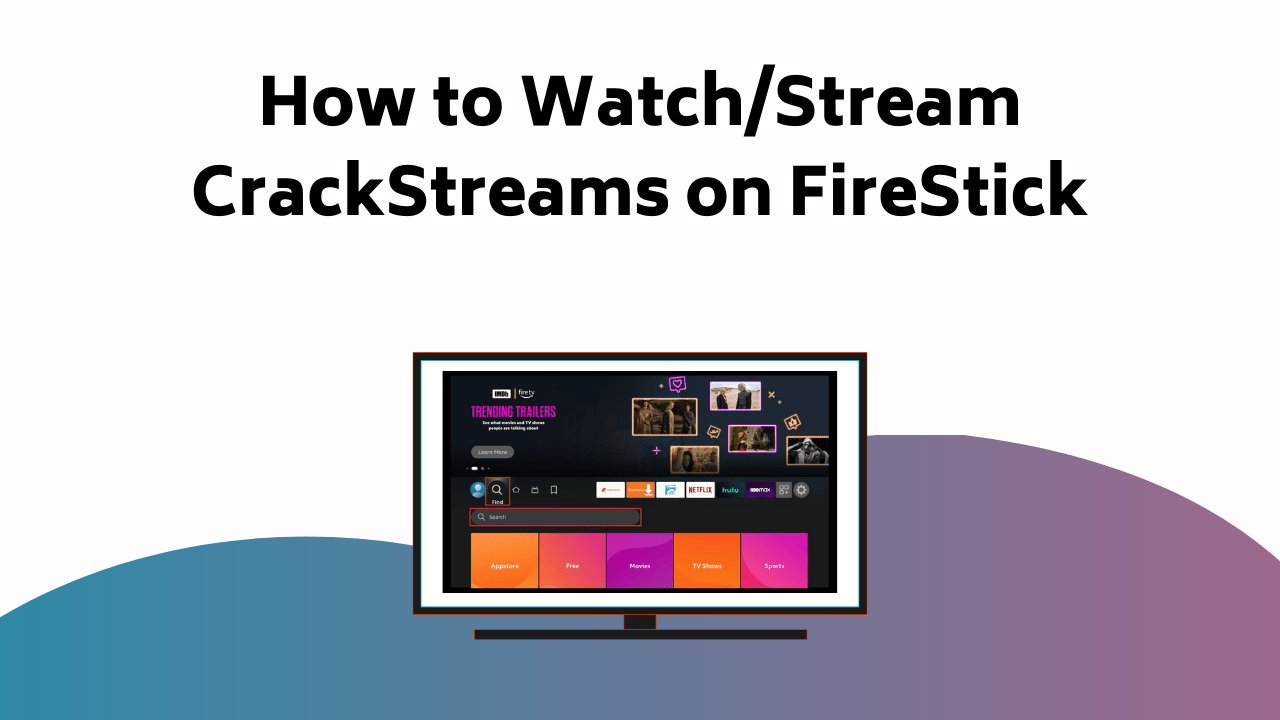
To view CrackStreams on your FireStick, begin by downloading and installing the Silk Web Browser. From your FireStick’s main screen, click on ‘Discover’, ‘Search’, and enter ‘Silk Browser’. How To Watch Stream Crack Streams On Fire Stick

Once installed, open Silk Browser, type ‘CrackStreams’ into the search bar, and hit ‘Go’. Select the featured CrackStreams link from the results, and presto, you now have access to a variety of sports streams powered by the latest streaming technology.

Don’t forget, familiarizing yourself with FireStick’s troubleshooting tips will help resolve any minor issues, and participating in the comment section can enrich your streaming experience. Keep following these steps and discover a world of endless, featured sport streaming options.

Key Takeaways

  • Download and install the Silk Browser on your Amazon FireStick for improved streaming.
  • Launch the Silk Browser from your FireStick homepage and navigate to CrackStreams.
  • Input ‘CrackStreams’ in the search bar of Silk Browser and click on ‘Go’.
  • Select the CrackStreams link from the search results to browse available sports streams.
  • Ensure a stable internet connection and updated FireStick software for a seamless streaming experience.

Downloading Silk Web Browser

To begin, you’ll need to download the Silk Web Browser on your Amazon Fire Stick. This is the first step in your silk browser setup. Go to the home screen, click on ‘Find’ and then ‘Search’. Enter ‘Silk Browser’ using the virtual keyboard. From the results, select Silk Browser and hit the ‘Download’ button.

Once installed, your streaming quality significantly improves. The Silk Browser allows for an improved viewing experience on your Fire Stick, making it a must-have for any movie or series enthusiast. It’s known for its speed, reliability, and user-friendly interface.

Installing Silk Browser on FireStick

After downloading the Silk Browser, you’re now ready to install it on your FireStick for an enhanced streaming experience.

Navigate to your FireStick home screen, select ‘Find’ and then ‘Search’. Input ‘Silk Browser’ using the virtual keyboard, and choose it from the search results. Click ‘Download’ to initiate installation.

The Silk Browser features a user-friendly interface and robust functionality, providing top-notch streaming quality for your CrackStreams content.

Once installed, launch the browser by locating it in your Apps section. For convenience, you may want to move it to the top row of your apps library.

Now, you’re all set to enjoy a premium viewing experience with the Silk Browser on your FireStick.

Navigating CrackStreams via Silk

Once you’ve got Silk Browser up and running on your FireStick, it’s time to navigate to CrackStreams and start enjoying your favorite sports streams. The Silk Browser features a user-friendly interface that makes browsing easy.

Here’s how to navigate CrackStreams:

  • Open Silk Browser from your FireStick homepage.
  • Input ‘CrackStreams’ in the search bar, then hit ‘Go’.
  • Click on the CrackStreams link from the search results.
  • Browse through the sports streams available.

CrackStreams provides high-quality streams, so you can enjoy the best viewing experience. Remember, the higher your internet speed, the better the CrackStreams streaming quality will be. Now, sit back and enjoy your favorite sports live and in high-definition with CrackStreams on FireStick.

Common FireStick Troubleshooting Tips

If you’re facing difficulties with your FireStick, here are some common troubleshooting tips that can help get your device back on track.

First, check your internet connection. It’s important for streaming, and any issues could disrupt your viewing.

Next, make sure your FireStick is up-to-date, as outdated software can cause streaming problems.

If you’re still encountering issues, try rebooting your device. This can often resolve minor glitches.

Finally, consider reinstalling the app causing trouble. Remember, these troubleshooting techniques aren’t exhaustive, but they’re a good starting place.

If you’re still experiencing streaming issues after trying these steps, it may be worth reaching out to Amazon’s customer service for additional support.

Engaging in the Comment Section

While troubleshooting your FireStick issues is crucial, don’t forget to also participate in the online community by engaging in the comment section. This comment engagement provides a platform for user interaction, helping to enrich your overall streaming experience.

Here are some tips to get you started:

  • Be courteous: Remember, the online community is a public forum. Treat others as you’d like to be treated.
  • Stay focused: Try to stick to the discussion at hand. Straying too much can lead to confusion.
  • Ask inquiries: If you’re having an issue or need clarification, don’t hesitate to ask.
  • Share your experiences: If you’ve discovered a solution to a common problem, sharing it can assist others.

Conclusion

And there it is! You’ve successfully maneuvered through the world of CrackStreams on your FireStick.

Did you know, over 30 million users have chosen Amazon FireStick as their preferred streaming device? Now, you’re one of them, fully equipped with the knowledge to access your favorite sports anytime.

Remember, if you encounter any issues, revisit our troubleshooting tips.

Drop a comment below with your experiences, we love hearing from our readers. Happy streaming!

How to Watch/Stream FlixFling on Roku

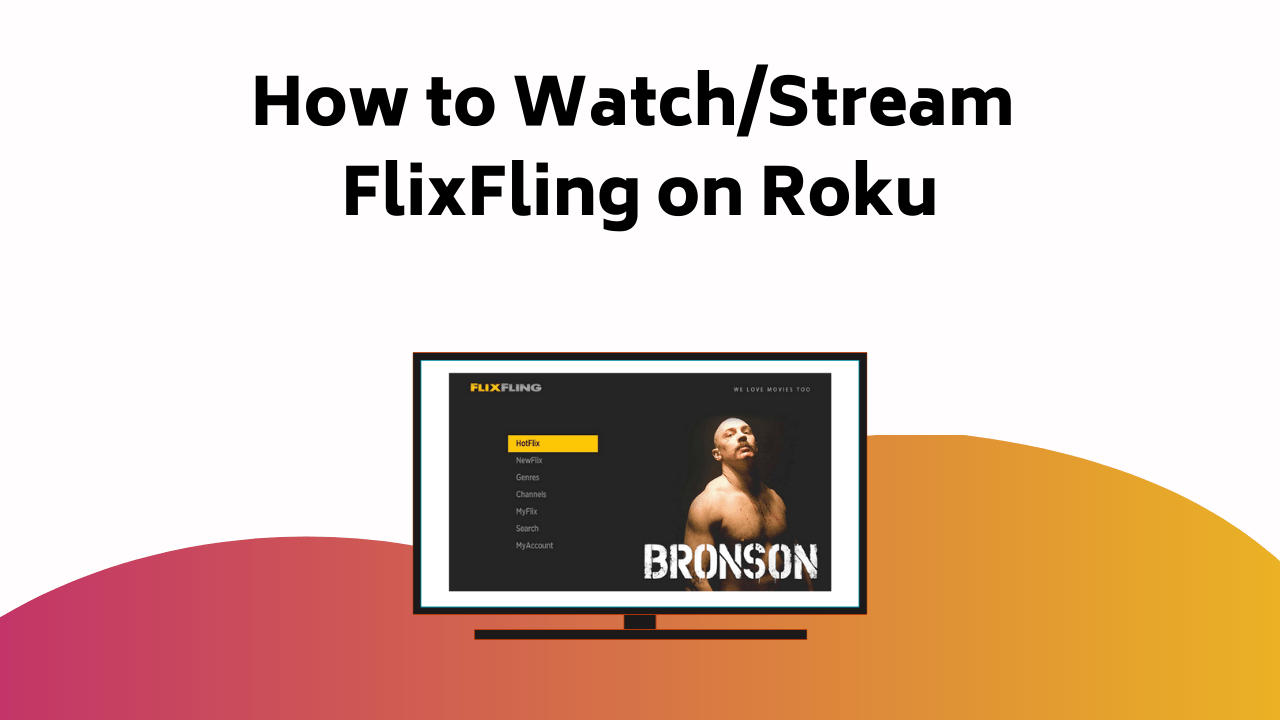
To enjoy FlixFling’s vast movie catalog on your Roku device, you’ve got to add FlixFling to your Roku. Go to the Roku Channel Store, look for and install the FlixFling app. How To Watch Stream Flix Fling On Roku

Head over to flixfling.com/roku, enter the activation code shown on your Roku screen, and you’re set! Now sit back and immerse yourself in over 5,000 films available at your fingertips. But wait, there’s more to FlixFling than meets the eye, you’ll be surprised at what else you can unearth.

Key Takeaways

  • Download the FlixFling app from the Roku Channel Store to your Roku device for access.
  • Visit flixfling.com/roku on a web browser to activate the FlixFling app on Roku.
  • Input the activation code displayed on your Roku TV screen during the activation process.
  • In case of any activation issues, try refreshing the page or restarting your Roku device.
  • Once activated, sign in to your FlixFling account to enjoy its vast library of movies and shows on Roku.

Understanding Roku and FlixFling

Exploring the world of streaming, Roku emerges as a versatile OTT device that enhances your movie-watching experience, especially with platforms like FlixFling.

You’ll appreciate the diverse Roku features, such as access to live TV, music, shows, and documentaries. With Roku, you’re assured of a high-quality picture, setting the stage for an immersive viewing powered by cutting-edge technology.

Turning to FlixFling, you’re in for a treat with its benefits. A unique streaming service, FlixFling brings a vast catalog of over 5,000 movies, allowing you to find your favorite classic films and unearth hidden gems.

To stream FlixFling on Roku, you’ll need to activate your FlixFling account, a process we’ll explore later. For now, know that these two platforms together create an unbeatable duo for your entertainment.

Adding FlixFling to Roku

To maximize your movie-watching experience with FlixFling on Roku, you’ll first need to add the FlixFling app to your Roku device. Start by exploring the Roku Channel Store from your device’s home screen. In the search bar, type ‘FlixFling’ and select the app from the dropdown menu.

Click ‘Add Channel‘, and the FlixFling app will be downloaded and installed on your Roku device. With this app added, you’re now ready to immerse yourself in FlixFling’s extensive movie selection. Thanks to Roku’s features, you’ll enjoy a seamless, high-quality streaming experience.

Activating Flixfling via Flixfling.Com/Roku

Once you’ve added the FlixFling app to your Roku device, it’s time to activate it using the website flixfling.com/roku. Navigate to this URL on a computer or smartphone. An activation code should be displayed on your TV screen. Enter this code into the website. This is an important step in the Roku activation process.

If you encounter any problems, don’t fret. Roku troubleshooting is generally straightforward. Usually, refreshing the page or restarting your Roku device will solve any issues.

Once activated, you’ll start to see the FlixFling subscription benefits. This includes access to a vast library of movies and shows, all in crystal clear quality. So sit back, relax, and enjoy your favorite content with ease and convenience.

Creating a Free FlixFling Account

Before you can enjoy the full range of FlixFling’s content, you’ll need to create a free account on their platform. Here’s how:

  • Head over to the FlixFling website.
  • Click on ‘Sign Up’ or ‘Try It Free’.
  • Choose to sign up using your Facebook, Google, or email account.
  • If using email, fill in the necessary details and hit ‘Sign Up’.
  • Remember to save your account credentials for future use.

Other FlixFling Compatible Platforms

Beyond Roku, your FlixFling subscription opens doors to a world of entertainment on several other compatible platforms. Fire TV, a popular choice, offers easy navigation and access to the FlixFling library, bringing you thousands of movies at a click.

You can also connect your FlixFling account with Apple TV, a platform known for its top-quality streaming and extensive compatibility. It’s as simple as downloading the FlixFling app from the respective app store, signing in with your FlixFling credentials, and delving into your favorite films.

Conclusion

And there you have it! Like opening a hidden cinema, you’ve now obtained FlixFling at your fingertips on your Roku device.

So, grab your popcorn, dim the lights, and immerse yourself in a world with over 5,000 movies to choose from.

With FlixFling on Roku, your movie-watching experience is as smooth as ever, and the world of cinema is yours to investigate.

Happy streaming!

How to Install Pure Flix on Roku Streaming Device

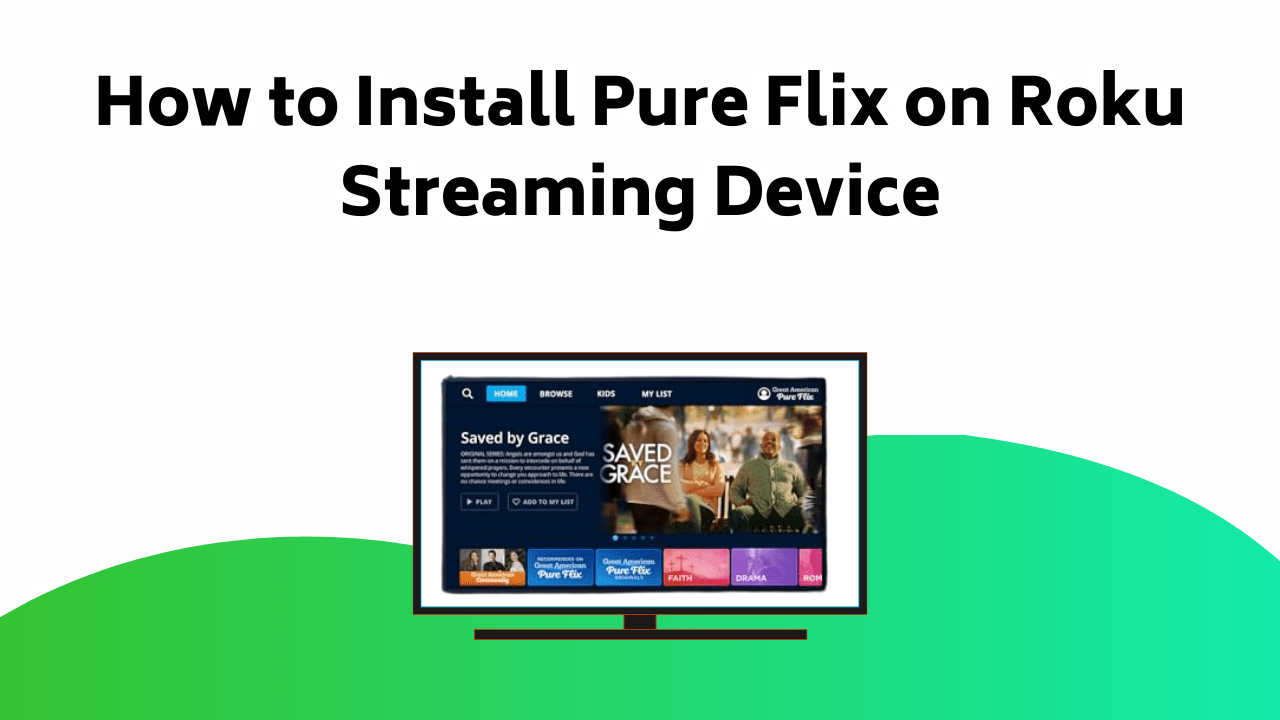
To install Pure Flix on your Roku streaming device, first, navigate to the Roku Channel Store. In the search bar, type ‘Pure Flix’ and locate the channel. How To Install Pure Flix On Roku Streaming Device

Next, add Pure Flix to your channel lineup. If you haven’t already, sign up for a Pure Flix account on their website and then log in with those credentials on your Roku.

Also, make sure you have a stable internet connection for smooth streaming. Experience any issues? Don’t worry, from understanding Roku’s functionality to troubleshooting any installation hitches, there’s a whole lot more in store for you to discover.

Key Takeaways

  • Start by navigating to the Roku Channel Store and search for the Pure Flix channel.
  • Once found, add the Pure Flix channel to your lineup on Roku.
  • If you don’t have a Pure Flix account, create one on their website.
  • Make sure your internet connection is strong for the best streaming quality.
  • If you encounter issues, troubleshoot by restarting your Roku, checking for updates, or reinstalling the Pure Flix channel.

Understanding Streaming Devices and Pure Flix

In the world of OTT streaming devices, Roku stands as a preferred choice for over half of American viewers who enjoy streaming content on their TV screens, and installing Pure Flix on it can provide access to a wide range of faith-based content suitable for all ages.

Your choice of streaming device and the underlying technology can significantly improve your user experience.

Content preferences also play a major role in device selection. If you encounter difficulties during the Pure Flix installation, don’t worry, troubleshooting is often straightforward, requiring only a few adjustments.

The key is understanding the functionality of your device and the steps required for installation.

Remember, the goal is to optimize your experience, so take the time to familiarize yourself with your Roku device and Pure Flix’s interface.

Pure Flix Installation on Smart Devices

Let’s discover the process of setting up Pure Flix on your smart devices, a simple task that can be completed in just five easy steps. First, sign up for a Pure Flix free trial. This gives you access to the entire library of faith-based content. Then, download the Pure Flix app from your device’s app store.

Here are the next steps in markdown format:

  1. Open the Pure Flix app once it’s downloaded.
  2. Log in using your Pure Flix credentials.
  3. Start browsing the content categories and choose what you want to watch.

For troubleshooting tips, always make sure your device is connected to a stable internet connection. The user experience feedback suggests that the Pure Flix app is user-friendly and easy to navigate.

Pure Flix on Samsung, LG, Sony Smart TVs

Often, you’ll find installing Pure Flix on Samsung, LG, or Sony Smart TVs a straightforward process, beginning with accessing the respective app stores on each of these devices. To check Smart TV compatibility, Pure Flix should be available in the app store of your device. If it isn’t, your TV model may not support the app.

For Samsung Smart TVs, access the Samsung Smart Hub. LG users can browse the LG Content Store, and Sony Smart TV owners should visit Sony Select Apps.

In all cases, the installation process for Smart TVs involves searching for ‘Pure Flix’ using the on-screen keyboard. Once the app appears, select ‘install’ or ‘add to my apps’. After installation, open Pure Flix, sign in with your account, and enjoy streaming faith-based content.

Pure Flix on Apple, Amazon Fire TV, Android TV, Chromecast

If you’re interested in watching Pure Flix on your Apple TV, Amazon Fire TV, Android TV, or via Chromecast, you’ll need to download and install the Pure Flix app from the respective device’s app store. Streaming device compatibility varies, so make sure your device supports the app.

  1. Apple TV: Open the App Store, search for Pure Flix, download and install the app, then log in with your account.
  2. Amazon Fire TV: Navigate to the search bar at the upper left corner, type ‘Pure Flix’, select it from the list, and click on ‘Download’ to start the app installation process.
  3. Android TV and Chromecast: Visit the Google Play Store, search for Pure Flix, install the app, and sign in.

Pure Flix Setup on Roku Device

To set up Pure Flix on your Roku device, first navigate to the Roku Channel Store and search for the Pure Flix channel. Once found, add it to your channel lineup. Next, open Pure Flix and you’ll be prompted to log in. Use your Pure Flix account credentials. If you don’t have an account yet, you can create one on the Pure Flix website.

For the best streaming quality, make sure your Roku device is connected to a strong, stable internet connection. If you encounter any issues, some troubleshooting tips include restarting your Roku device, checking for updates, or reinstalling the Pure Flix channel.

Now, you’re all set to enjoy faith and family-friendly content on your Roku device. Enjoy streaming!

Conclusion

Congratulations! You’ve now mastered the process of installing Pure Flix on your Roku and other streaming devices.

Did you know that Pure Flix boasts over 2,000 faith-based movies and series?

So, sit back, grab your remote, and immerse yourself in a world of wholesome entertainment.

Remember, with Roku and Pure Flix, you’re just a few clicks away from a vast array of uplifting content.

Enjoy your streaming journey!

How to Activate Your Hartford Courant Account Online

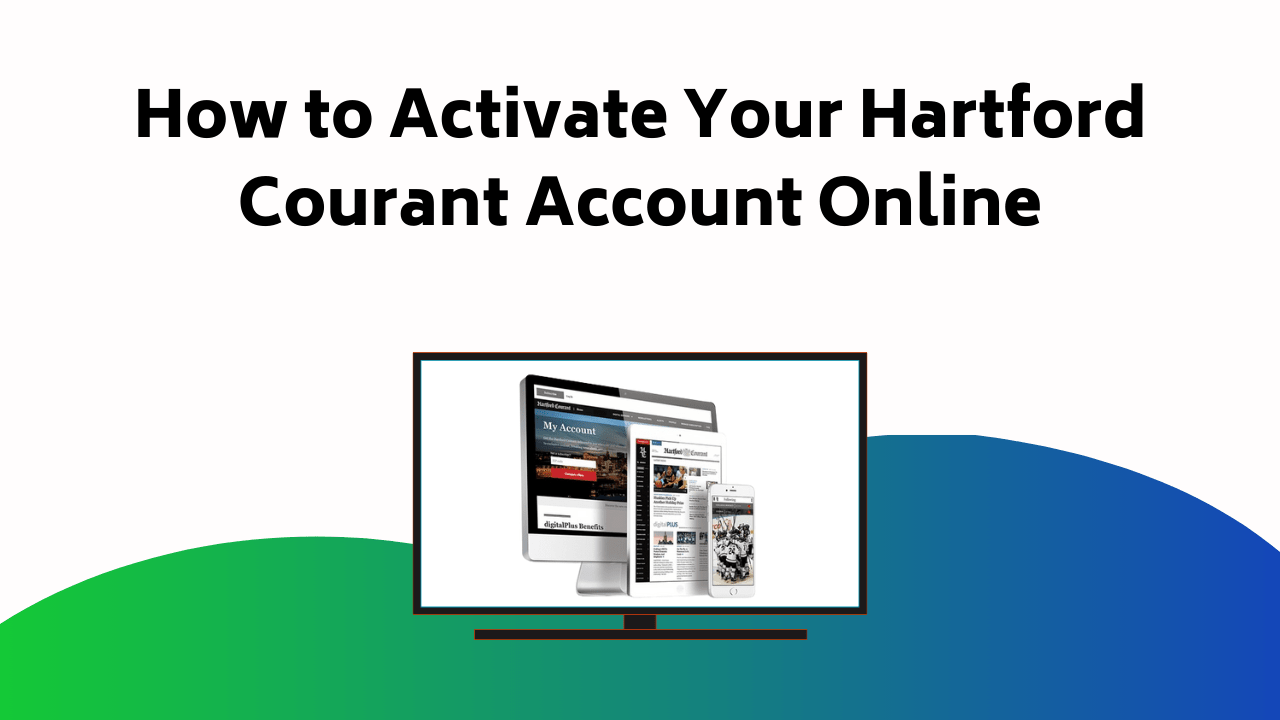
You can activate your Hartford Courant account easily by visiting courant.com/activate. Start by selecting ‘Activate Your Digital Account’, then fill in your email, create a password, and provide your ZIP code. Click on ‘Create Account‘, then log in to complete the activation. How To Activate Your Hartford Courant Account Online

Once activated, you’ll have unlimited access to local and international news. Got trouble logging in or need additional help? Customer service is only a call or click away. And, as you’ll see, activating your account opens up even more benefits waiting to be discovered.

Guide to Courant Account Activation

Activating your Courant account is a simple process that grants you access to premium content, apps, OTT features, and daily news updates. To start, navigate to courant.com/activate, and choose ‘Activate Your Digital Account’.

You’ll need to enter your email, create a secure password, and input your ZIP code. After you click on ‘Create Account’, log in with your credentials to complete activation.

Now, let’s talk about troubleshooting tips in case you encounter issues. If you’re unable to access your account, double-check your login details. If the problem persists, there’s a possibility that your account security might’ve been compromised.

In that case, reset your password immediately to secure your account. Remember, keeping your Courant account safe with the right use of technology is key to uninterrupted access to premium content.

Customer Support and Resolution

When you encounter any issues with your Courant account, it’s essential to contact their dedicated customer support for quick resolution. They’re equipped to help with troubleshooting issues and provide timely assistance.

  1. Phone Support: For immediate assistance, you can reach out to their customer service at 860-525-5555 or 312-442-0013. They’re available to help resolve your concerns effectively.
  2. Email Support: For non-urgent issues or queries, drop an email at [emailprotected]. They endeavor to respond within a reasonable timeframe.
  3. Online Help Center: Visit the help center on their website for answers to common questions and helpful guides.

Benefits of Courant Account Activation

By immersing yourself in the world of digital news with a fully activated Hartford Courant account, you’ll unlock a variety of benefits tailored to enhance your reading experience.

You’ll have unlimited digital access, allowing you to explore a wide range of local and international news. This means you’ll always be up-to-date with the latest events, thanks to real-time news updates directly sent to your device.

You’ll also have the freedom to read at your convenience, whether you’re on the move or enjoying your morning coffee. Additionally, you can join lively discussions, express your thoughts, and interact with a community of readers.

Conclusion

So, there you have it! With just a couple of brisk steps at courant.com/activate, you’ve accessed a wealth of news, updates, and premium content.

No more running into story limits; just smooth, uninterrupted reading pleasure. And if you encounter a problem, remember, Hartford Courant’s helpful team is just a call away.

So, go ahead, power up your device and immerse yourself in the world of information. Enjoy the Hartford Courant, your way!

How to Activate PSEA ID Card Online

To activate your PSEA ID Card online, begin by visiting the official activation link at www.psea.org/activate. There, you’ll encounter two activation choices. How To Activate PSEA ID Card Online

One method involves entering your PSEA ID number along with the last four digits of your SSN, while the other requires your Last Name, Zip Code, and Date of Birth.

If you encounter any difficulties during this process, PSEA provides featured resources along with troubleshooting tips and additional support through phone or email.

Once successfully activated, you’ll gain access to a range of member benefits, such as savings on insurance and mortgages, as well as exclusive entry to member-only sections of the PSEA website.

By following this guide, you’ll uncover the extensive possibilities that your PSEA ID can provide.

Activating PSEA ID Card Online

To activate your PSEA ID Card online, begin by accessing the official PSEA activation link at www.psea.org/activate using your computer.

You’ll be presented with two options. Option 1 requires your PSEA ID number and the last four digits of your Social Security Number. If these aren’t available, use Option 2: your last name, zip code, and date of birth.

If you encounter difficulties, don’t panic. Several troubleshooting tips are available. Reach out to PSEA via phone or email for immediate assistance.

Remember, the activation benefits are well worth this process, offering savings on mortgages, insurance, and much more. The PSEA community is your support system, always ready to assist.

Guarantee successful activation by following these detailed steps.

Exploring Activation Options

When you’re ready to activate your PSEA ID card online, you have two distinct options available to you, each designed to accommodate varying circumstances and availability of personal information.

  1. The primary method: You input your PSEA ID number along with the last four digits of your Social Security Number.
  2. The activation alternative: If you don’t have your ID number or SSN at hand, you can use your Last Name, Zip Code, and Date of Birth.

Both options are designed for your convenience and ease.

However, if you encounter any hitches, the following troubleshooting tips might be useful:

  1. Make sure that you’re entering the correct details.
  2. Check your internet connection.
  3. Try refreshing the page or restarting your device.
  4. Clear your browser cache or try a different browser.

Remember that the activation process is important to start enjoying the benefits of your PSEA ID card.

How to Reach PSEA Support

Should you encounter difficulties during the activation process, PSEA offers multiple channels of support to promptly address and resolve your concerns. Contacting support is a straightforward process.

Reach out to PSEA support via phone at (800) 944-7732 or (717) 255-7000. Alternatively, you can send an email by filling out the form on their website with your name, local, email, and other relevant details. If you prefer traditional methods, you can mail your concerns to PSEA Harrisburg, 400 North Third Street, O. Box 1724, Harrisburg PA 17105-1724.

For resolving problems, remember to provide detailed information about the issue you’re experiencing. With today’s technology, PSEA’s dedicated team can guide you efficiently, helping you overcome activation challenges and ensuring a smooth and successful process.

Unveiling PSEAs Role

Diving deeper into the organization, it’s important to understand that the Pennsylvania State Education Association (PSEA) plays a significant role in serving education professionals. Let’s investigate PSEA’s impact and the member benefits.

  1. PSEA’s Impact: The PSEA’s main goal is to guarantee quality education for all students. They work tirelessly to support and protect the rights of education professionals and students.
  2. Professional Development: They provide numerous opportunities for professional growth, allowing members to improve their skills and knowledge.
  3. Member Benefits: As a member, you’re privy to a range of advantages. These include savings on insurance, mortgages, and more.
  4. Community: PSEA provides a strong community, offering support, and promoting collaboration among education professionals.

Understanding PSEA’s role is vital in appreciating the significance of your PSEA ID Card.

Other Relevant Posts

In addition to understanding your PSEA ID card activation, there are several other posts that could spark your interest and provide valuable information. There’s a detailed analysis of membership benefits, which includes a comprehensive review of savings opportunities.

This post offers a technical breakdown of the numerous benefits that come with PSEA membership, helping you to fully utilize these advantages. You’ll also find a thorough evaluation of the various savings opportunities available to members.

This includes an in-depth review of the financial benefits and how they can significantly reduce your expenses. This detailed, analytical, and technical approach guarantees that you’re well-informed about all the benefits that come with your PSEA ID card activation.

Understanding PSEA ID

To fully appreciate the advantages of your membership, it’s essential to understand what your PSEA ID is and its significant role in the activation process. Your PSEA ID is a unique eight-character identifier assigned to you upon joining the Pennsylvania State Education Association. It’s more than just a number; it’s your key to accessing a host of membership perks.

  1. ID Card Benefits: Your PSEA ID is your gateway to the world of benefits that PSEA offers. These include substantial savings on things like mortgages and insurance.
  2. Ease of Access: With your PSEA ID, you can easily access member-only sections of the PSEA website.
  3. Activation: The PSEA ID is important for the ID card activation process on the official website, www.psea.org/activate.
  4. Security: Using your PSEA ID helps make sure your transactions are secure and personal details are protected.

Troubleshooting Activation Issues

Should you encounter any hitches while trying to activate your PSEA ID card online, there are several troubleshooting steps you can take to resolve these issues.

First, check your internet connection. A weak or unstable connection may cause common activation problems.

If your connection is stable, clear your browser’s cache and cookies. Sometimes, these stored files can interfere with the activation process.

If problems persist, try using a different browser or device. Some platforms may have compatibility issues with the PSEA activation site.

Finally, double-check your entered information. Incorrect details are a common hurdle in the activation process.

If all else fails, don’t hesitate to use the contact information provided on the site for further activation troubleshooting tips.

Ensuring Successful Activation

While validating your PSEA ID card, it’s crucial you confirm the accuracy of the information you input, as mistakes can hinder the completion of the process. Here are successful activation tips:

  1. Utilize the official website: www.psea.org/activate. This guarantees data security.
  2. Precisely input either your PSEA ID Number and last 4 SSN digits or your Last Name, Zip Code, and Date of Birth. This authenticates your identity.
  3. If you encounter issues, don’t hesitate to utilize the activation troubleshooting resources.
  4. Get in touch with PSEA via phone or email if problems persist.

Conclusion

To sum up, activating your PSEA ID card online is a breeze if you follow the steps outlined.

For example, let’s say you’re a new member, you’d simply visit www.psea.org/activate, choose your activation option, and follow the prompts.

If you hit a snag, PSEA support is there to assist.

Once your card is activated, you’re ready to enjoy the benefits of PSEA membership.

Remember, your PSEA ID is your key to a world of educational resources.

How to Activate Your SDCCU Card Online

To activate your SDCCU card online, first, visit sdccu.com/activate. If you’ve forgotten your username, click ‘Forgot Your Username?’ and verify your identity using your SSN or Tax ID Number. It’s an essential step for maintaining the security of your SDCCU account.

How To Activate Your SDCCU Card Online

Next, enroll in online banking to make the most of your SDCCU card. Here, provide your SDCCU card number, SSN, and personal details, and then verify them through an email or text with a verification code.

This secure process reflects how modern banking has adopted OTT-style convenience, allowing you to manage finances seamlessly across devices.

If you encounter any issues, check your internet connection, make sure that your card number and credentials are accurate, or clear browser cache.

Reaching out to SDCCU’s technical assistance team can also streamline the process. With today’s banking technology, getting your card activated is simpler than you think.

There’s a wealth of more detailed information awaiting you just a few clicks ahead.

Retrieving Your SDCCU Username

If you’ve misplaced your SDCCU username, don’t worry, as SDCCU provides a featured option to retrieve it quickly. Just navigate to the login page and click on ‘Forgot Your Username?’

You’ll need to confirm your identity, so have your Social Security Number or Tax ID number ready.

Username recovery is important, not just for convenience but also for account security. Without your username, you can’t access your online banking features or, importantly, activate your card.

If you run into errors, simple troubleshooting, like rechecking your details or clearing your browser cache, can help. Enter your SDCCU card or account number when prompted and follow the on-screen guidelines to easily retrieve your username.

Just remember, maintaining the security of your username is paramount. Keep it private, don’t share it, and you’ll maintain the integrity of your SDCCU account.

Enrolling in SDCCU Online Banking

To take full advantage of your SDCCU card, you’ll need to enroll in their online banking platform. This process starts with online registration, where you’ll provide key information to establish your account. You’ll enter your SDCCU card number, social security number, and other personal details. Be prepared with this information to expedite the process.

Once you’ve inputted all necessary data, the next step is account verification, an important safety measure. SDCCU will either send you an email or a text with a verification code. You’ll need to enter this code to confirm the registration process.

After successful verification, you’re officially enrolled in SDCCU online banking. This tech-savvy move allows you to manage your finances anytime, anywhere, maximizing the benefits of your SDCCU card.

Troubleshooting SDCCU Card Activation

Despite your best efforts, you might encounter some issues when attempting to activate your SDCCU card online. Don’t panic, as most activation issues can be resolved with a few simple steps.

  1. Confirm your internet connection: A weak or unstable internet connection can disrupt the activation process. Make sure you’re connected to a reliable, high-speed network.
  2. Validate your details: Incorrect input of your card number or online banking credentials can result in errors. Double-check the information you’ve provided.
  3. Clear your browser cache: Sometimes, stored data can cause technical issues. Clear your browser cache and try again.
  4. Contact technical support: If you’re still experiencing difficulties, don’t hesitate to reach out to SDCCU’s technical support team for assistance. They’re well-equipped to assist you through the activation process.

Conclusion

And there you have it! You’re no longer a mere mortal, but a tech wizard, having conquered the maze of SDCCU card activation.

Mastered your username, enrolled into online banking, and troubleshooted any hurdles along the way.

Now, go forth and enjoy the endless possibilities your activated card brings. Remember, if you stumble, our guide is always here to illuminate your path.

So, welcome your newly acquired powers and let your SDCCU card lead the way!

How to Activate Simple TV on Roku

To activate Simple.TV on your Roku, first make sure your Roku device is connected to the internet. Next, download the Simple.TV app from the Roku Channel Store and launch it to get an activation code. How To Activate Simple TV On Roku

Visit Simple.TV/Roku on your computer or mobile device and enter the provided activation code. Voila! Your Simple.TV is activated on Roku. Remember, Simple.TV and Roku must be on the same network for you to stream saved programs. And there’s more to discover about maximizing its ultimate potentials if you stick around a little longer.

Understanding Simple.TV Functionality

Exploring the functionality of Simple.TV, it’s crucial to understand that this over-the-air DVR system is a boon for cord-cutters, allowing you to access local TV signals, record programs, and store these recorded shows on a hard drive for later streaming on your Roku device.

You’re free to discover features like the intuitive interface that simplifies navigation.

However, you might encounter a hitch or two along the way, and that’s where troubleshooting tips come in handy.

For instance, if you’re unable to record programs, check your antenna’s signal strength.

If you’re having trouble streaming saved programs on your Roku, make sure your Simple.TV and Roku device are connected to the same network. Essentially, understanding Simple.TV’s functionality is crucial in maximizing its potential.

Activating Simple TV on Roku

Having downloaded the Simple TV app from the Roku Channel Store, you’re ready to activate it on your Roku device for immediate access to recorded and live local TV broadcasts.

This OTT service brings convenience and flexibility right to your screen.

To start setting up, first make sure your Roku device is connected to the internet. Then, launch the Simple TV app. You’ll see an activation code displayed on your TV screen.

Now, head to Simple.TV/Roku on your computer or mobile device. Enter the activation code shown on your TV screen here. Hit ‘Activate’, and voila, your Simple TV is up and running on Roku.

If you face any issues in this process, don’t worry. With today’s technology, troubleshooting activation is simple—just repeat the steps, ensure you’ve entered the correct activation code, and you should be sorted.

Your Simple TV experience on Roku begins now.

Benefits of Choosing Roku

Now that you’ve activated Simple TV on your Roku device, let’s consider why Roku is a top choice for streaming both live and recorded content.

One of the streaming advantages of Roku is its broad device compatibility. You can use Roku on a variety of devices, from smart TVs to mobile devices and even computers. This flexibility allows you to enjoy your favorite shows and movies anywhere, anytime.

Roku also provides a seamless, user-friendly interface. Its clean design and intuitive navigation make it easy for you to find and control what you want to watch. Additionally, some Roku devices come with voice search capabilities, further enhancing user convenience.

Conclusion

So, there you have it! You’re now well-equipped to activate Simple.TV on your Roku device. With this powerful tool, your TV viewing experience will be transformed.

You’ll appreciate the convenience and unlimited access to your favorite local shows and movies. Remember, the world of streaming is at your fingertips with Simple.TV and Roku.

Enjoy the ride and happy streaming!

How To Activate USTVGO On Roku

To activate USTVGO on your Roku, you’ll first need to install a reliable VPN, like NordVPN, on your device.

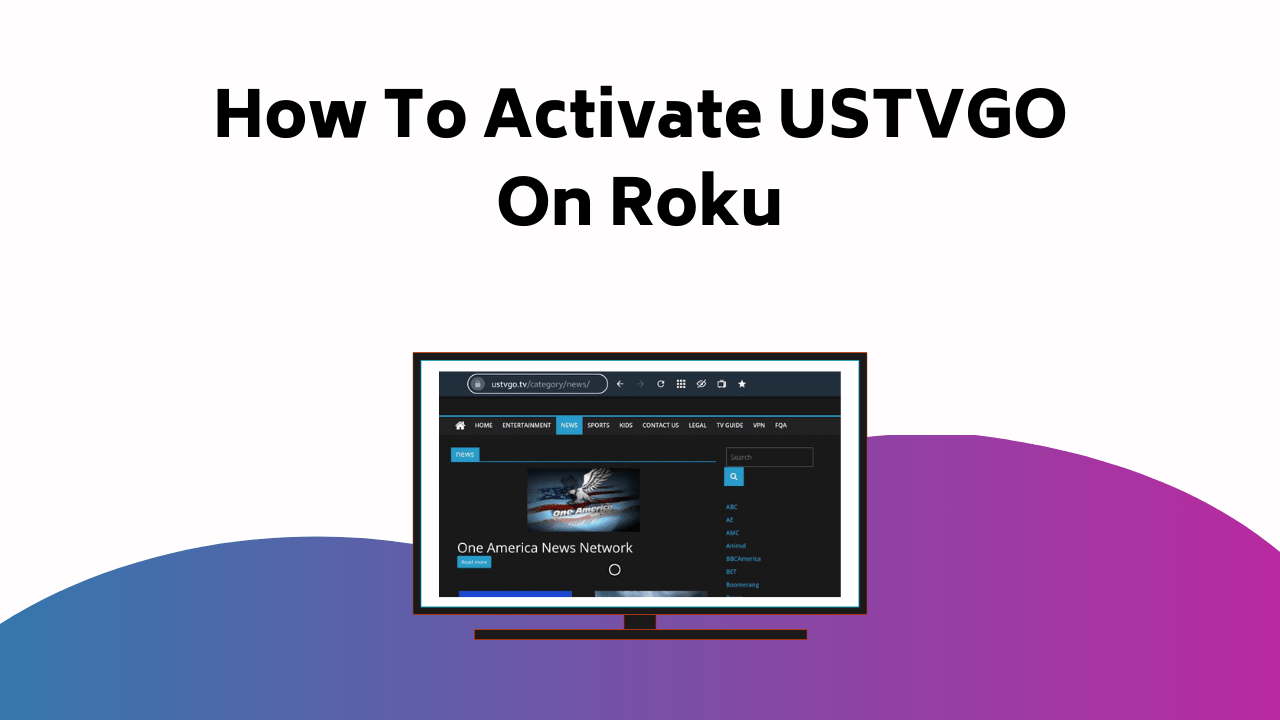
Make sure to connect to a U.S. server to bypass any geo-restrictions and guarantee smooth streaming. For uninterrupted viewing, check your VPN’s connection stability before accessing USTVGO. How To Activate USTVGO On Roku

You may also want to contemplate mirroring your Android device, with the USTVGO website pulled up, to your Roku TV. Remember, both devices need to be on the same Wi-Fi network for this. Swipe on to reveal more insight on optimizing your USTVGO experience!

Guide to Access USTVGO on Roku

To access USTVGO on your Roku device, you’ll first need to install a VPN on your device by visiting the USTVGO website.

3This step is crucial to bypass geo-restrictions and enjoy uninterrupted streaming. VPNs are a key piece of technology that enable secure and region-free access.

After setting up the VPN, connect to a US server. Now, you’re all set to explore the featured content lineup of USTVGO.

If you’re facing connectivity issues, don’t worry. Check your VPN connection to ensure it’s stable and connected to a U.S. server. Sometimes, a quick reboot is all it takes—a simple fix using today’s smart home technology.

Not satisfied with USTVGO? There’s a world of featured streaming options waiting for you. Services like Netflix, Hulu, or Amazon Prime offer vast libraries of shows and movies, powered by advanced streaming technology.

Remember, exploring is part of the streaming journey, so don’t hesitate to venture out and discover what the world of digital entertainment has to offer.

Installing VPN on Your Device

Before delving into the vast pool of content that USTVGO offers, you’ll need to install a VPN on your device, and here’s how to do it.

First, you’ll have to visit your device’s app store and search for a VPN. Choose a VPN with high ratings and reviews. Once you’ve decided on a VPN, click ‘Install’.

Once the VPN is installed, open the app and follow the instructions for setting up VPN on your device. If you encounter any issues during the setup, refer to the VPN’s troubleshooting connection issues guide, typically found within their help section.

Purchasing and Installing NordVPN

Having established the need for a VPN, let’s now focus on purchasing and installing NordVPN on your device. Visit the NordVPN website, choose your desired plan, and complete the purchase. Once done, download the NordVPN app from your device’s app store.

StepsActionTroubleshooting
1Purchase NordVPNIf payment fails, try a different card
2Download NordVPN appIf app doesn’t download, check storage
3Install and set up NordVPNIf installation fails, restart device

Setting up NordVPN is simple; you’ll need to sign in and connect to a server. If you encounter any connection issues, NordVPN offers 24/7 support. Now, NordVPN is ready to use, ensuring a secure and unrestricted browsing experience.

Accessing USTVGO With Nordvpn

Now that your NordVPN is up and running, you can easily access USTVGO on your Android device. Remember, NordVPN plays an important role in bypassing geo-restrictions, allowing you to watch USTVGO from anywhere.

Simply open your NordVPN app and connect to a US server. This will give your device a US-based IP address, making USTVGO think you’re accessing from within the US.

You may face some hurdles along the way requiring VPN troubleshooting. Don’t worry. Check your connection and make sure your NordVPN is properly configured. If you’re still having issues, consider reaching out to NordVPN’s customer service. They’re experienced in solving such issues.

With NordVPN, you’re one step closer to enjoying your favorite US TV shows without any restrictions.

Installing NordVPN on Android Device

To enjoy unrestricted access to USTVGO on your Android device, you’ll first need to install NordVPN. Start by heading to the Google Play Store and searching for NordVPN. Once found, proceed with the installation.

After the app is installed, open it and sign in using your NordVPN credentials. If you don’t have an account yet, create one by following the app’s instructions.

Now, you’re ready to begin setting up NordVPN. Select a US server to guarantee smooth access to USTVGO. If you encounter any connection issues, NordVPN has a robust troubleshooting resource that can assist you in resolving them.

Accessing USTVGO Website on Android

Once you’re connected to a US server through NordVPN on your Android device, you’re all set to access the USTVGO website. This platform is a perfect fit for Android compatibility, allowing you to take advantage of its vast array of channels right from your phone.

Here’s a brief guide to get you streaming:

  1. Open your browser (preferably Chrome for best performance)
  2. Go to the USTVGO website
  3. Choose a channel to start streaming

You’ll be impressed by the streaming quality. The interface is user-friendly, and the streaming experience is smooth. Just make sure that your internet connection is stable to maintain the streaming quality. Now, sit back and enjoy your favorite US TV channels on your Android device with USTVGO.

Mirroring Android Screen on Roku

After enjoying USTVGO on your Android, you might want to enhance your viewing experience by mirroring your screen onto your Roku-connected TV. To do this, make sure both your Android and Roku devices have the latest updates. Then, navigate to Roku’s Settings and activate screen mirroring. If you face any problems, consult screen mirroring troubleshooting guides.

On your Android, go to the Cast settings and search for your Roku device, confirming Android device compatibility. Once connected, your Android screen will mirror onto your Roku TV. Open the USTVGO app on your Android and enjoy watching on a larger screen. Remember, the success of this process heavily relies on both devices being on the same Wi-Fi network.

Conclusion

So, there you have it! Now you’re set to enjoy USTVGO on your Roku. With NordVPN on your Android and a few simple steps, your favorite U.S. channels are within reach.

Remember to keep your VPN active for smooth streaming. And don’t worry about account cancellations, we’ve got that covered too.

Enjoy your seamless USTVGO experience, and don’t forget to share your thoughts in the comments!

How to Activate WSMV TV Network On Roku

To activate the WSMV TV Network on your Roku device, first, turn on your Roku and connect it to both your TV and Wi-Fi.

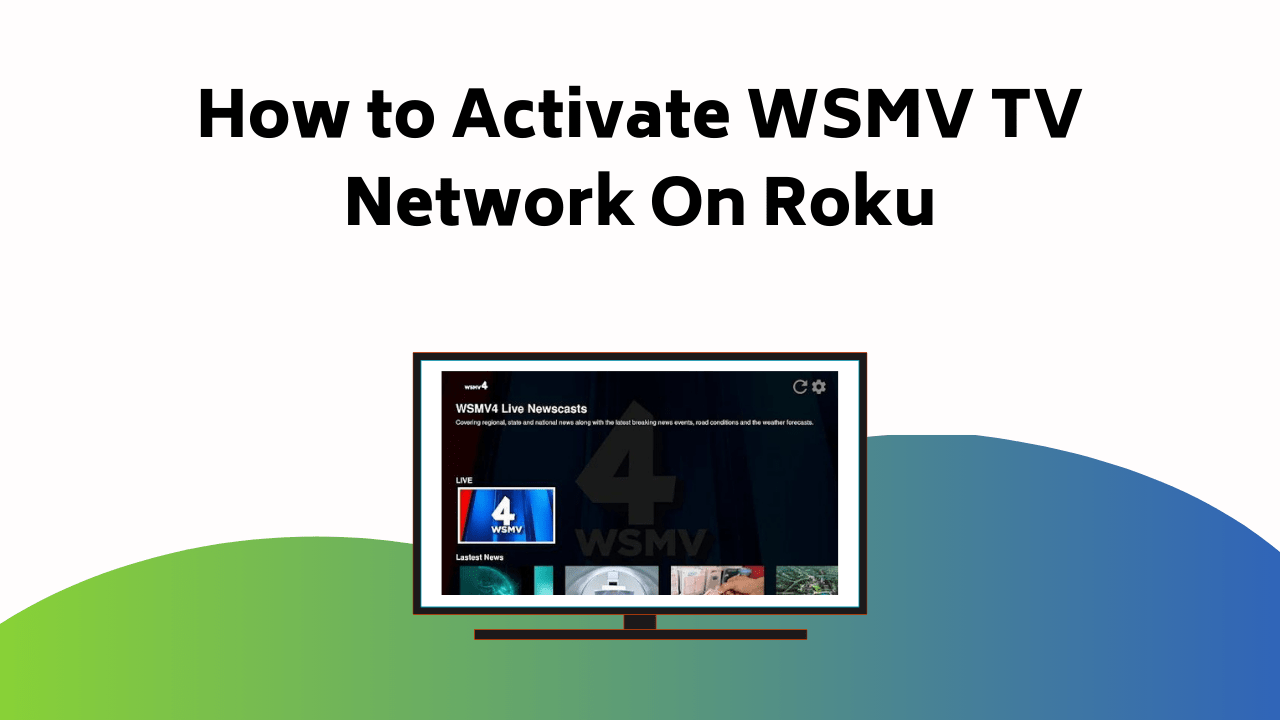
Then, head to the Roku Channel Store, type in ‘WSMV TV app and add the channel. Fire up the WSMV TV app on your Roku device. A unique activation code will appear; jot it down. How To Activate WSMV TV Network On Roku

On a separate device, key in this code on www.wsmv.com/activate. Finally, you’ll need a WSMV TV Network Account. Just log onto the WSMV TV Network homepage, register, and provide the needed details. Remember to craft a robust password. Stick around, there’s more you’ll find handy on how to troubleshoot any issues you might encounter along the way.

Preparation and Installing WSMV TV App

Before you can enjoy the wealth of content on the WSMV TV Network, you’ll need to properly set up and install the app on your Roku device. Start by turning on your Roku and connecting it to your TV and Wi-Fi network.

Once you’re on the home screen, navigate to the Roku Channel Store, a hub of featured streaming options powered by smart technology.

In the search bar, type ‘WSMV TV app’ and hit enter. Select the app from the search results and choose ‘Add Channel.’ If there’s a fee, you’ll be prompted to pay; otherwise, it’s free. Once installed, return to your home screen and open the app.

Don’t worry if you experience any issues during the installation. Thanks to evolving technology, there are built-in troubleshooting tips and support resources to help you resolve problems quickly.

Now you’re ready for the next step: retrieving the featured activation code to complete your setup and start streaming local news, weather, and more from WSMV.

Retrieving Activation Code

After successfully installing the WSMV TV app on your Roku device, your next task is to retrieve the activation code. Navigate to the WSMV TV app and launch it. A screen will appear displaying the unique activation code, essential to the activation process. Note this code down carefully, as any error can disrupt the entire process.

If the code doesn’t appear, don’t fret. Go to ‘Settings’ and choose ‘Get a new code’, this is one of the most effective troubleshooting tips. Once you have the code, open a web browser on a separate device. Visit the link www.wsmv.com/activate. You’ll be prompted to enter the activation code. After you’ve entered the code correctly, you’re ready for the next step.

Setting Up WSMV TV Network Account

Once you’ve entered the activation code correctly, it’s time to create your WSMV TV Network account. Follow these steps for setting up your account:

  1. Visit the WSMV TV Network homepage on your browser.
  2. Click on the ‘Login’ icon and select ‘Register here’.
  3. Provide the required information, create a password and hit ‘Create Account’.

Remember, your account is key to accessing WSMV TV Network on your Roku device. If you encounter any issues while setting up your account, here are some troubleshooting tips:

  • Check your internet connection.
  • Verify the details you’re entering are correct.
  • Try resetting your password.

Conclusion

And there you have it! You’re now a champion at activating the WSMV TV Network on your Roku device. It’s as easy as pie, isn’t it?

Now, you can plunge headfirst into the ocean of entertainment that awaits you. Remember, if you ever feel like you’re exploring a maze when tackling technical issues, just revisit these steps. They’re your trusty compass in the vast world of Roku.

Happy streaming!