Home Blog Page 30

How to Activate AT&T MicroCell on Your Router

To activate your AT&T Microcell, go to att.com/microcell-activate and click ‘Activate.’ Choose your account type, log in, input your device details, review the setup, and finally submit it for activation.

Keep in mind proper set up, connect the device to your router, use a power outlet for AC power adapter and place it in an area with a clear line of sight to maximize its capabilities.

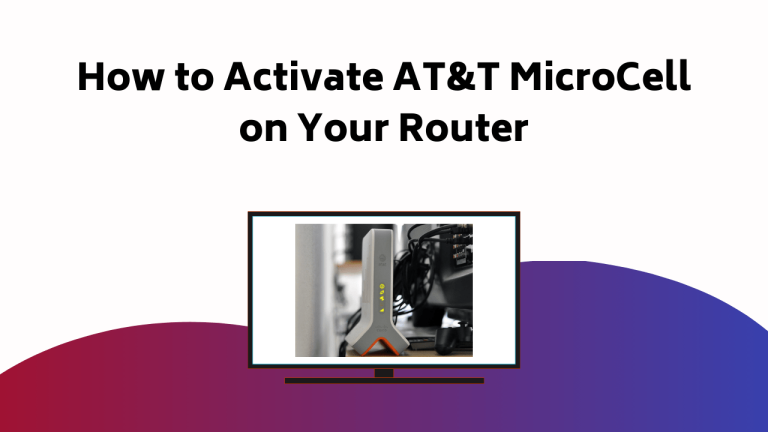
If you run into activation errors, don’t fret, troubleshooting is also part of the journey. As you navigate further, you’ll become an expert on your device, including dealing with common network problems and connectivity solutions. How To Activate ATT Micro Cell On Your Router
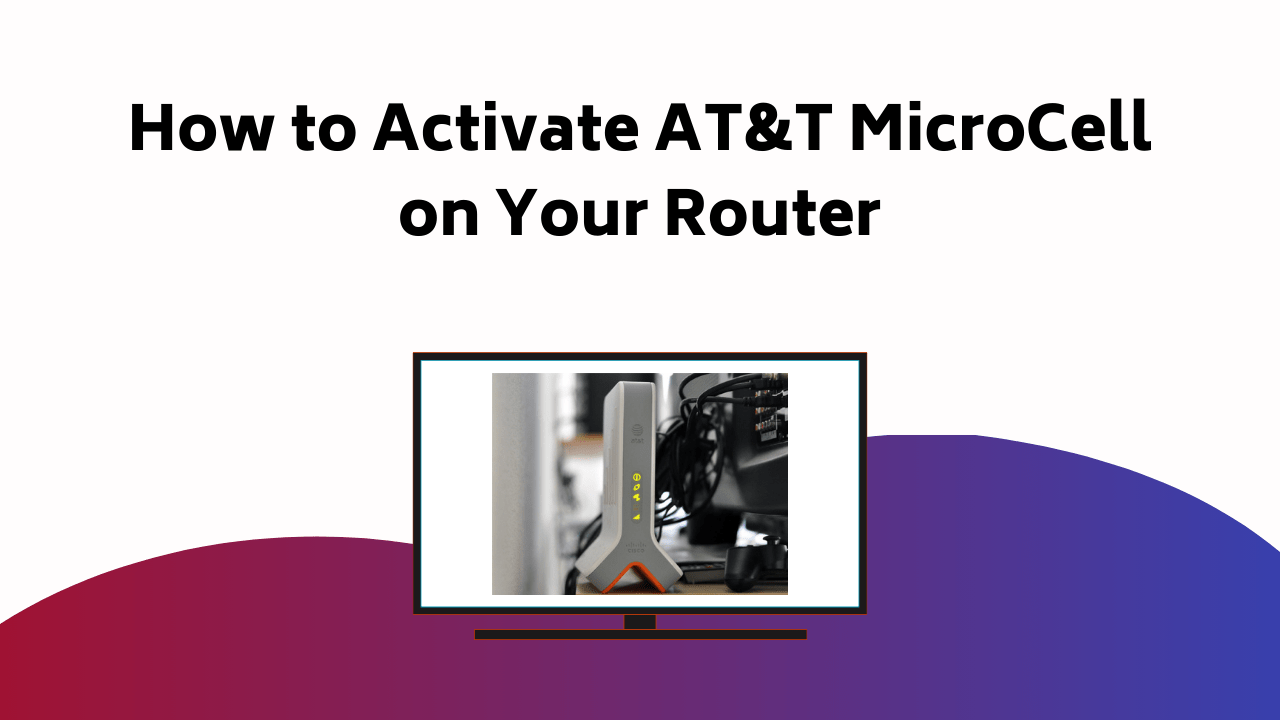
Understanding AT&T MicroCell

The AT&T MicroCell is a clever piece of technology designed to strengthen your in-home connectivity by using your internet connection to boost cell phone signal. Acting as a bridge between your phone and the AT&T network, it improves signal strength and elevates call quality.

For best results, placement is key. Position your MicroCell near a window, ideally high up with a clear view of the sky, so it can lock onto GPS signals. Avoid basements or enclosed areas that can block reception.

Equally important is a stable, high-speed internet connection to keep the MicroCell performing at its peak. With the right setup, it becomes a featured tool in your home, ensuring stronger signals, clearer calls, and an overall smoother communication experience.

Installation Steps

To start your AT&T MicroCell setup, make sure you have a stable internet connection and find a window spot that’s approximately 3 feet away from your Wi-Fi router. This placement is important for best signal strength.

Now, follow these simple steps:

  1. Connect your MicroCell to your router using the yellow Ethernet cable provided.
  2. Plug the AC power adapter into your MicroCell and a power outlet.
  3. Wait for the signal strength light to turn green, indicating a strong connection.

Keep in mind these placement tips: avoid enclosed spaces like closets and basements since they can affect the signal strength. Also, keep your MicroCell away from other electronic devices to prevent signal interference. With the right setup, your MicroCell will improve your network coverage significantly.

Activation Process

Having configured your MicroCell correctly, you’re all set to activate it on the AT&T network. Go to att.com/microcell-activate. Click ‘Activate’, choose ‘Personal’ or ‘Business’ account, sign in with your myAT&T credentials. Enter your device’s serial number and location data, review the setup details, and submit for activation.

Here’s a straightforward guide:

StepAction
1Visit att.com/microcell-activate
2Click ‘Activate’, choose account type
3Log in and input device details

If you encounter difficulties, don’t worry. Troubleshooting activation errors is part of the process. For signal strength optimization, place the device close to a window, away from other routers. Remember, patience and following these instructions will guarantee a successful activation of your MicroCell on the AT&T network.

Troubleshooting Technical Issues

Should you encounter technical issues with your AT&T MicroCell, there are several strategies you can employ to troubleshoot and resolve these problems. Signal interference is a common issue, which can be caused by obstacles like walls or other electronic devices.

  1. Consider device relocation. Move your MicroCell to a higher location, away from other devices that may cause interference.
  2. Regularly check for software updates. Updated firmware often fixes known issues and improves performance.
  3. Reset your MicroCell. If all else fails, a reset can often resolve lingering technical issues.

Addressing Network Problems

While troubleshooting technical issues often resolves many problems, you might still experience network and connectivity issues with your AT&T MicroCell, necessitating further measures. These could be due to signal interference or the need for network optimization.

ProblemCauseSolution
Weak signalSignal interference from other devicesDistance MicroCell from other electronics
Connection dropsInadequate network optimizationEvaluate network settings
Slow speedCongested networkTurn off unused connected devices
No signalLocation of MicroCellPosition near a window for better reception

Connectivity Problem Solutions

To solve connectivity problems with your AT&T MicroCell, it’s important to take a systematic approach to troubleshooting, beginning with a restart of your device. However, if that doesn’t work, don’t worry. There are still a number of ways to improve your MicroCell connectivity.

  1. Relocate Your MicroCell: Try moving your device to a different location, ideally near a window. This can be vital in improving signal strength and enhancing coverage.
  2. Check Your Internet Connection: Your MicroCell relies heavily on a strong, stable internet connection. Make sure your Wi-Fi network is functioning properly.
  3. Update Your Device Software: Keeping your MicroCell’s software up-to-date can resolve a variety of connectivity issues.

Contacting AT&T Customer Care

If you’re facing persistent issues with your AT&T MicroCell, it’s essential to reach out to AT&T Customer Care for expert assistance. Their customer support team is well-versed in providing service assistance for a variety of concerns.

To connect, you can dial 1-800-331-0500 from any phone, follow the voice prompts, and be prepared to provide them with your account details. You can also access the AT&T support center online where you’ll find a range of troubleshooting guides and FAQs to help you.

Alternatively, you can use the AT&T mobile app to chat live with a representative. Remember to explain the problem in detail to help them understand and solve your issue effectively and efficiently.

Additional Activation Guides

Beyond setting up your AT&T MicroCell, you may also need guidance on activating other devices such as printers, streaming devices, and apps. Here’s a quick guide to help you:

  1. Printer activation: Visit the printer manufacturer’s website, such as 123.hp.com/setup for HP printers. Follow the on-screen instructions to complete the activation.
  2. Streaming services: Likewise, for streaming devices like Roku, go to roku.com/link and enter the code displayed on your TV screen. For activating apps like HBO Go, follow the instructions on the app.
  3. Apps: Most apps can be activated by logging into your account within the app and following the provided instructions. Make sure you have your account credentials handy for a smooth setup. Remember, the key to successful activation is following the instructions carefully.

Conclusion

Now that you’ve gotten the lowdown on your new AT&T MicroCell, you’re ready to take on its activation with confidence.

Just remember, it’s like putting together a puzzle – connect it to your Wi-Fi, find the sweet spot for placement, and activate at att.com/microcell-activate.

If you hit a snag, don’t fret, troubleshooting and customer care are at your disposal.

Welcome to a world of stronger, more reliable mobile signal. Enjoy the journey!
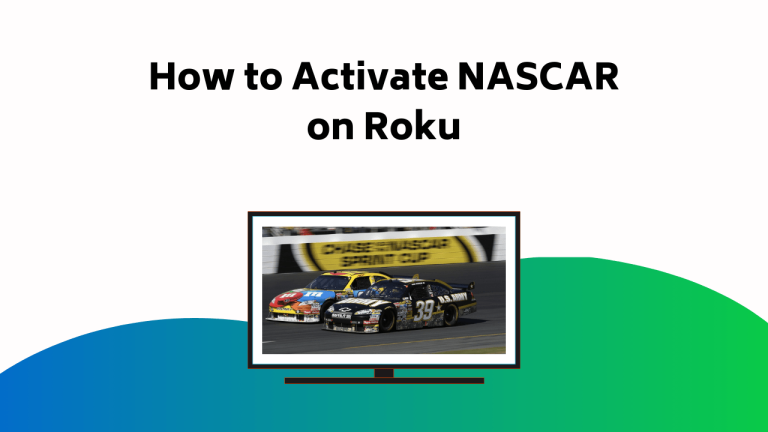
How to Activate NASCAR on Roku

To activate NASCAR on Roku, first, power up your Roku device and connect it to your TV. Start by adding the NBC and FOX Sports channels to your Roku device.

Once added, sign in to the NBC Sports app using your credentials, and in the case of Fox, use your cable or satellite provider credentials. With this setup, you’ll have the opportunity to enjoy live NASCAR races, updates, and exclusive content.

Remember to have a stable internet connection for uninterrupted streaming. However, don’t stop here, moving forward, there’s plenty more to discover and benefit from. How To Activate NASCAR On Roku

Why Subscribe to NASCAR?

Subscribing to NASCAR unlocks a powerful technology-driven platform for race fans, offering flexible pricing options such as monthly plans or seasonal packages.

With a premium subscription, you can stream NASCAR events without commercial interruptions and enjoy exclusive content, including the Cup Series, Xfinity Series, and Gander RV & Outdoors Truck Series.

Beyond live races, you’ll also gain access to the latest news, driver updates, and team insights. The flexible pricing allows you to pick a plan that fits your budget and viewing style, making it easy to tailor your experience.

With these advantages, a NASCAR subscription becomes a featured choice for fans, delivering the excitement of the track straight to your home in high quality and without distractions.

Activating NASCAR on Roku

Once you’ve chosen the right NASCAR subscription plan for you, getting it activated on your Roku is a straightforward process. Start by powering up your Roku device and connecting it to your TV. Then, navigate to the ‘Streaming Channels’ option in the Roku Channel Store and search for the NBC channel, which hosts NASCAR streaming.

After finding NBC, add the channel to your Roku device by downloading it. The next step in your Roku activation involves signing into the NBC app using your login credentials. Finally, within the NBC app, select the NASCAR channel. Now you’re all set to enjoy live NASCAR races, updates, and more on your Roku. Remember, a premium subscription gets you ad-free enjoyment of your favorite NASCAR series.

Procedure for NBC NASCAR Streaming

Want to watch NASCAR races on NBC and NBC Sports Network? You’ll need a NASCAR subscription from a participating satellite or cable provider. Here’s the detailed process to access NBC NASCAR streaming:

  1. Log in to your NBC Sports account using your satellite or cable provider’s credentials.
  2. Navigate to the NASCAR section. Here, you’ll find a plethora of NASCAR highlights and thrilling moments from past races.
  3. Don’t miss out on the NASCAR documentaries. They offer an in-depth exploration into the sport’s history and its biggest stars.
  4. Finally, select the race you’d like to watch and enjoy your streaming experience.

It’s that simple! Now, you’re all set to catch all the action, from high-speed chases to photo finishes, right from your couch.

Accessing NBC Sports Channel

To access your favorite NASCAR races, you’ll need to first navigate to the NBC Sports channel on your service provider’s platform. This can be done by searching for the network in your channel guide or by using the voice command feature, if your provider supports it.

Once you’ve found NBC Sports, you should sign in with your NBC Sports subscription credentials. This will allow you to access a wide range of sports content, including NASCAR races. If you encounter any issues during this process, you might need to perform some Roku troubleshooting. This could involve checking your internet connection, restarting your device, or re-entering your login details.

Watching NASCAR on FOX

Shifting focus, let’s see how you can enjoy NASCAR races on FOX and FS1 using your subscription from a participating satellite or cable provider.

Here’s a step-by-step guide:

  1. To start, verify that your provider supports FOX Sports. You’ll need this for the NASCAR broadcast.
  2. Next, visit the FOX Sports website or app. You’ll find options for Live TV, Shows, Scores, and more.
  3. Click on ‘Live TV’. This will redirect you to the live streaming page for FOX Sports.
  4. Finally, log in using your provider details. Once authenticated, you can choose the NASCAR race you want to watch.

Streaming on FS1 and FOX

Now that you’re familiar with watching NASCAR on FOX, let’s get you all set up for streaming on FS1 and FOX.

Start by making sure your Roku device is connected to the internet, then navigate to the channel store. Search for ‘FOX Sports’ and add the channel to your list.

Once added, open the channel and find the sign-in option. Here, you’ll be asked to enter your cable or satellite provider credentials. After successfully signing in, you’ll have access to live NASCAR races, NASCAR highlights, and exclusive interviews.

For trouble-free streaming, make sure your internet connection is stable and strong. Enjoy your favorite NASCAR events on FS1 and FOX, right from your Roku device.

Related Posts on Streaming

Diving deeper into the world of streaming, you’ll find a variety of articles related to setup and activation processes for various devices and applications. These include, but aren’t limited to, streaming tips for Activating Roku, as well as other popular platforms.

  1. HP DeskJet All-in-One Printer Setup: Learn how to set up your printer for the first time or troubleshoot problems.
  2. Activating Roku: Get a detailed step-by-step guide on how to activate your new Roku device using roku.com/link.
  3. Activating NBC Sports Channel: Find out how to activate your NBC Sports Channel via nbc.com/activate for endless sports content.
  4. Activating Spectrum TV App: Discover how to activate the Spectrum TV app on your streaming device for a wide variety of programs.

Other Activation Guides

In addition to NASCAR, there are several other streaming platforms and channels you might need help activating on your Roku or other devices. Understanding your Roku setup is important to maximizing your entertainment experience. With the right setup, you can take advantage of the NASCAR benefits, among others, and enjoy an array of programming at your fingertips.

For instance, to activate a channel like NBC Sports, you’ll need to navigate to the Roku Channel Store and add the NBC app. Likewise, to stream FOX Sports Go, you’ll need a subscription from a participating provider. Remember to sign in with your login credentials for each channel to start streaming. The setup process for other platforms like DisneyNow or Spectrum TV follows a similar pattern.

Conclusion

Congratulations! You’re now set to experience the thrill of NASCAR right on your Roku device.

But hold on, the ride isn’t over yet. As you navigate the fast-paced world of NASCAR streaming, remember there’s always more to discover.

What’s next? Will it be NBC, FOX, FS1? The choice is yours.

Keep tuning in for more detailed guides on enhancing your streaming experience.

Until then, buckle up and enjoy the race!

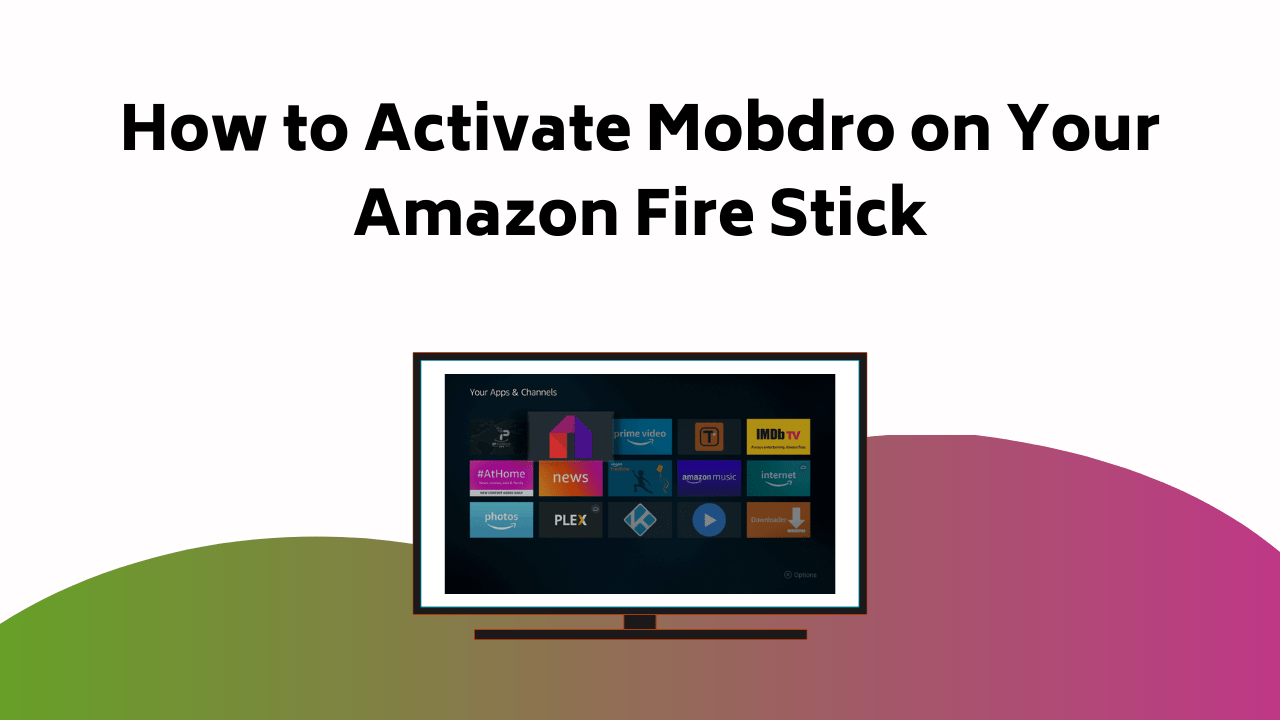
How to Activate Mobdro on Your Amazon Fire Stick

To activate Mobdro on your Amazon Fire Stick, you first need to set up your Fire Stick and ensure it’s connected to your TV with a stable internet connection. Navigate to the Apps section to download and install the Downloader app—this handy technology tool makes side-loading simple.

Next, adjust your security settings to allow installations from Unknown Sources under My Fire TV in Settings. Open the Downloader app, head to the Browser tab, and carefully enter the official Mobdro URL (mobdro.bz).

Once you hit Go, the download begins automatically. Complete the process by following the installation prompts. If you face any hiccups, some quick troubleshooting, like rechecking the URL, clearing cache, or restarting your Fire Stick, usually resolves issues.

With this done, Mobdro becomes one of your featured apps, unlocking endless streaming options right on your Fire Stick.

How To Activate Mobdro On Your Amazon Fire Stick

Stay tuned, as there’s plenty more to learn about optimizing the Mobdro experience on your Amazon Fire Stick.

Amazon Fire Stick Setup

So, how do you set up your Amazon Fire Stick for the first time? It’s quite simple.

Start by plugging the device into an HDMI port on your TV. Connect it to a power source, and then turn on your TV.

On your remote, press the ‘Home’ button to start the Amazon Fire Stick registration process.

Follow the on-screen instructions, entering your Amazon account details when prompted. If you’re having trouble with the process, consider troubleshooting Mobdro activation.

Remember, this will only work if you already have a stable internet connection.

Once your Fire Stick is registered, you’re ready to download apps and start streaming. It’s as simple as that.

Downloader App Installation

To install the Downloader app on your Amazon Fire Stick, follow these steps:

  1. Navigate to the Apps section on your device’s home screen.
  2. Use the search bar to find the Downloader app. This app is essential for installing Mobdro, as it allows you to download files directly to your Fire Stick.
  3. Click on the Downloader app in the search results and select ‘Download’ or ‘Get’ to install it.

Once installed, follow these steps:

  1. Open the Downloader app. You might encounter some compatibility issues, but don’t worry.
  2. If you face any problems, there are several troubleshooting tips available online to help you out.

Enabling Unknown Sources

Before you can install Mobdro, you’ll need to adjust the security settings on your Amazon Fire Stick to allow the installation of apps from Unknown Sources. This is an essential step, despite the potential security concerns that might arise. While such sources can provide alternative streaming options, they can also expose your device to risks.

Here’s how you enable it: Navigate to the home screen and select ‘Settings’. Scroll and find ‘My Fire TV’, then choose ‘Developer options’. There, you’ll see ‘Install unknown apps‘. Toggle it on. A prompt warning about potential risks will appear, but if you’re confident about the source of Mobdro, proceed. Once done, the Fire Stick is ready for Mobdro’s installation. Remember, though, always to scrutinize any unknown source for safety.

Navigating the Downloader App

Exploring through the Downloader app on your Amazon Fire Stick is a simple process that starts with opening the application from your device’s home screen. This app is your gateway to accessing Mobdro features.

  1. Home: Here, you’ll see a simple, user-friendly interface. You can enter URLs directly into the text box to download files. Troubleshooting tips: Make sure you enter the correct URL to avoid errors.
  2. Browser: This tab lets you browse the internet on your TV. It’s helpful for downloading apps not available in the Amazon store, like Mobdro.
  3. Settings: In this section, you can customize your Downloader app preferences. You can enable JavaScript, adjust data saving options, and much more.

Mobdro Download Process

Once you’ve got the Downloader app set up and ready to go on your Amazon Fire Stick, the next step in the process is downloading the Mobdro application. Navigate to the Browser tab within the Downloader app, type in the URL for Mobdro (mobdro.bz), and hit Go. The download should start automatically.

In comparison with other streaming apps, Mobdro’s download process is relatively straightforward. However, if you run into issues, some troubleshooting tips include checking your internet connection and ensuring you entered the correct URL.

Mobdro Installation Completion

After successfully downloading the Mobdro application, it’s time to finalize the installation process on your Amazon Fire Stick. Be sure to follow these steps meticulously to avoid any hitches:

  1. Head back to the ‘Downloader’ app and hit ‘Install’ on the pop-up that has the Mobdro.apk file.
  2. Wait for the installation to finish. A confirmation message will notify you once it’s successfully done.
  3. Finally, click on ‘Done’ and get rid of the Mobdro.apk file by choosing ‘Delete’ when prompted. This step frees up space on your Fire Stick.

Now, Mobdro is set up on your device. Should you encounter issues, don’t hesitate to check out some troubleshooting tips. Remember, there are alternative streaming options if Mobdro doesn’t meet your requirements.

Launching the Mobdro App

Now that Mobdro is installed on your Amazon Fire Stick, it’s time to launch the app and start enjoying unlimited streaming. To get started, navigate to your Fire Stick’s home screen and select the ‘Apps’ category. From there, you’ll find the Mobdro app, which you can open with a simple click.

The interface is user-friendly, offering a variety of streaming options. Each option is categorized, so you can effortlessly locate your preferred content. If you encounter any issues while launching the app, several troubleshooting tips might come in handy. These include restarting your Fire Stick or ensuring your internet connection is stable.

Final Activation Steps

Having navigated the user-friendly interface of Mobdro, it’s time to activate the app fully on your Amazon Fire Stick.

Follow these final steps:

  1. Go to ‘Settings’ on your Fire Stick, select ‘Applications’, then ‘Manage Installed Applications’.
  2. Scroll down to find Mobdro and click on it.
  3. Select ‘Launch Application’.

You’ve now activated Mobdro!

Now, remember these troubleshooting tips: If Mobdro doesn’t launch, check your internet connection and restart your Fire Stick. If that doesn’t work, try reinstalling the app. For compatibility issues: make sure your Fire Stick’s software is up-to-date. Also, Mobdro works best with Fire Stick versions 2.0 and above.

Enjoy unlimited streaming with Mobdro on your Amazon Fire Stick!

Conclusion

Now you’ve opened the enchanted box!

You’ve journeyed through the maze of settings, danced with the Downloader app, and waltzed with the unfamiliar.

You’ve successfully activated Mobdro on your Amazon Fire Stick, like a key turning in a lock.

So sit back, unwind, and let the world of endless entertainment wash over you.

You’ve earned it.

Your journey is complete, but the adventure has just begun.

Enjoy, adventurer of the digital domain!

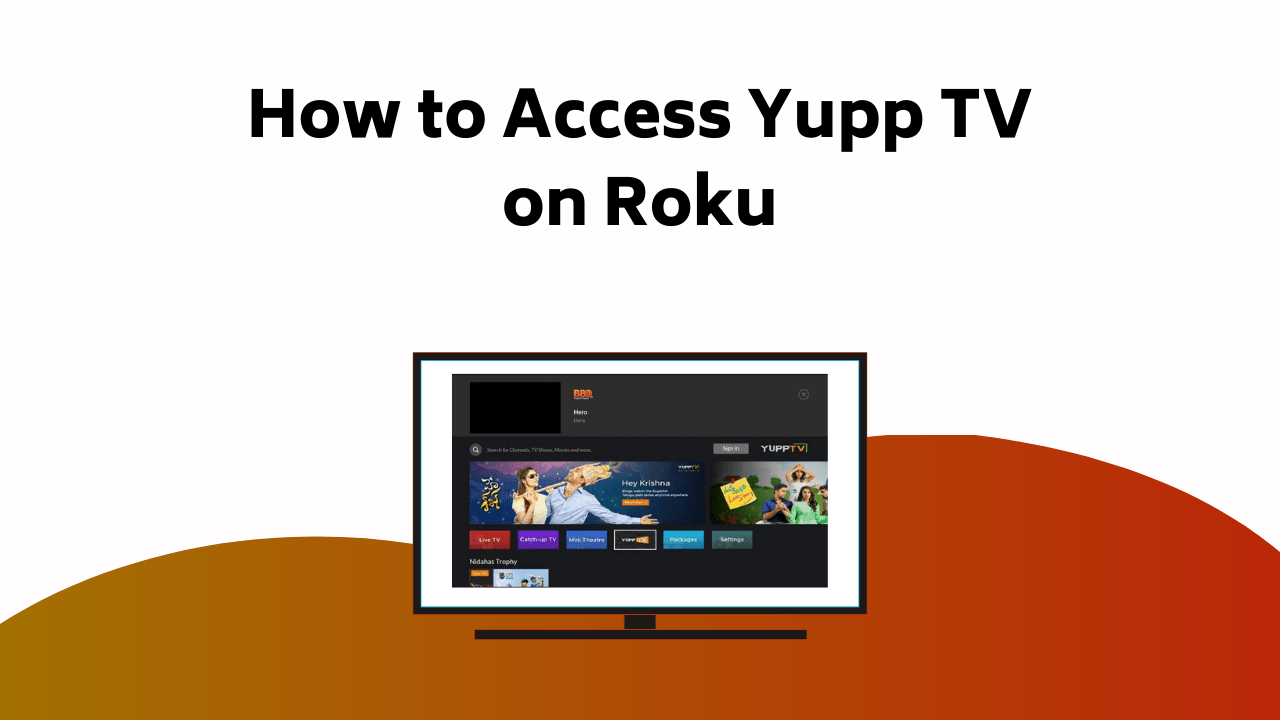
How to Access Yupp TV on Roku

To access the YuppTV app on your Roku device, make sure your device is turned on and connected to a reliable internet.

Navigate to the Roku Channel Store by pressing the ‘Home’ button on your remote and selecting ‘Streaming Channels‘. Search for the YuppTV app and install it.  

How To Access Yupp TV On Roku

After installation, log in using your YuppTV account details and enjoy your subscription. If any issues arise, keep in mind that troubleshooting steps such as restarting your Roku device or updating its software can be helpful. Keep on exploring to enrich your YuppTV experience even more.

Accessing YuppTV on Roku Device

To access YuppTV on your Roku device, first ensure the device is turned on, connected to your TV, and running smoothly with a stable wireless internet connection, this technology foundation is crucial.

With your Roku remote, press the Home icon to reach the main screen. Scroll down and select Streaming Channels to open the Roku Channel Store.

Locate the YuppTV app—often under Movies & TV. If it’s not immediately visible, simply use the search option, type in “YuppTV,” and select it from the results.

Click to install, and you’re ready to dive into your subscription. A reliable internet connection ensures uninterrupted viewing, making YuppTV one of your featured apps for streaming entertainment on Roku.

Navigating Roku Channel Store

Once you’ve successfully installed the YuppTV app on your Roku device, it’s worth taking a moment to familiarize yourself with the Roku Channel Store’s navigation system to improve your streaming experience.

  • Start by pressing the ‘Home’ button on your Roku remote.
  • Scroll down and select ‘Streaming Channels’ to open the Roku Channel Store.
  • Here, you can browse through the vast Roku channel selection or use the search function to find a specific app.
  • When you’ve found YuppTV, select it and choose ‘Add Channel’ to initiate the app installation process.
  • Once installed, select ‘Go to Channel’ to open YuppTV.

Signing Up for YuppTV Account

Before delving into the vast entertainment world of YuppTV, you’ll need to create an account on their platform. Visit the YuppTV homepage on your web browser and select the ‘Sign Up‘ option. You’ll be prompted to provide your email, country code, mobile number, and password. For account security, make sure your password is between 6 to 15 characters.

You’ll also have the option to agree to receive promotional messages. After you’ve entered your details, click ‘Sign Up’. Follow the on-screen prompts to complete the process. As part of the sign-up, you’ll need to select a payment method. YuppTV accepts various methods, making transactions easy and secure. Once your account is set up, you’re all set to discover YuppTV on your Roku device.

Activating YuppTV on Roku

After setting up your YuppTV account, it’s time to activate it on your Roku device for a seamless streaming experience. Here’s a step by step guide to get you started:

  • Turn on your Roku device and make sure it’s connected to a stable internet connection.
  • Navigate to the Roku Channel Store from your device’s Home screen.
  • Search for the YuppTV app.
  • Once you’ve found it, click ‘Add Channel’ to install the YuppTV app.
  • Open the app and sign in using your YuppTV account credentials.

YuppTV Content Access

Exploring the extensive content library of YuppTV, you’ll find a wide range of channels and categories to uncover and enjoy on your Roku device. Investigating content diversity is simple with YuppTV’s user-friendly interface, guiding you to programs from various genres including news, sports, entertainment and more.

When it comes to enhancing streaming quality, make sure a stable internet connection is maintained. The quality of your YuppTV content is directly proportional to your internet speed. For high-resolution content, a faster connection is needed. You’ll also find options to manually adjust the streaming quality, allowing you to optimize the viewing experience as per your network conditions.

Enjoy the seamless, diverse and high-quality streaming experience that YuppTV provides on your Roku device.

Troubleshooting YuppTV on Roku

Occasionally, you might encounter issues while using YuppTV on your Roku device, but don’t worry, there are several troubleshooting steps you can take to resolve these problems. These problems could range from connection issues to playback problems, but each can be addressed with a few simple steps.

Here are some quick troubleshooting tips for you:

  • Restart your Roku device and relaunch the YuppTV app. This can often fix minor glitches.
  • Check your internet connection. Connection issues are a common cause of streaming problems.
  • Make sure your Roku device is running the latest software. Outdated software can cause playback problems.
  • Clear your Roku’s cache. This can improve app performance.
  • If all else fails, contact YuppTV’s customer support for further assistance.

Enhancing YuppTV Viewing Experience

To improve your YuppTV viewing experience on Roku, there are several features you can customize and utilize for ultimate satisfaction. Customizing preferences such as language settings, subtitles, and video quality can greatly enrich your viewing experience. You can adjust these settings to suit your specific viewing needs, making for a more personalized and enjoyable experience.

Creating playlists is another feature that you can take advantage of. By organizing your favorite shows or movies into playlists, you can easily access them whenever you want without having to search through the extensive library of content.

Here’s a quick guide:

FeatureSteps
Customizing PreferencesGo to settings > preferences > select your choices
Creating PlaylistsSelect a show > options > add to playlist
Quality SettingsGo to settings > streaming settings > select quality

Utilizing YuppTV Customer Support

Ever faced issues while streaming your favorite shows on YuppTV via your Roku device? Don’t worry, because YuppTV’s effective customer support is always at your service. Here’s how you can utilize it:

  • Reach out to them for improving connectivity issues. They’ll guide you through steps to optimize your internet connection for smooth streaming.
  • Seek technical assistance when you can’t resolve a problem yourself. Their experts are trained to troubleshoot a wide range of issues.
  • Use their FAQ section to find quick solutions to common problems.
  • Submit a ticket detailing your issue. They’ll get back to you promptly with a solution.
  • Live chat with a support agent for immediate help.

Conclusion

Congratulations! You’ve successfully navigated the labyrinth of setting up and accessing YuppTV on your Roku device. You’re now on the verge of an endless torrent of entertainment.

Remember, any challenges along the road are simply opportunities to delve into the depth of this exciting platform. And, should you ever need it, YuppTV’s exceptional customer support is there to illuminate your path.

You’re not just a viewer, you’re a part of the dynamic YuppTV community. Happy streaming!

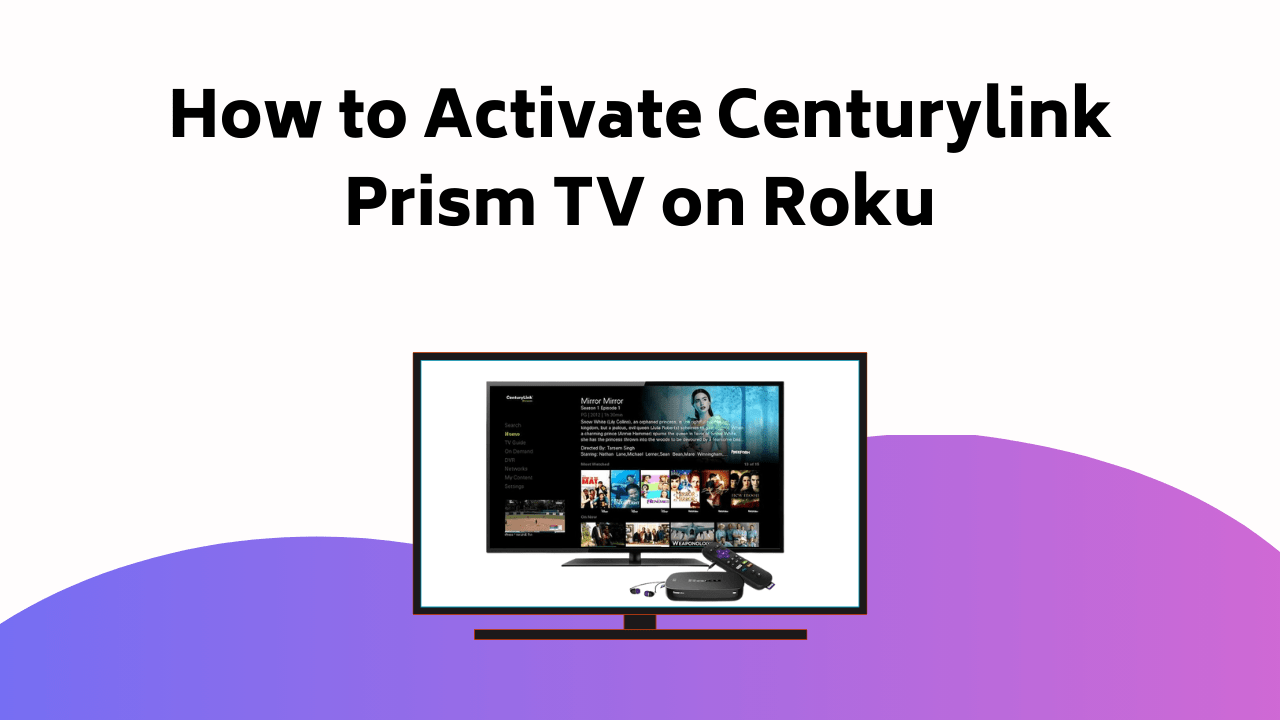
How to Activate Centurylink Prism TV on Roku

To activate CenturyLink Prism TV on your Roku device, make sure your equipment is powered on and connected to a stable Internet connection.

Start from your home screen, select Streaming Channels, and search for Prism TV in the Roku Channel Store.

Install the app by choosing Add Channel, then launch it and follow the on-screen instructions to activate.

A stable internet connection is vital for smooth setup, as this technology relies on seamless connectivity.

Once activated, you’ll be ready to enjoy CenturyLink Prism TV—making it one of your featured Roku apps. Stick around for more insights, as there’s plenty more to learn about optimizing your Roku streaming experience.

How To Activate Centurylink Prism TV On Roku

Steps to Watch CenturyLink Prism TV

Wondering how to watch CenturyLink Prism TV on your Roku device?

The first step is to make sure your Roku device is powered on and connected to a stable Internet connection. For a smooth experience, confirm your device’s software is updated.

Navigate using your Roku remote to the home screen and select ‘Streaming Channels‘. Next, explore the Roku Channel Store and search for ‘Prism TV’. If you’re stuck, watching tutorials online might come in handy.

Once you’ve located the Prism TV app, highlight it and enter your PIN if prompted. Sometimes, you might encounter obstacles. Don’t worry, there are plenty of troubleshooting tips available to assist you.

After adding the channel, you’ll be ready to explore the exciting world of CenturyLink Prism TV.

Adding and Activating Prism TV

Now that you’ve found the Prism TV app on your Roku device, it’s time to add and activate it for your viewing pleasure. Here’s a step-by-step guide to get you started:

  • Navigate to the Roku Channel Store and find the Prism TV app.
  • Select ‘Add Channel’ to install the app on your device.
  • After installation, launch the app and follow on-screen instructions to activate it.

During this process, you might encounter activation issues. Don’t worry, troubleshooting activation issues is often as simple as ensuring your Roku device is connected to a robust internet connection. Optimizing streaming quality, on the other hand, might require adjusting your Roku’s settings or improving your internet speed.

Once activated, you can enjoy the world of CenturyLink Prism TV at your convenience.

Creating a CenturyLink Account

To start streaming Prism TV on your Roku device, you’ll first need to create a CenturyLink account. Here’s a step-by-step guide to help you with the setting up process.

StepDescription
1Visit the CenturyLink website and click ‘Create Account‘.
2Provide your CenturyLink phone number or account number and ZIP code.
3Complete the required fields with your personal information.
4Set a strong password and click ‘Finish’ to complete the process.

Helpful Related Posts

If you’re looking for additional guidance for streaming devices, we’ve compiled a few related posts that you might find helpful. These posts will help you troubleshoot connectivity issues and enhance your streaming quality.

  • Setting Up Your Roku Device: This post provides step-by-step instructions for setting up your Roku device, which includes troubleshooting connectivity problems that may occur during the setup process.
  • Optimizing Streaming Quality on Roku: This post gives tips and strategies for improving the streaming quality on your Roku device. It discusses the recommended Internet speed requirements and how to adjust your device settings for the best quality.
  • CenturyLink Internet Troubleshooting: This post walks you through common CenturyLink Internet issues, assisting you in troubleshooting and resolving connectivity problems for a seamless streaming experience.

Explore these posts to enhance your streaming experience on CenturyLink Prism TV and other platforms.

Activating Vevo on Roku

Shifting our focus towards another exciting aspect on your Roku device, let’s explore how to activate Vevo, a channel that offers a vast collection of over 450,000 music videos. This music streaming platform provides high-quality video activation and a wide variety of music genres to match your preferences.

Here’s a quick guide to help you get started:

StepsDescriptionKeywords
Step 1Search for Vevo in the Roku Channel StoreMusic Streaming
Step 2Add Vevo to your channel listVideo Activation
Step 3Open Vevo and follow the on-screen prompts for activationMusic Streaming
Step 4Go to vevo.com/roku on a web browser, input the code shown on your TV screen, and click ‘Activate’Video Activation

Enjoy limitless hours of music videos with Vevo on your Roku device.

Streaming Music Videos on Roku

When you’re ready to dive into a sea of music videos on your Roku device, understanding how to stream them efficiently can greatly enhance your viewing experience. With Roku, you have the option to curate your own music video playlists, stream live concerts, and discover a variety of artists and genres.

To maximize your Roku music video experience:

  • Look for music video channels in the Roku Channel Store. Some popular ones include Vevo, MTV, and VH1.
  • Utilize the search function to find specific music videos or artists.
  • Check out the ‘Music’ category on your Roku menu for a wide array of streaming concerts.

Motor Trend Activation on Roku

Activating Motor Trend on your Roku device gives you access to a vast library of automotive content, including exclusive shows, documentaries, and live motorsport events. To begin, you’ll first need to subscribe to a Motor Trend subscription. Head over to the Roku Channel Store and find the Motor Trend app. Once found, click ‘Add Channel’.

The app will then download to your Roku device. Open it, and an activation code will be displayed on your screen. Go to the Motor Trend activation page on a separate device, such as a smartphone or computer. Enter the code, and soon, you’ll be able to stream a variety of automotive documentaries and more, directly from your Roku. Enjoy the world of motorsport at your fingertips.

Exploring Automotive Content on Roku

With your Roku device, you can discover a wealth of automotive content, providing you with an immersive experience into the world of cars and motorsports. You’re not just limited to watching car races, you can also investigate automotive technology and future car trends.

Here are some of the content you can anticipate:

  • Shows detailing the inner workings of automotive technology
  • Documentaries about the history and future trends of cars
  • Exclusive interviews with industry experts about upcoming car trends

These shows give you a technical yet engaging look into the automotive world. Whether you’re a car enthusiast or just curious about what the future holds for vehicles, Roku has you covered. It’s a wealth of information, right at your fingertips.

Conclusion

You’ve successfully maneuvered the process of activating CenturyLink Prism TV on your Roku. Now, you’re ready to relish a diverse range of streaming entertainment right at your fingertips.

Don’t overlook, your Roku offers more than Prism TV. Investigate other channels like Vevo for music videos or Motor Trend for automotive content.

Remember, your Roku’s potential is limitless, reflecting the boundless world of streaming entertainment. So, keep discovering and happy streaming!

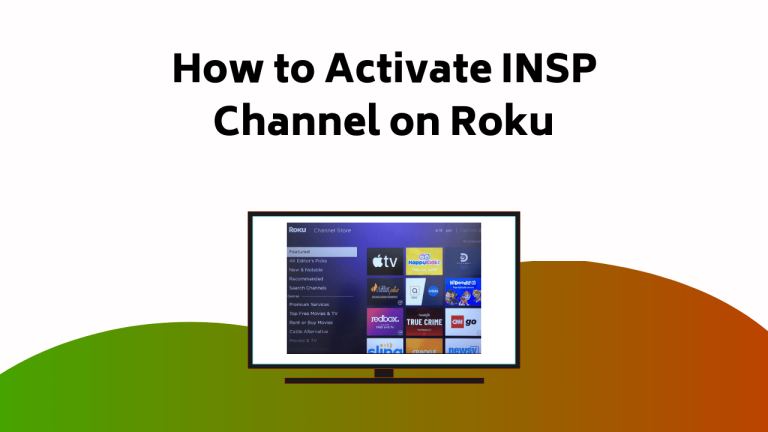
How to Activate INSP Channel on Roku

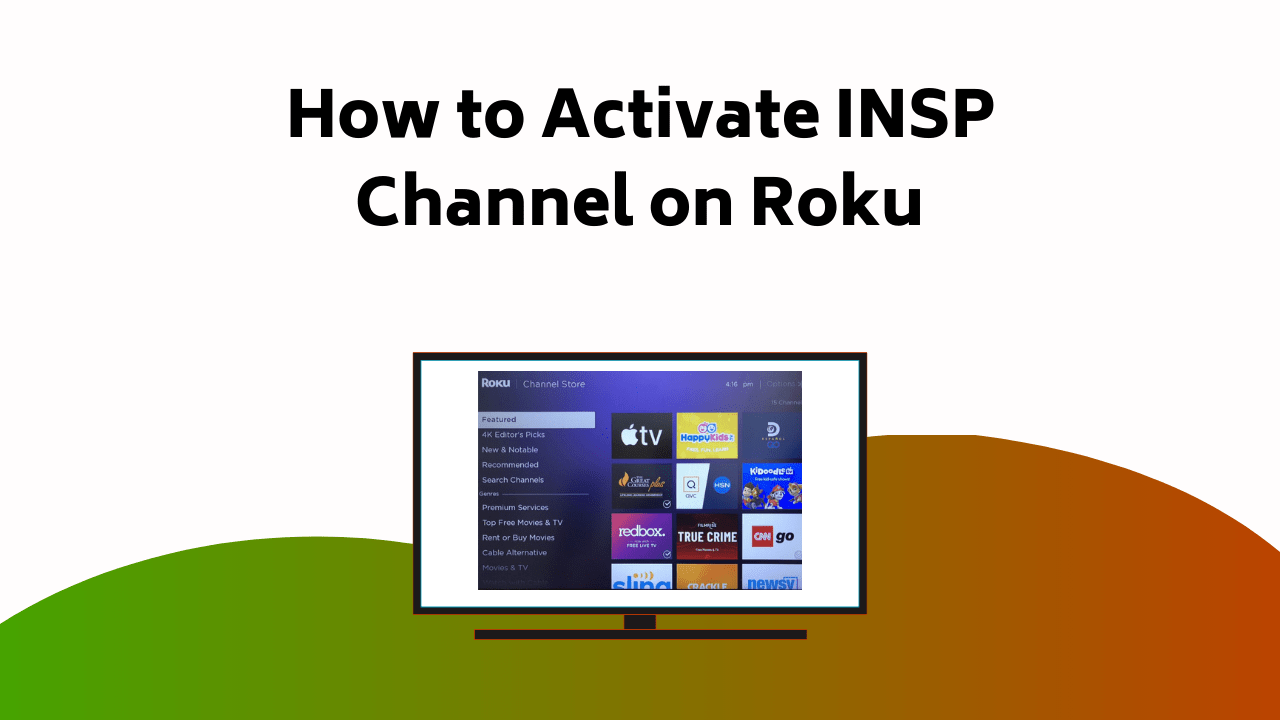
To activate INSP on your Roku, first, press the home button on your Roku remote. Scroll down and select the ‘Streaming Channels’ option. How To Activate INSP Channel On Roku

From there, look for the Channel Store and use the search bar to type in ‘INSP’. Upon finding the INSP channel, choose ‘Add Channel‘ to install the INSP app on your device. If something’s amiss with the activation, check your internet connection, update your device’s software, or reinstall the app. To cast away any troubles, continue with the in-depth troubleshooting process.

Activating INSP on Roku

To activate the INSP channel on your Roku device, press the Home button on your Roku remote to reach the main screen.

From there, scroll down and select Streaming Channels. This takes you into the Roku Channel Store—a central hub of streaming technology where you can browse and install apps.

In the search bar, type INSP. Select the app from the results and click Add Channel to install it. Once the installation is complete, launch the INSP app directly from your home screen.

That’s it—you’ve successfully activated the INSP channel, making it one of your featured Roku apps for endless entertainment.

Getting INSP Subscription Support

Occasionally, you may encounter issues with your INSP subscription on Roku, but don’t worry, INSP provides comprehensive support to resolve any problems. From subscription inquiries to technical assistance, they’ve got you covered.

To get assistance, visit the INSP homepage and navigate to the Frequently Asked Questions. Can’t find your answer? Head over to the ‘Contact Us‘ section, fill in the required information, and submit your question.

For a quick reference, see the table below:

Support TypeSteps
Subscription inquiriesVisit ‘Frequently Asked Questions’ on INSP homepage
Technical assistanceUse ‘Contact Us’ section on INSP homepage

Troubleshooting INSP Activation

Experiencing issues with your INSP channel activation on Roku can be frustrating, but with a few troubleshooting steps, you’ll have it up and running in no time.

Here are some steps to assist you:

  1. Check internet: Make sure your internet connection is stable. A poor or unstable connection often causes activation issues.
  2. Update Roku: Verify your Roku device is up-to-date. Navigate to ‘Settings’, then ‘System’, and finally ‘System Update’ to confirm you’re running the latest version.
  3. Restart Roku: Sometimes, a simple restart can solve many issues. Unplug your device, wait a few moments, then plug it back in.
  4. Reinstall INSP app: If all else fails, uninstall the INSP app, restart your Roku device, then reinstall the app.

Conclusion

So, you’re all set to activate INSP on your Roku! Just follow the steps to navigate the Roku Channel Store, install the INSP app, and troubleshoot any activation issues.

If you need support or have questions, the INSP homepage and Contact Us section are ready to help. Remember to check your Roku settings for the best streaming quality.

Enjoy your new world of entertainment with the INSP Channel on Roku. Happy viewing!

How to Watch and Stream Motor Trend TV on Roku Device

To access the MT GO Channel on your Roku device, start by pressing the home button on your Roku remote. Head to ‘Streaming Channels’ and search for the MT GO app in the Roku Channel Store.

Once you’ve added the channel, wait for the installation to finish. If you encounter any unforeseen hitches, don’t worry, some troubleshooting should smooth things out.

Remember, there’s much more to discover about making the most of your Motor Trend experience. How To Watch And Stream Motor Trend TV On Roku Device

Activating Motor Trend on Roku

To activate Motor Trend on Demand on your Roku device, first press the home icon button on your Roku remote.

Navigate down to the Streaming Channels option and select it. In the Roku Channel Store, you’ll need to search for the MT GO app. Once located, add the channel and patiently wait for the installation process to complete.

If you encounter any activation issues, don’t panic. Troubleshooting such issues often involves simple steps like ensuring your device is connected to the internet, restarting your Roku device, or re-entering the activation code.

As you browse content options on Motor Trend on Demand, you’ll find a variety of shows, documentaries, and live events to choose from, all at your fingertips once the activation is successful.

Accessing Motor Trend App

Once you’ve successfully added and installed the MT GO app on your Roku device, it’s time to sign in and enjoy Motor Trend’s wide range of technology-driven automotive content.

Your journey may begin with resolving activation hurdles. Common issues include invalid activation codes or a non-responsive app. A stable network connection is essential—recheck it and re-enter the code carefully. If the problem continues, uninstall and reinstall the app for a clean setup.

With these steps, MT GO quickly becomes one of your featured Roku apps, giving you smooth access to exclusive Motor Trend shows and live events.

Once activated, you can start exploring premium content. Motor Trend offers an impressive library of automotive shows, documentaries, and live motorsports:

  • ‘Top Gear’
  • ‘Roadkill’
  • ‘Dirt Every Day’

Setting Up Motor Trend Account

Establishing your Motor Trend account is the next essential step in accessing the vast array of automotive content available on the platform. As you’re creating your profile, make sure to provide accurate details for a smoother experience.

Here’s a step-by-step guide to set up your account:

StepsDescription
Step 1Visit the Motor Trend website
Step 2Click on ‘Subscribe’
Step 3Fill out the required information and select your plan

If you face any issues, app troubleshooting resources are available on the website. Remember, having an active account allows you to enjoy the full benefits of the Motor Trend channel on your Roku device. So, don’t delay and start exploring your passion for automobiles.

Conclusion

In wrapping up, accessing MT GO on your Roku device is as simple as a Sunday drive. By following these steps, you’ve not only opened a wealth of automotive content but also fueled your viewing experience with high-octane entertainment.

Remember, any potential obstacles can be easily navigated with a little patience and troubleshooting.

Now, sit back, buckle up and let Motor Trend take you on an exhilarating ride through the world of cars.

How to Cancel STARZ Subscription on Smart Devices

To cancel your STARZ subscription on Amazon Prime, go to ‘Memberships and subscriptions‘ under ‘Accounts & Lists’ on Amazon’s website and locate STARZ under ‘Prime Video Channels‘. If you’re on Android, visit ‘Subscriptions’ on the Play Store, find STARZ and hit ‘Cancel’. How To Cancel STARZ Subscription On Smart Devices 1024×576

On Apple TV, navigate to ‘Subscriptions’ under ‘Users and Accounts’ in ‘Settings’ and select STARZ. For Roku users, head to ‘Streaming Channels’ on the home screen, search for STARZ, choose ‘Manage Subscription’ and select ‘Cancel Subscription’.

If you’re using an Amazon Fire Stick or another Smart TV, you’ll find similar options in the settings or subscriptions menu to cancel STARZ directly from your device.

Remember, each step confirms your decision to end your subscription, but don’t stop here if you need more precise guidelines.

Cancelling STARZ on Amazon Prime

If you’re looking to cancel your STARZ subscription on Amazon Prime, you’ll find it’s a straightforward process that can be done in just a few quick steps.

Head to Amazon’s website and log into your account. Once there, click on ‘Accounts & Lists’, then navigate to ‘Memberships and subscriptions‘. Here, you’ll find ‘Prime Video Channels‘. STARZ should be listed under ‘Your Channels’. Click ‘Cancel Channel(s)’ and choose your cancellation date.

If you encounter any issues while ending your subscription, Amazon’s customer support is always ready to help. Remember, your STARZ subscription will remain active until the end of the current billing period.

It’s that simple! No technical expertise needed, just a few clicks and you’re done.

Ending STARZ via Android and Apple TV

Moving on from Amazon Prime, let’s discover how to end your STARZ subscription on Android and Apple TV.

For Android, launch the Play Store and navigate to ‘Subscriptions’. Find STARZ, tap ‘Cancel’, and confirm your Android subscription termination. It’s that simple.

Switching gears to the Apple TV cancellation process, head to ‘Settings’ and then ‘Users and Accounts’. Select your account and find ‘Subscriptions’. Locate STARZ, choose ‘Cancel Subscription’, and confirm. And that’s it!

Unsubscribing STARZ From Roku

Often, Roku users find themselves wanting to cancel their STARZ subscription, and the process is quite straightforward. To start unsubscribing STARZ, you’ll need to navigate to your Roku home screen and select ‘Streaming Channels‘. From there, search for STARZ and select it.

Next, you’ll notice an option called ‘Manage Subscription‘, click on it. You’ll see details of your subscription including the option to cancel it. Click on ‘Cancel Subscription‘, and confirm your decision in the following prompt.

Conclusion

Now you’re equipped with the knowledge to cancel your STARZ subscription on various platforms. But remember, the digital world is constantly changing, so keep this guide handy. Who knows when you might need it again?

Stay tuned for more tips on managing your subscriptions. Take control, avoid unwanted charges, and keep enjoying the content you love. Don’t let the subscriptions run your life, run them instead.

Until next time, happy streaming!

How to Activate MLB on Roku

To activate MLB on your Roku device, first, make sure your device is up and running by connecting it to your TV with an HDMI cable. Once on, navigate to the ‘Streaming Channels‘ from the home screen, locate the MLB Channel in the Roku Channel Store, and click ‘Add Channel‘ to install it. How To Activate MLB On Roku

Confirm you’ve an active MLB subscription before attempting installation. There’s more to discover though, you won’t just have MLB matches at your fingertips, but also a variety of diverse entertainment choices. Keep on for a treasure trove of streaming possibilities.

Preparing Your Roku Device

Before you can enjoy MLB matches on your Roku device, you need to make sure it’s properly set up and connected to your home Wi-Fi network. It’s a straightforward process.

First, plug in your Roku device and connect it to your Smart TV using an HDMI cable. Next, switch on your TV and select the HDMI input that corresponds to your Roku device.

Now, it’s time for troubleshooting connectivity. If you’re having trouble connecting your Roku to Wi-Fi, try moving the device closer to your router or resetting your router.

If the issue persists, restart your Roku device to ensure uninterrupted access to your favorite OTT content, including MLB games.

Installing MLB Channel on Roku

To install the MLB Channel on your Roku device, start by accessing the home screen with a simple press on the Home icon on your remote. Navigate to the ‘Streaming Channels‘ button to head straight to the Roku Channel Store. Here, use the ‘Search Channels’ option to find the MLB Channel.

Make sure your MLB subscription is active before proceeding. This is important for successful Roku channel activation. Once you locate the MLB Channel, click on the ‘Add Channel‘ button. This is where you might face some Roku troubleshooting issues. Don’t worry, most issues can be easily rectified with a system restart or network check.

Alternatives for Watching MLB on Roku

While you’re enjoying the convenience of Roku, it’s worth noting that there are multiple ways to catch MLB matches beyond the direct MLB channel.

Exploring MLB TV options can expand your Roku streaming choices. Here are a few to explore:

  • Sling TV: You can access MLB matches through their sports-add on package.
  • Hulu Live TV: It offers a wide variety of sports channels, including those that broadcast MLB games.
  • YouTube TV: Major League Baseball can be watched on this platform, with the added benefit of unlimited cloud DVR storage.

These options not only allow you to watch MLB games, but also offer other entertainment choices. So, make the most of your Roku device by exploring these options.

Conclusion

And there you have it, folks! With this guide, you’ve now hit a grand slam in the Roku baseball game.

You’ve prepped your device, installed MLB, and even investigated other options. Nothing can steal your thunder now.

So sit back, relax, and let the roar of the crowd and the crack of the bat fill your living room. With Roku and MLB, you’re not just watching the game – you’re living it.

Enjoy every thrilling pitch and heart-stopping home run!

How to Activate HBO Go on Roku, Firestick, Smart TV, Apple TV

To activate HBO Go on your smart devices, begin by downloading the HBO Go application from the appropriate store – Google Play for Android, Apple App Store for iOS, the Roku Channel Store for Roku, and the Amazon Appstore for Amazon Fire TV. If you’re using a gaming console, acquire it from your console’s application section. How To Activate HBO Go On Smart Devices

Once the application is installed, log in using your HBO Go account details to receive an activation code. This code must be entered at hbogo.com/activate, following the on-screen instructions to complete the process.

If you encounter any issues, ensuring a stable internet connection, device compatibility, and the latest updates can help troubleshoot. For more in-depth problem-solving tips and information, there is a wealth of resources available for you to explore.

Downloading HBO Go App

Before you can start enjoying your favorite HBO shows, you’ll need to first download and install the HBO Go app from your device’s respective app store. Here are some app installation tips to guide you.

If you’re using an Android device, you can find the app in the Google Play Store. For iOS users, head to the Apple App Store.

For Apple TV, Roku, Smart TV, or Amazon Fire TV users, the app is available in their respective stores, making it simple to stream across multiple platforms.

During installation, you might encounter common errors. Don’t worry! Most errors are usually due to network issues or device compatibility.

Simply confirm that your device meets the app’s requirements and your internet connection is stable.

After installing, you’ll need to set up your account. This involves creating an account and addressing potential activation code issues.

With HBO Go being a leading OTT platform, these steps ensure you can start streaming without interruption. But don’t fret, we’ll guide you through these in the next steps.

Account Activation Process

Once you’ve successfully installed the HBO Go app, it’s time to activate your account and start enjoying your favorite shows.

  • To begin with, you need to sign in to your HBO Go account. If you’re encountering problems, don’t worry. There are several account troubleshooting tips to help you sort out any issues, such as resetting your password or verifying your email address.
  • Next, an activation code will be provided within the app. This code is crucial to the activation process. If you’re having trouble finding or using your code, there’s activation code assistance available.
  • Then, you’ll need to visit hbogo.com/activate on a web browser and enter the activation code.
  • Finally, follow the on-screen prompts to complete the activation process.

Activation Steps for Android Devices

Now that you’re familiar with the general activation process for HBO Go, let’s get specific and walk you through the steps to activate the app on your Android device.

First, you need to confirm device compatibility. Not all Android devices support HBO Go, so check if yours does. Then, download and install the HBO Go app from the Google Play Store. Open the app and sign in with your HBO Go account details to initiate the account verification process.

Here’s a quick table to guide you:

StepActionResult
1Check Device CompatibilityConfirm your device can run HBO Go
2Install HBO GoDownload app from Google Play Store
3Sign InUse your HBO Go account details
4Verify AccountFollow prompts to complete verification

Follow these steps, and you’ll be streaming your favorite shows in no time!

Activation Steps for Ios Devices

Shifting focus to iOS devices, you’ll find the process of activating HBO Go is quite straightforward and similar to Android.

Here are the steps you need to follow:

  • To begin with, open the Apple App Store. Search for ‘HBO Go’ and download the application on your device.
  • Once downloaded, launch the app and sign in to your HBO Go account. If you’re encountering any iOS app troubleshooting issues, make sure you have the latest version of the app.
  • The app will then provide an activation code. If you experience activation code problems, refresh the page to receive a new code.
  • Go to hbogo.com/activate from a web browser, enter the provided code, and follow the prompts to complete activation.

Remember to check for updates regularly to prevent any future troubleshooting problems.

Activating HBO Go on Roku

To activate HBO Go on your Roku, start by downloading the HBO Go app from the Roku Channel Store. After installation, open the app and sign in with your HBO Go credentials. You’ll be given an activation code – make sure to note it down. Now, on a different device such as a computer or smartphone, visit ‘hbogo.com/activate‘, enter your activation code, and follow the prompts.

If you encounter any Roku activation code issues, don’t panic. Try refreshing the HBO Go app to get a new code. Troubleshooting device compatibility can also help. Make sure your Roku model is compatible with HBO Go.

Troubleshooting StepSolution
Activation Code IssueRefresh HBO Go app
Device CompatibilityCheck Roku Model
Login IssueVerify HBO Go credentials
Connection ProblemCheck Internet Connectivity
App IssueReinstall HBO Go app

Activating HBO Go on Amazon Fire TV

If you’re looking to activate HBO Go on your Amazon Fire TV, start by installing the HBO Go app from the Amazon Appstore onto your device. After installation, open the app and proceed with the sign-in process using your HBO Go account credentials.

Here are the steps you need to follow:

  • Open HBO Go app on your Amazon Fire TV
  • Navigate to ‘Sign In’
  • An activation code will appear on your screen
  • Visit ‘hbogo.com/activate’ on a separate device and enter the activation code

Ensure your device is compatible and if you encounter any issues, follow these troubleshooting steps:

  • Check internet connection
  • Reinstall the app
  • Restart Amazon Fire TV
  • Contact HBO Go support if problems persist.

This should help you successfully activate HBO Go on your Amazon Fire TV.

HBO Go Activation on Gaming Consoles

Moving on from Amazon Fire TV, let’s discover how to activate HBO Go on your gaming consoles like Xbox and PlayStation. Console compatibility is a key factor here. HBO Go app is available on Xbox and PlayStation app stores. To start, download and install the app on your console. Next, sign in with your HBO Go account details.

Now, here’s where you might encounter activation code issues. After signing in, you’ll get an activation code on your console’s screen. Head over to your computer or mobile device and visit ‘hbogo.com/activate’. Select your device and TV provider, then key in the activation code displayed on your console. Review the info and complete the activation process. Enjoy your favorite HBO Go content right from your gaming console!

Troubleshooting Activation Issues

Even after following the steps above accurately, you might still encounter some issues while activating HBO Go on your device. Common errors could be due to software glitches, inaccurate login details, or perhaps your device isn’t compatible. Don’t worry, though. Here are some troubleshooting tips that could help:

  • Try restarting your device. Often, a quick reset can resolve minor issues.
  • Confirm you’re entering correct login details. Double-check your credentials.
  • Update your device’s software. Outdated software can cause activation problems.
  • Check your device’s compatibility with the HBO Go app. Not all devices support every app.

Conclusion

And there you have it! Activating HBO Go on your smart devices is as easy as pie.

Like a master conductor leading an orchestra, you’ve harmonized technology with entertainment, enabling a symphony of award-winning shows and movies at your command.

Remember, if you encounter any hiccups, revisit our troubleshooting section.

Now, sit back, relax, and let the world-class entertainment of HBO Go enrich your viewing experience.

Happy streaming, maestro!